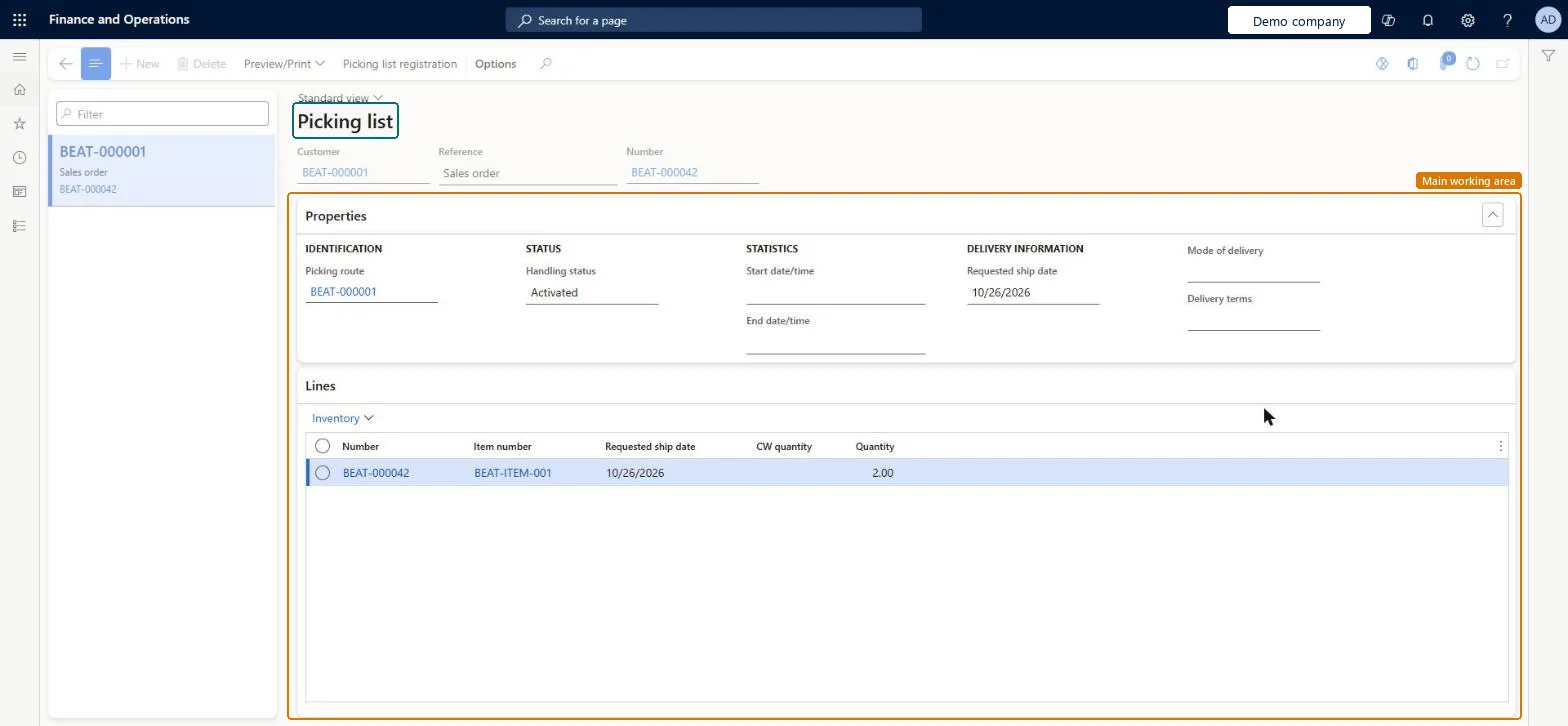
Inventory management › Inquiries and reports › Transfer orders › Picking list
End user · Functional consultant
3How to do it
About the examples: Examples and screenshots in this guide use BEAT, a demo company in a Dynamics 365 test environment. Use your own company's codes and values instead of copying them.
How to use it
Go to Inventory management > Inquiries and reports > Transfer orders > Picking list.
Type in the Filter box on the left to find a picking list, or use the Customer, Reference and Number fields at the top.
Review the Properties section: Picking route, Handling status, Start date/time, End date/time, Requested ship date, Mode of delivery and Delivery terms.
Review the Lines section for the Number, Item number, Requested ship date, CW quantity and Quantity of each line.
Select Preview/Print on the Action Pane to preview or print the picking list.
WMSPickingRouteShown as “Picking route” in Record infoKey field: pickingRouteIDChecked in Dynamics 365
Who can open it
PrivilegesView sales order picking lists WMSPickingRoutesJournalViewDutiesInquire into shipping progress InventShippingProgressInquire3 security rolesMaterials manager InventMaterialsManagerQuality control manager InventQualityControlManagerWarehouse manager WMSWarehouseManagerChecked in Dynamics 365
Roles to set it up and use it
To use itQuality control manager InventQualityControlManagerWarehouse manager WMSWarehouseManagerMaterials manager InventMaterialsManagerGive people one of these roles. On this system, 3 roles can open this page.Checked in Dynamics 365
Actions on the page
Options: Personalize, Page options, ShareChecked in Dynamics 365