About the examples: Examples and screenshots in this guide use BEAT, a demo company in a Dynamics 365 test environment. Use your own company's codes and values instead of copying them.
Steps from Microsoft
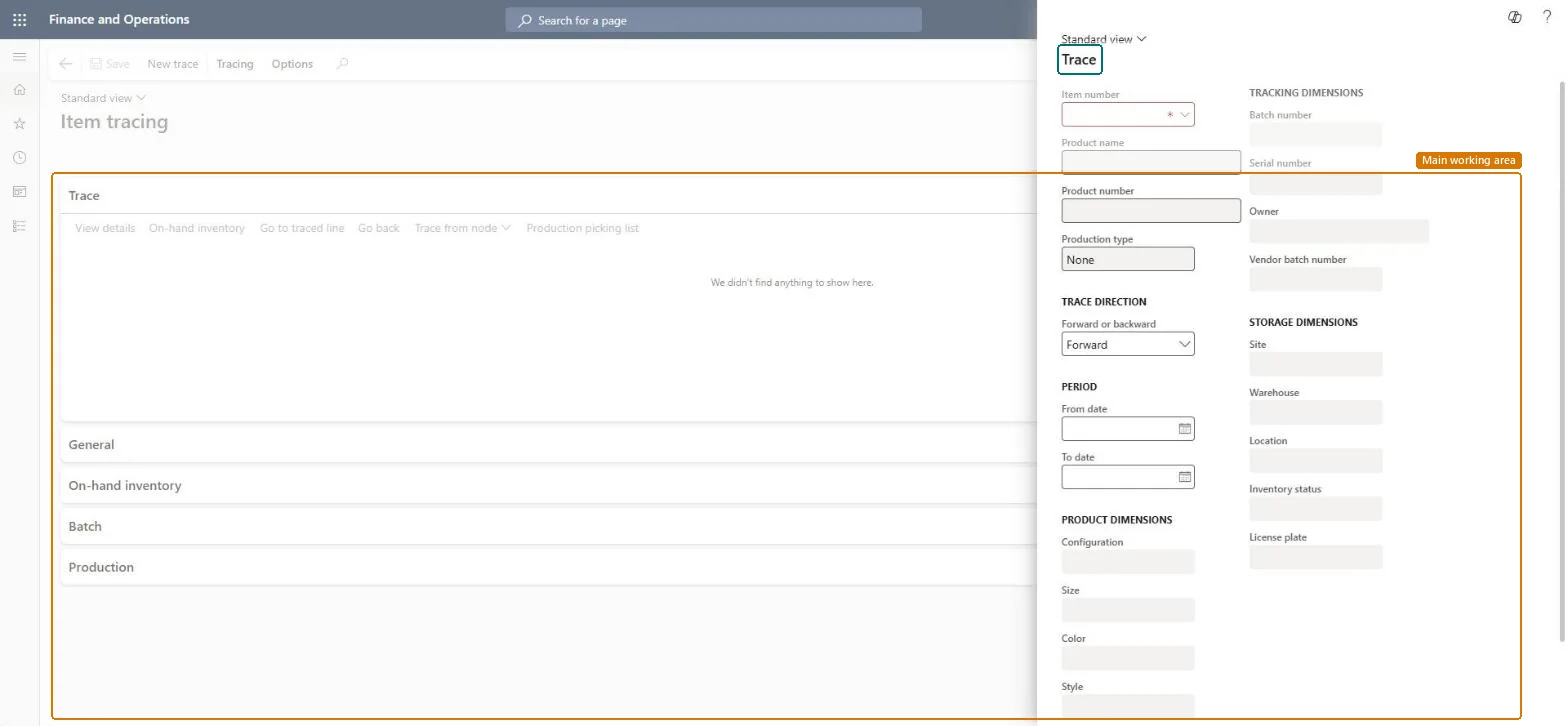
Go to Inventory management > Inquiries and reports > Tracking dimensions > Item tracing.
In the Item number field, select the item.
In the Forward or backward field, select the direction of the trace.
In the Batch number field, select the batch, and then select OK.
Expand the nodes of the tree to find the transaction you want, and select Trace from node to trace again from there.
On the Action Pane, select Tracing to see the customers and the shipped sales orders affected.
A trace is a snapshot; later changes don't update it, so run the trace again to see new data. Microsoft Learn
Technical architect
5Technical
Menu item
InventTrackingDimTracingChecked in Dynamics 365
Form
InventTrackingDimTracingChecked in Dynamics 365
Table
InventTransShown as “Inventory transactions” in Record infoKey field: ItemIdChecked in Dynamics 365
Roles to set it up and use it
To set it up or change itQuality control manager InventQualityControlManagerWarehouse manager WMSWarehouseManagerQuality control clerk InventQualityControlClerkSales manager TradeSalesManagerMaterials manager InventMaterialsManagerGive people one of these roles. On this system, 29 roles can open this page.Checked in Dynamics 365
Actions on the page
Tracing: Item, Sales, Purchase, Production, Export, PrintOptionsChecked in Dynamics 365