About the examples: Examples and screenshots in this guide use BEAT, a demo company in a Dynamics 365 test environment. Use your own company's codes and values instead of copying them.
Step by step, with screenshots
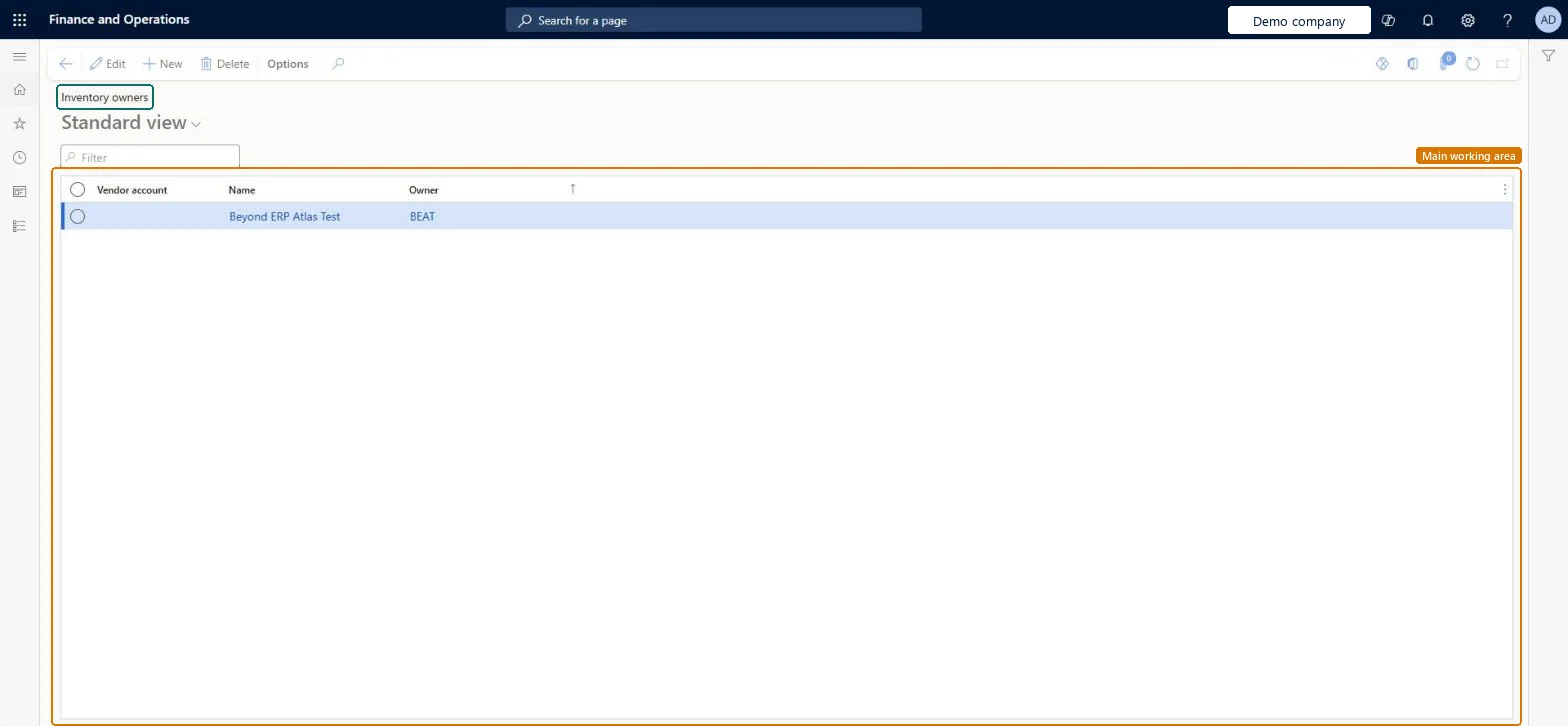
Set up Inventory owners1 screen
Use this page to define vendor owners so that vendor-owned consignment stock can be received and tracked.
Screen 1
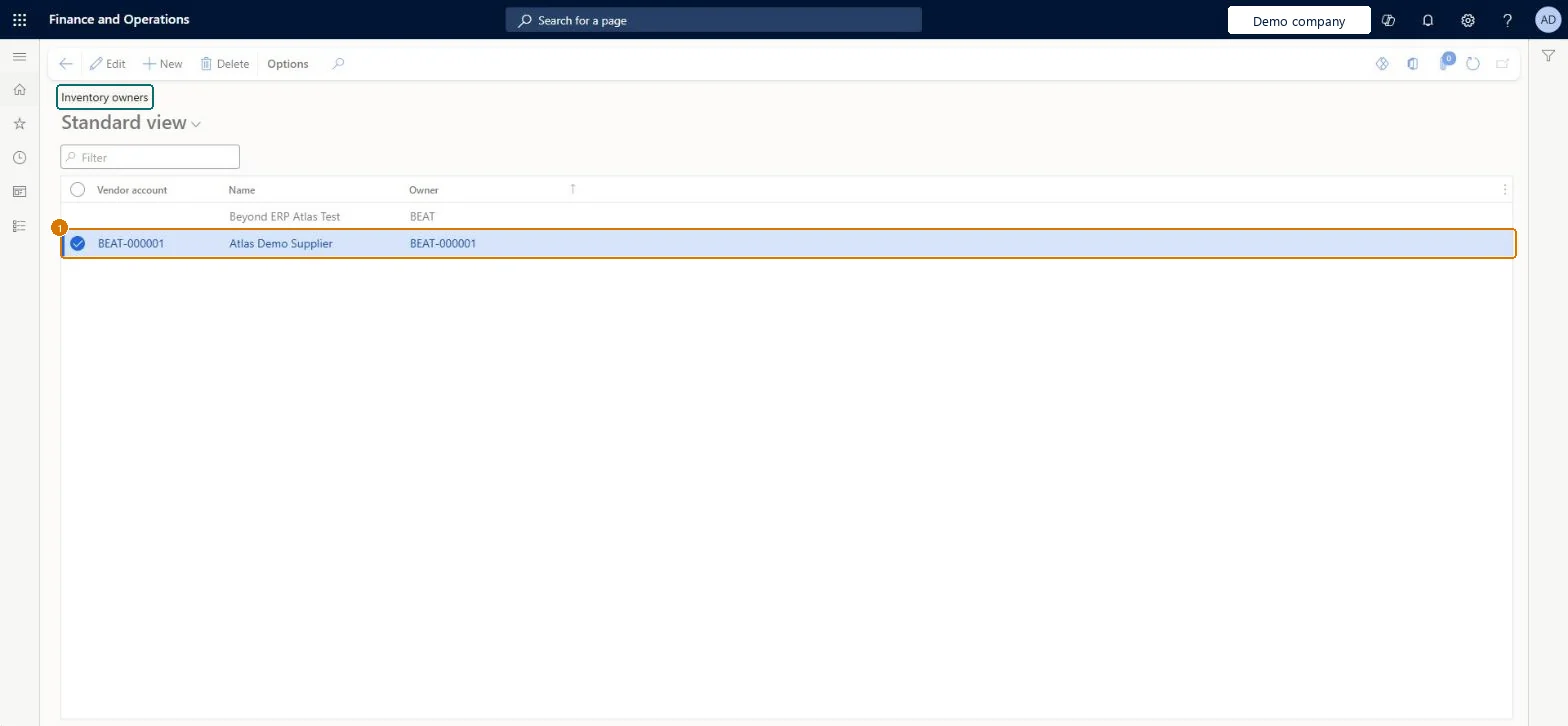
Add a vendor as an inventory owner
Go to Inventory management > Setup > Dimensions > Inventory owners
Make sure the vendor exists (here demo vendor BEAT-000001)
Select New
Select the vendor account; the name and owner ID fill in from the vendor
Select Save
1Vendor account
BEAT-000001
1Owner
BEAT-000001
Name
Main supplier
Show the full screen page title tab to open what to set or check
How to use it
Go to Inventory management > Inquiries and reports > Tracking dimensions > Inventory owners.
Select New to add a row to the list.
Choose the Vendor account.
Enter the Name and the Owner code.
Select Edit to change an existing row, or Delete to remove the selected one.
Source: Checked in Dynamics 365
Fields on the page
Field
What it means
Example
Table column
Vendor account
The vendor who owns the inventory; selecting it fills in Name and Owner.Microsoft Learn
BEAT-000001
Owner
The owner ID that the vendor also sees; change it if your vendor account names aren't clear to outsiders.Microsoft Learn
BEAT-000001
InventOwnerId
Name
The name of the inventory owner, such as the vendor or customer that owns the stock.Microsoft Learn
One inventory owner per consignment vendor, with an Owner value the vendor will recognizeThe Owner value is visible to the vendor (for example in vendor collaboration), so change it before saving if your vendor account numbers mean nothing to outsiders.
Saving the record with the default Owner value and then finding you can't change it; the Name comes from the vendor's party and can't be edited.
PrivilegesMaintain owners InventOwnerMaintain_RUView owners for fixed assets InventOwnerView_RUDutiesMaintain inventory owners InventOwnerMasterMaintainInquire into tracking dimensions master InventTrackingDimensionsMasterInquireMaintain vendor master VendVendorMasterMaintain9 security rolesMaterials manager InventMaterialsManagerQuality control manager InventQualityControlManagerLanded cost manager ITMManagerAccounting manager LedgerAccountingManagerPurchasing manager TradePurchasingManagerAccounts payable manager VendInvoiceAccountsPayableManagerPurchasing agent VendPurchasingAgentPurchasing Agent - Public Sector VendPurchasingAgent_PSNWarehouse manager WMSWarehouseManagerChecked in Dynamics 365
Roles to set it up and use it
To set it up or change itMaterials manager InventMaterialsManagerPurchasing manager TradePurchasingManagerAccounting manager LedgerAccountingManagerAccounts payable manager VendInvoiceAccountsPayableManagerPurchasing agent VendPurchasingAgentTo use itQuality control manager InventQualityControlManagerWarehouse manager WMSWarehouseManagerGive people one of these roles. On this system, 9 roles can open this page.Checked in Dynamics 365
Actions on the page
Options: Personalize, Page options, ShareChecked in Dynamics 365
Checked in a working Dynamics 365 system, version 10.0.49: the menu item, form, table and security, the page, the demo records and the values in the screenshots.