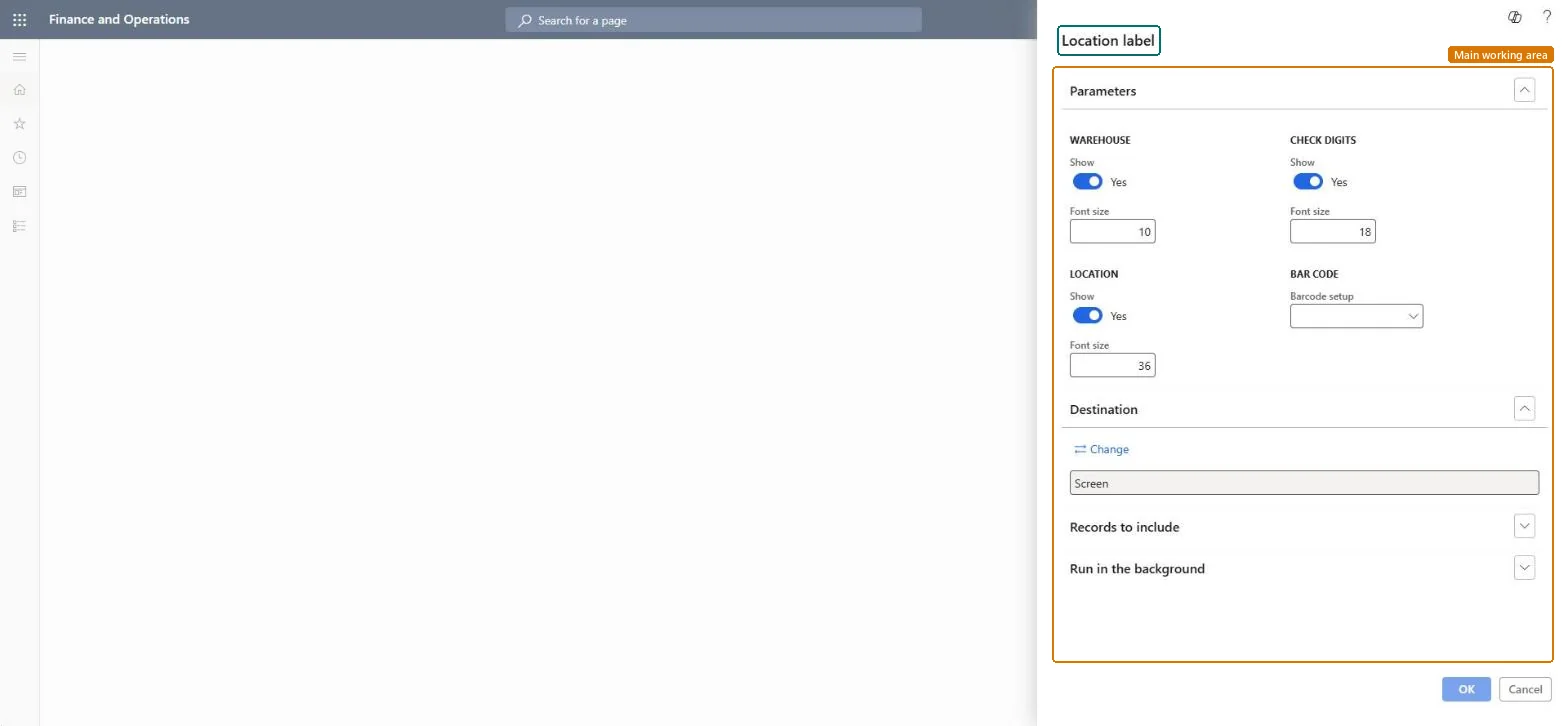
A report that prints a label for warehouse locations, with settings for showing the warehouse, location and check digits, their font sizes, and the bar code setup.
Inventory managementInquiries and reportsLocation reports
output:WMSLocationLabel
Business process
Design warehouse layout
Menu item
output:WMSLocationLabel
Show what matters for
PAGE GUIDEWhat the page does and how to use it7 sections. Choose a role to highlight what matters to you.
Everyone
1What it is and why
What it is
A report that prints a label for warehouse locations, with settings for showing the warehouse, location and check digits, their font sizes, and the bar code setup.
What you do here
Use this report to print location labels for the warehouse locations you select.
The page in Dynamics 365. page title tab to open what to set or check
About the examples: Examples and screenshots in this guide use BEAT, a demo company in a Dynamics 365 test environment. Use your own company's codes and values instead of copying them.
When to run it
When to run it
When you set up new warehouse locations, or replace labels that are damaged or no longer match after shelving is changed.
How often
On demand, when locations are added or relabeled.
What the output shows
One label per selected warehouse location with the warehouse, location and check digits you chose to show, and a bar code. A label that scanners can't read usually has the wrong Barcode setup.
Nothing to undo: Printing location labels changes nothing on the locations. Microsoft Learn
Technical architect
5Technical
Menu item
output:WMSLocationLabelChecked in Dynamics 365
Form
SysOperationTemplateFormChecked in Dynamics 365
Roles to set it up and use it
To use itWarehouse manager WMSWarehouseManagerProcess engineer RouteProcessEngineerGive people one of these roles. On this system, 2 roles can run this page.Checked in Dynamics 365