Inventory management › Inquiries and reports › Inventory value reports › ABC classification
End user · Functional consultant
3How to do it
About the examples: Examples and screenshots in this guide use BEAT, a demo company in a Dynamics 365 test environment. Use your own company's codes and values instead of copying them.
When to run it
When to run it
When you want to see how items would be classified for a period before you update their ABC classes.
How often
On demand, before each ABC update.
What the output shows
Items with their A, B or C class for the chosen model and period, based on your percentages. If nearly every item lands in one class, the percentages or date range usually need adjusting.
Go to Inventory management > Inquiries and reports > Inventory value reports > ABC classification.
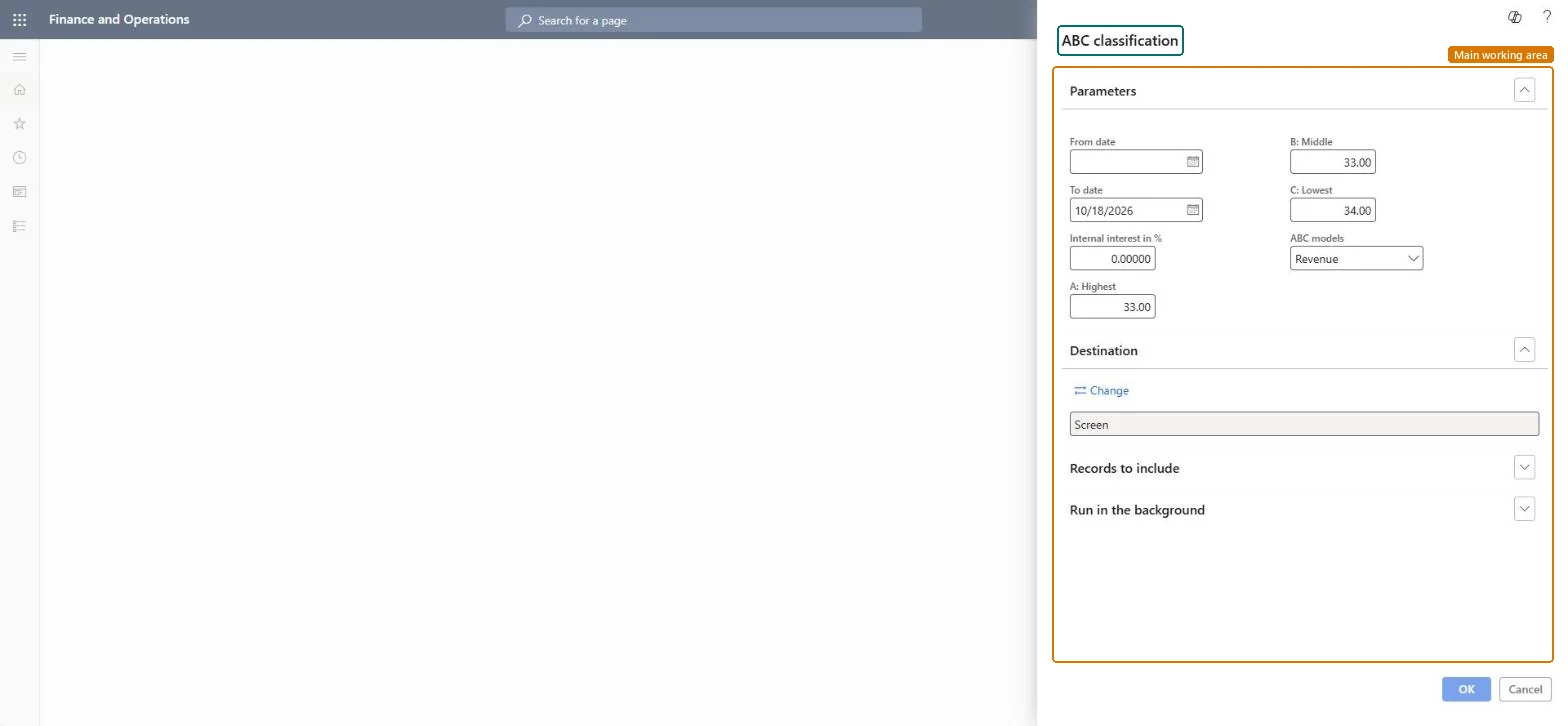
Enter the From date and To date of the period the classification is based on.
Select the ABC models, for example Revenue, to choose what items are ranked by.
Enter the percentages for A: Highest, B: Middle and C: Lowest, and the Internal interest in %.
Run the report and review the class of each item. The report only shows the result; the ABC classification periodic task is the one that updates the items.
Nothing to undo: The ABC report only reads transactions; item classes aren't changed. Microsoft Learn
Technical architect
5Technical
Menu item
output:InventABCChecked in Dynamics 365
Form
SysOperationTemplateFormChecked in Dynamics 365
Roles to set it up and use it
To use itQuality control manager InventQualityControlManagerWarehouse manager WMSWarehouseManagerMaterials manager InventMaterialsManagerProduction supervisor ProdProductionSupervisorAccounting manager LedgerAccountingManagerGive people one of these roles. On this system, 18 roles can run this page.Checked in Dynamics 365