Auditor, Chief executive officer, Maintenance clerk and 21 more roles
Business process
Update worker information
Menu item
HcmWorkerListPage_ExpiringProbation
Main table
HcmWorker
Data entity
HcmWorkerEntity
Setup steps
1 on this page
Show what matters for
PAGE GUIDEWhat the page does and how to use it8 sections. Choose a role to highlight what matters to you.
Everyone
1What it is and why
What it is
A list page of employees whose probation period has expired or will soon expire.
What you do here
Use this page to follow up on employees whose probationary period ends soon, for example to confirm or extend their employment. The time window comes from the Expiring records and Expired records settings in Human resources parameters.
Example
For example, BEAT sets Expiring records to 30 days; on 1 August 2026 the list shows 4 employees whose probation ends by 31 August, and each manager books the end-of-probation review.
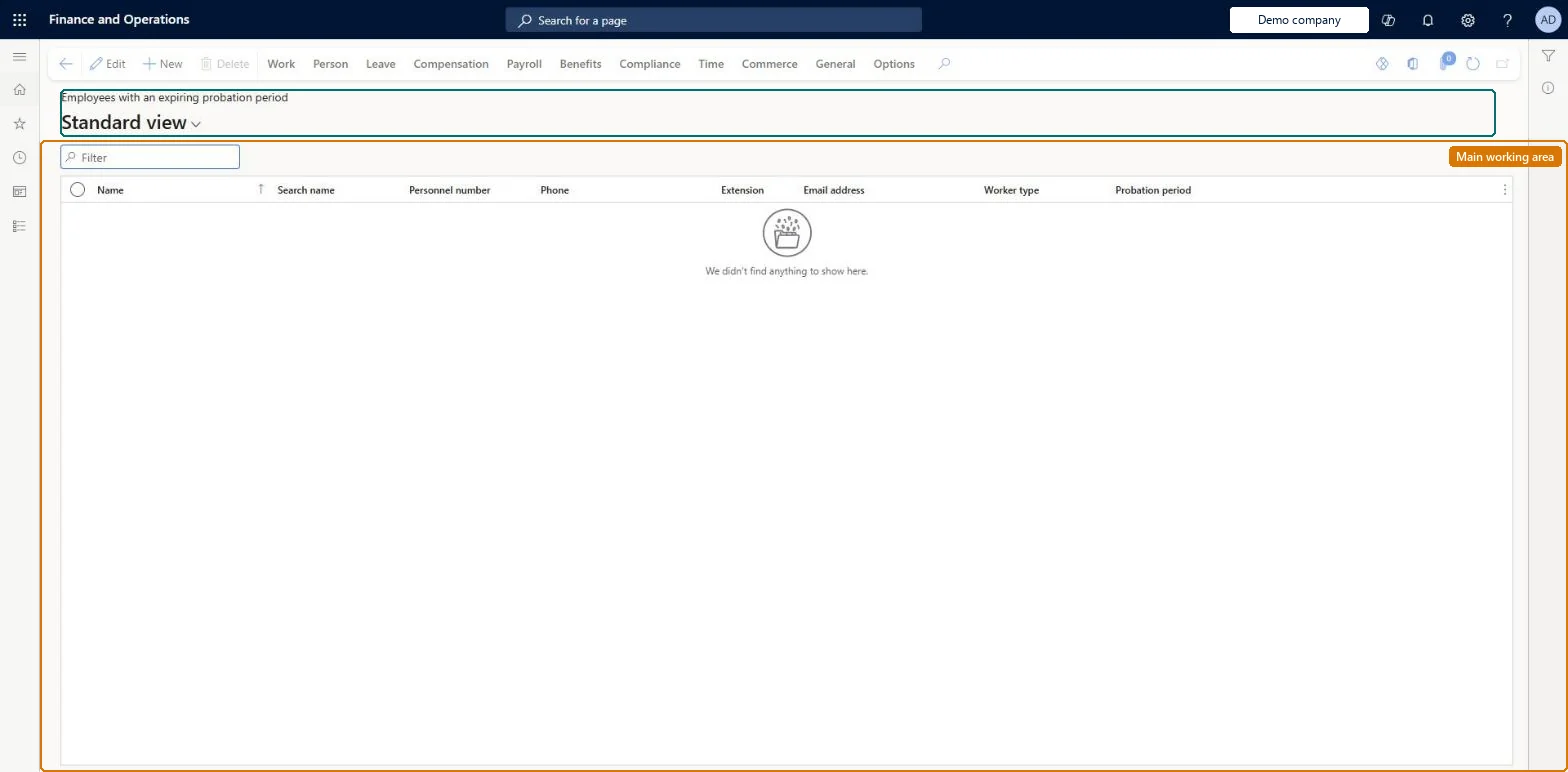
The page in Dynamics 365. page title tab to open what to set or check
About the examples: Examples and screenshots in this guide use BEAT, a demo company in a Dynamics 365 test environment. Use your own company's codes and values instead of copying them.
Setup steps on this page
Set the probation follow-up window
Pick the Expiring records window so probation ends show up in time for a review.
Steps from Microsoft
Go to Human resources > Workers > Employees with an expiring probation period.
Use the Filter box to narrow the list.
Review the Name, Search name, Personnel number, Phone, Extension, Email address, Worker type and Probation period columns.
Select New to add a worker, or select a row and select Edit to change it.
The expiration date of the employee's probationary period, entered on the employee record.Microsoft Learn
31 August 2026
Common errors and fixes
Message
What to do
An employee whose probation ends soon isn't listed
The Expiring records time frame in Human resources parameters is shorter than the time left, or is 0, which hides the records. Set the number of days you need. Microsoft Learn
The list differs between two companies
Human resources parameters are company specific, so each company has its own time frame. Microsoft Learn
Test checklist
In Human resources parameters, General tab, set Expiring records to 14 days.
Give a test employee a probation period that ends within 14 days.
Open Employees with an expiring probation period and check the employee appears.
Set Expiring records to 0 and check the employee no longer appears.
Set Expiring records in Human resources parameters to the notice you need (for example 30 days) in every company, then filter the list on Probation period, earliest first.The list and the Expiring records tab use the Expiring records and Expired records time frames, which are set per company.
On Employees the live security lets Human resource assistant, Compensation and benefits manager, Recruiter, Payroll administrator and Retail operations manager maintain workers; Human resource manager, Payroll manager, Training manager and Chief executive officer can view them. The full role list is under the page's security roles. No Feature management feature is needed for this page.
Shared worker, per-company employment: Data management lists the Worker entity as shared, so a person is one worker record for every legal entity, while employment is held per legal entity. To move a worker to another legal entity, Learn's way is to end the employment in the first legal entity and rehire in the new one. The list covers the employees of the company you are signed in to, and its time frame comes from that company's Human resources parameters. Checked in Dynamics 365
Can it be undone
Reversible: The list is driven by the Expiring records and Expired records time frames in Human resources parameters, which are company specific and can be changed at any time. A value of 0 hides those records from the list. Microsoft Learn
If you change it later
Setting the Expiring records or Expired records time frame to 0 in Human resources parameters stops those records from appearing in the expiring-records list. Microsoft Learn
Technical architect
6Technical
Menu item
HcmWorkerListPage_ExpiringProbationChecked in Dynamics 365
Form
HcmWorkerV2Checked in Dynamics 365
Table
HcmWorkerShown as “WORKER” in Record infoKey field: Person_NameChecked in Dynamics 365
PrivilegesView limited workers HcmLimitedWorkerViewCreate workers HcmWorkerCreateEdit workers HcmWorkerEditMaintain workers HcmWorkerMaintainView workers HcmWorkerViewMaintain time registration workers JmgLimitedWorkerMaintainView limited workers JmgLimitedWorkerViewView workers RetailLimitedWorkerViewDutiesMaintain worker master HcmWorkerMaintainView information about workers HcmWorkerViewInquire into time registration workers JmgLimitedWorkerInquireMaintain time registration workers JmgLimitedWorkerMaintainInquire into payroll position and worker setup PayrollPositionWorkerSetupInquireSet up payroll positions and workers PayrollPositionWorkerSetupMaintainEnable project accounting process ProjProjectAccountingProcessEnableMaintain project master ProjProjectMasterMaintainMaintain retail worker RetailWorkerMaintainTrvEmployeeCreditCardMaintainEnable expense management process TrvTravelAndExpenseProcessEnableInquire into expense management reference data TrvTravelAndExpenseReferenceDataInquireMaintain Asset Management setup EntAssetSetupMaintainView Enterprise Asset Management setup EntAssetSetupViewInquire into benefits process HcmBenefitInquireInquire into limited worker information HcmLimitedWorkerInquireInquire into workers HcmWorkerInquireInquire into workers for CEO HcmWorkerInquireCEO25 security rolesAuditor AuditPolicyManagerChief executive officer CompanyChiefExecutiveOfficerMaintenance clerk EntAssetMaintenanceClerkMaintenance manager EntAssetMaintenanceManagerMaintenance requester EntAssetMaintenanceRequesterExpense administrator ExpenseAdministratorField Service Integration User FieldServiceIntegrationUserCompensation and benefits manager HcmCompensationAndBenefitsManagerHuman resource assistant HcmHumanResourceAssistantHuman resource manager HcmHumanResourceManagerPayroll administrator HcmPayrollAdministratorPayroll manager HcmPayrollManagerRecruiter HcmRecruiterTraining manager HcmTrainingManagerIoT messaging service role IoTIntMessagingServiceRoleShop supervisor JmgShopSupervisorProduction manager ProdProductionManagerProject accountant ProjProjectAccountantProject manager ProjProjectManagerProject supervisor ProjProjectSupervisorRetail operations manager RetailOperationsManagerRetail service RetailServiceRetail store manager RetailStoreManagerService delivery manager SMAServiceDeliveryManagerTestRoleJmgLimitedWorkerMaintainChecked in Dynamics 365
Roles to set it up and use it
To set it up or change itHuman resource assistant HcmHumanResourceAssistantCompensation and benefits manager HcmCompensationAndBenefitsManagerRecruiter HcmRecruiterPayroll administrator HcmPayrollAdministratorRetail operations manager RetailOperationsManagerTo use itHuman resource manager HcmHumanResourceManagerPayroll manager HcmPayrollManagerTraining manager HcmTrainingManagerChief executive officer CompanyChiefExecutiveOfficerSales manager TradeSalesManagerGive people one of these roles. On this system, 26 roles can open this page.Checked in Dynamics 365
Actions on the page
Work: Personnel actions, Work details, Changes timeline, Related informationPerson: Personal information, Competencies, DevelopmentLeave: Manage leave, Set upCompensation: Employee compensation, Bank accounts, Labor unions, CommissionPayroll: Taxes, Payroll, Ready to pay, GenerateBenefits: Benefits, Enrollment, Eligibility, ReportsCompliance: ComplianceTime: Maintain, Reports, Inquiries, Time assignment, Flex, Worker balancesCommerce: Set up, Media, View, External identity, POSGeneral: Cases, CAPA, Registration, Warehouses(Action Pane without tabs): New, DeleteChecked in Dynamics 365
HcmWorkerBaseEntity Base worker: the worker record with the person's name and personnel number. Shared by all companies.HcmEmploymentV2Entity Employment V2: the worker's employment in each legal entity, with start and end dates.HcmEmploymentDetailEntity Employment detail: the details of each employment.HcmPersonDetailsEntity Person details: the person's private details.HcmPositionWorkerAssignmentV2Entity Position worker assignments V2: the positions the worker holds.Load order: Load with the Worker data migration template, in its order: Base worker, Employment V2, Employment detail, Person details, then identification, contacts and screenings, then Position worker assignments V2 and Worker primary position. Load the Personnel management setup template and the positions of the Jobs and positions template first, because assignments point to positions.Load first: HcmPositionWorkerAssignmentV2Entity, HcmEmploymentV2Entity, HcmWorkerBaseEntityMicrosoft Learn