Compensation and benefits manager, Human resource assistant, Human resource manager and 3 more roles
Business process
Develop people strategy
Menu item
HcmScreeningType
Main table
HcmScreeningType
Data entity
HcmScreeningTypeEntity
Setup steps
1 on this page
Show what matters for
PAGE GUIDEWhat the page does and how to use it8 sections. Choose a role to highlight what matters to you.
Everyone
1What it is and why
What it is
A setup page that holds the screening types the company uses for pre-employment and ongoing employee screening, such as one-time or recurring checks.
What you do here
Use this page to define each screening and how often it must be repeated, so screenings can be assigned to people and required for jobs.
Example
For example, BEAT creates DRUG (One-time only) for pre-employment checks and FORKLIFT (Yearly, every 1, from Date completed); a forklift driver who passes on 10 March 2026 is next due on 10 March 2027 and shows on the Expiring records tab before then.
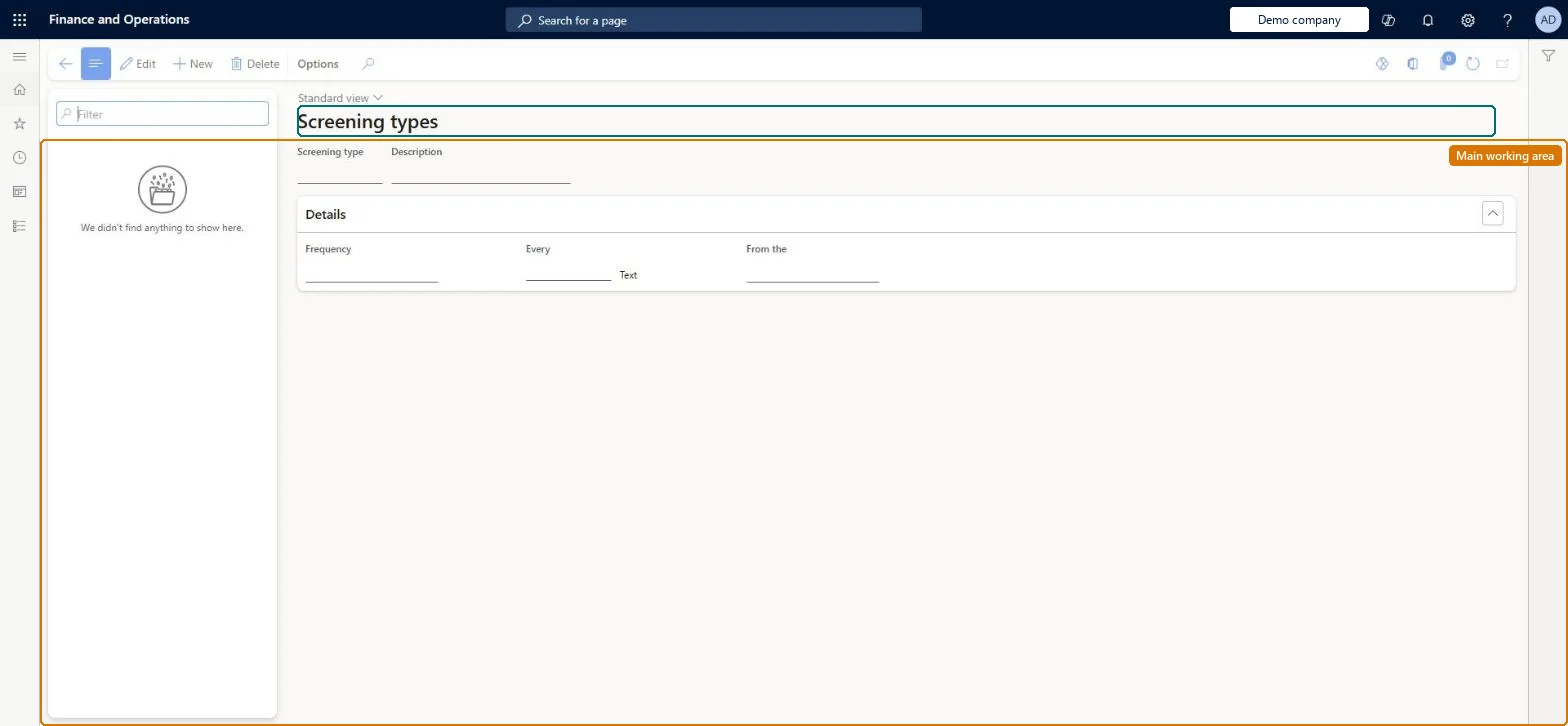
The page in Dynamics 365. page title tab to open what to set or check
About the examples: Examples and screenshots in this guide use BEAT, a demo company in a Dynamics 365 test environment. Use your own company's codes and values instead of copying them.
Setup steps on this page
Set up Screening types
Use this page to define each screening and how often it must be repeated, so screenings can be assigned to people and required for jobs.
How to use it
Go to Human resources > Setup > Screening types.
Use the Filter box to find a type.
Select New and enter the Screening type and Description.
Under Details, set the Frequency, Every and From the fields that say how often the screening repeats.
Select Save; select Delete to remove a selected type.
Source: Checked in Dynamics 365
Fields on the page
Field
What it means
Example
Table column
Screening type
The name of the screening; it can't be changed after saving.Microsoft Learn
One-time only for pre-employment checks; for recurring checks choose Daily, Weekly, Monthly or Yearly with an interval, and Generate from = Date completed or Date requiredThe frequency says how often the screening must be completed. For anything other than One-time only you must set an interval, and Generate from sets the date the next screening is calculated from.
Human resource assistant maintains the list; Human resource manager, Compensation and benefits manager, Recruiter, Payroll administrator and Payroll manager view it. No Feature management feature is needed for this page.
Shared: screening types are not per company. Data management lists the Screening type entity as shared. Checked in Dynamics 365
Can it be undone
Hard to reverse: Person screening records reference the screening type ID, so changing or removing a type affects screenings already assigned. Microsoft Learn
If you change it later
Person screening records point to the screening type ID, and the type's Frequency, interval and Generate from decide the date the next screening is calculated from, so a change to them changes when recurring screenings fall due. Microsoft Learn
Technical architect
6Technical
Menu item
HcmScreeningTypeChecked in Dynamics 365
Form
HcmScreeningTypeChecked in Dynamics 365
Table
HcmScreeningTypeShown as “SCREENING TYPE” in Record infoKey field: ScreeningTypeIdChecked in Dynamics 365
Data entities
HcmScreeningTypeEntityScreening type Checked in Dynamics 365
Who can open it
PrivilegesMaintain screening type HcmScreeningMaintainView Screening type HcmScreeningViewDutiesEnable workforce management process HcmWorkforceProcessEnableInquire into workforce management process HcmWorkforceProcessInquire6 security rolesCompensation and benefits manager HcmCompensationAndBenefitsManagerHuman resource assistant HcmHumanResourceAssistantHuman resource manager HcmHumanResourceManagerPayroll administrator HcmPayrollAdministratorPayroll manager HcmPayrollManagerRecruiter HcmRecruiterChecked in Dynamics 365
Roles to set it up and use it
To set it up or change itHuman resource assistant HcmHumanResourceAssistantTo use itHuman resource manager HcmHumanResourceManagerCompensation and benefits manager HcmCompensationAndBenefitsManagerRecruiter HcmRecruiterPayroll administrator HcmPayrollAdministratorPayroll manager HcmPayrollManagerGive people one of these roles. On this system, 6 roles can open this page.Checked in Dynamics 365
Developer
7Developer
Open it by URL
https://<your-environment>/?mi=HcmScreeningType
Integrate with
HcmScreeningTypeEntity data entity Checked in Dynamics 365
Data migration
HcmScreeningTypeEntity Screening type. Shared by all companies.Load order: Load with the Personnel management setup template, which lists: External links groups, Loan types, Media types, Regulatory establishments, Terms of employment, External links, Loan items, Media, Regulatory establishment details, Headquarters establishment for company, Ethnic origins, Issuing agency, Language codes, Reason codes, Titles, Veteran status, Levels, Compensation regions, Identification type, Screening type. Screening type has no dependency inside the template; load it before Job - screening and Person screening.Microsoft Learn