Compensation and benefits manager, Payroll administrator, Payroll manager
Business process
Develop people strategy
Menu item
PayrollBenefitCalculationRateSetup
Main table
PayrollBenefitCalculatio
Data entity
PayrollBenefitCalculationRateHeaderEntity
Setup steps
1 on this page
Show what matters for
PAGE GUIDEWhat the page does and how to use it8 sections. Choose a role to highlight what matters to you.
Everyone
1What it is and why
What it is
A setup page where you define rate tables that set the employer contribution for retirement benefits, based on the worker's deduction rate.
What you do here
Use this page to create a rate table, choose its tier type and enter rate lines, so that the table can be assigned to a retirement benefit on the Benefits page.
Example
For example, BEAT's 401(k) plan matches 50 percent of the first 3 percent and 100 percent up to 6 percent; with Tier type Cascading tier, a worker earning $1,000.00 who defers 10 percent gets an employer contribution of 45.00, and 0.00 with Single line.
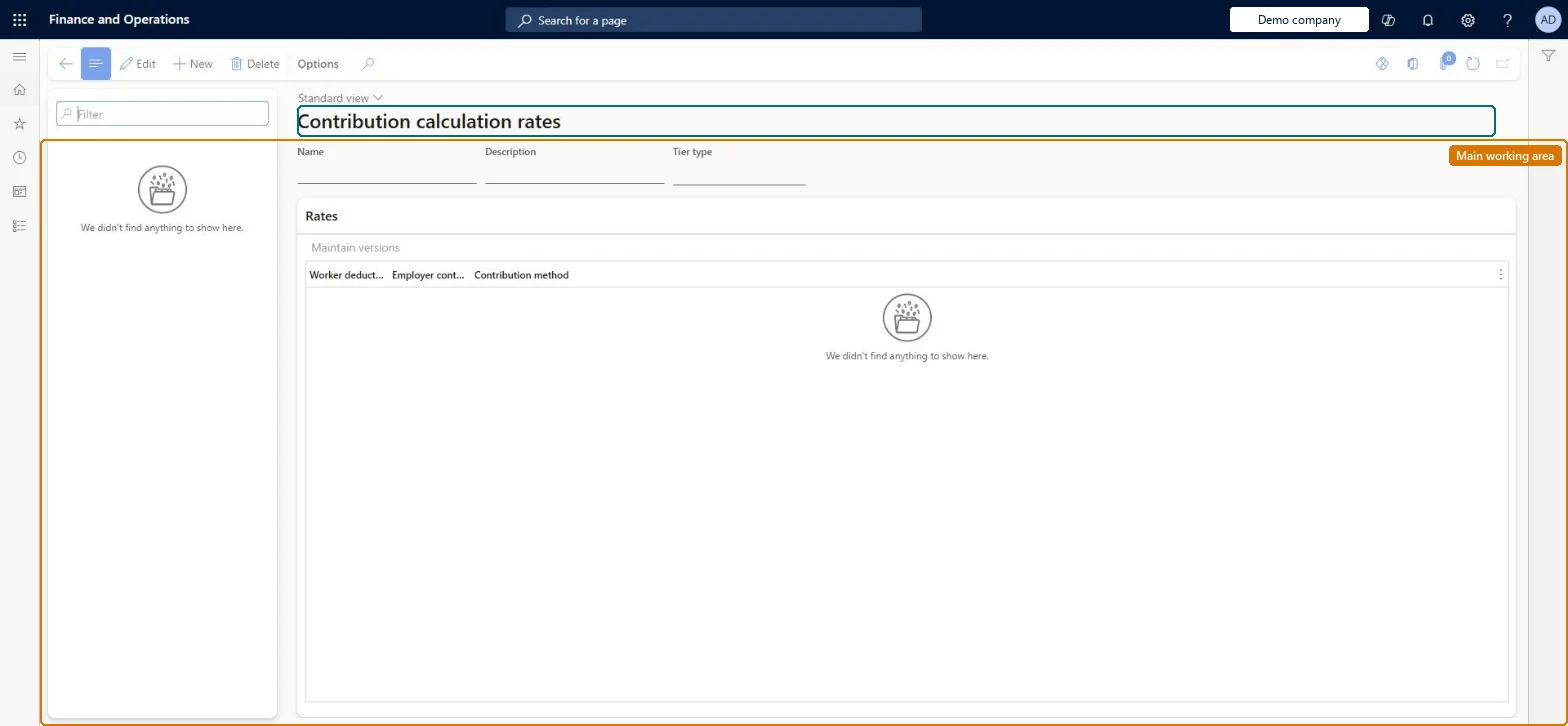
The page in Dynamics 365. page title tab to open what to set or check
About the examples: Examples and screenshots in this guide use BEAT, a demo company in a Dynamics 365 test environment. Use your own company's codes and values instead of copying them.
Setup steps on this page
Set up Contribution calculation rates
Use this page to create a rate table, choose its tier type and enter rate lines, so that the table can be assigned to a retirement benefit on the Benefits page.
Steps from Microsoft
Go to Human resources > Benefits > Setup > Contribution calculation rates.
Select New.
Enter a name and description for the rate table.
Select the tier type.
Select Maintain versions and add rows to the rate table.
For each row, enter the worker deduction, employer contribution and contribution method.
Single line uses one rate line; Cascading tier uses every line up to the worker's actual deduction rate.Microsoft Learn
Cascading tier
TierType
Worker deduction
The lowest percentage of a worker's pay that is matched at the row's rate.Microsoft Learn
0.0300
Minimum
Employer contribution
The matching contribution, as a percentage of pay or of the employee's own contribution.Microsoft Learn
1.0000
Rate
Contribution method
Fixed percent or Percent of employee, which decides how the employer rate is applied.Microsoft Learn
Percent of employee
ContributionMethod
Common errors and fixes
Message
What to do
The Calculation rate field isn't available on the benefit
It shows only when the benefit type's payroll category is Retirement. Set the payroll category on the type on Benefit elements. Microsoft Learn
The employer contribution is 0.00 for a worker who defers 10 percent
With Single line only one rate line is used. For a layered match use Cascading tier, which uses every line up to the worker's deduction rate. Microsoft Learn
The page opens read-only and Edit isn't available
Benefits management is turned on, which makes the legacy Benefits pages read-only. It can be turned off only in a Sandbox environment; in Production keep working in the Benefits management workspace. Microsoft Learn
Test checklist
Create a rate table with lines 0.0000/0.5000 and 0.0300/1.0000 Percent of employee, and 0.0600/0 Fixed percent.
Set Tier type to Cascading tier and assign the table to a retirement benefit.
Calculate pay for a worker with $1,000 earnings and a 10% deduction; check the employer contribution is 45.00.
Change the tier type to Single line in a test version and check the contribution is 0.00.
Tier type that matches the plan's match formula: Cascading tier for a layered match (for example 50% up to 3%, then 100% up to 6%); Single line when only one rate line should apply.Learn's example shows the same 10% worker deduction on $1,000 gives an employer contribution of 0.00 with Single line and 45.00 with Cascading tier for a layered plan.
This page is part of the legacy Benefits workspace. Turning on Benefits management in Feature management makes it read-only, and in a Production environment Benefits management can't be turned off again; Microsoft recommends enabling and testing it in a Sandbox first. Compensation and benefits managers and payroll roles maintain the rate tables.
Shared: rate tables are not per company. Data management lists the Benefit calculation rate header entity as shared. Checked in Dynamics 365
Can it be undone
Reversible: Rate tables can be changed through rate structure versions; the new rates apply to contributions calculated afterwards. The page is read-only if Benefits management is turned on. Microsoft Learn
If you change it later
The tier type chosen can significantly change the employer contribution: Learn's example gives 0.00 with Single line and 45.00 with Cascading tier for the same worker. The table applies through the benefit it is assigned to on the Benefits page. Microsoft Learn
Technical architect
6Technical
Menu item
PayrollBenefitCalculationRateSetupChecked in Dynamics 365
Form
PayrollBenefitCalculationRateSetupChecked in Dynamics 365
Table
PayrollBenefitCalculatioShown as “BENEFIT CALCULATION RATE” in Record infoKey field: NameChecked in Dynamics 365
Data entities
PayrollBenefitCalculationRateHeaderEntityBenefit calculation rate header Checked in Dynamics 365PayrollBenefitCalculationRateDetailEntityBenefit calculation rate (The rate lines of each version.) Microsoft data model
Who can open it
PrivilegesMaintain contribution calculation rates PayrollBenefitCalcRateSetupMaintainView contribution calculation rates PayrollBenefitCalcRateSetupViewDutiesPayroll view HcmPayrollBenefitInquirePayroll maintain HcmPayrollBenefitMaintainInquire into payroll master data PayrollMasterDataInquireSet up payroll master data PayrollMasterDataMaintain3 security rolesCompensation and benefits manager HcmCompensationAndBenefitsManagerPayroll administrator HcmPayrollAdministratorPayroll manager HcmPayrollManagerChecked in Dynamics 365
Roles to set it up and use it
To set it up or change itCompensation and benefits manager HcmCompensationAndBenefitsManagerPayroll administrator HcmPayrollAdministratorTo use itPayroll manager HcmPayrollManagerGive people one of these roles. On this system, 3 roles can open this page.Checked in Dynamics 365
PayrollBenefitCalculationRateHeaderEntity data entity Checked in Dynamics 365
Data migration
PayrollBenefitCalculationRateHeaderEntity Benefit calculation rate header. Shared by all companies.PayrollBenefitCalculationRateDetailEntity Benefit calculation rate detail: the rate lines.Load order: Load with the Payroll template, where Benefit calculation rate header comes before Benefit calculation rate detail; assign the table to the retirement benefit afterwards.Microsoft Learn