General ledger › Periodic tasks › Clean up ledger journals
End user · Functional consultant
3How to do it
About the examples: Examples and screenshots in this guide use BEAT, a demo company in a Dynamics 365 test environment. Use your own company's codes and values instead of copying them.
When to run it
When to run it
Only for posted journals you are sure you will never need to reverse.
How often
Rarely, as part of data housekeeping; there's no fixed cadence.
Batch settings
Run it as a batch job, and turn on Delete journals batch process performance improvement in Feature management (10.0.47 and later) so it runs more efficiently.
What the output shows
The posted General ledger, Accounts receivable and Accounts payable journals in the date range are deleted, together with all information related to their original transactions.
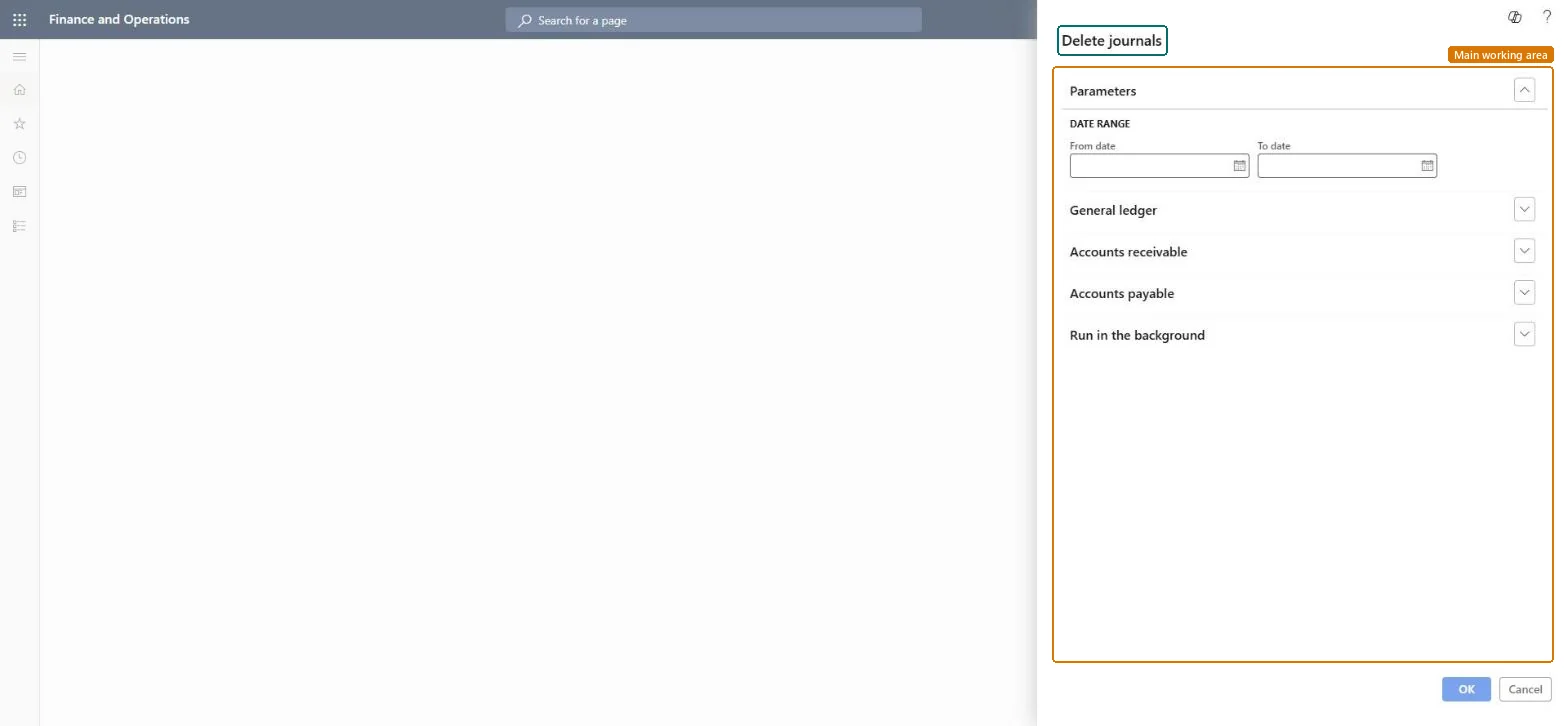
Go to General ledger > Periodic tasks > Clean up ledger journals.
Under Date range, enter the From date and To date of the posted journals to delete.
Expand General ledger, Accounts receivable and Accounts payable and set the options for each area, so only the journal types you mean are deleted.
Under Run in the background, run it as a batch job; with the Delete journals batch process performance improvement feature (10.0.47 and later) it uses a top picking pattern.
Afterwards, open the journal lists for the date range and check that only the posted journals you meant to remove are gone.
No: Deleted journals and the related transaction information can't be restored, and those transactions can no longer be reversed. Run it only when you are sure no reversal is needed. Microsoft Learn
If you change it later
Deleting a posted journal removes all the information related to the original transaction, so run it only when reversing those transactions won't be needed. Microsoft Learn
Technical architect
5Technical
Menu item
Action:LedgerJournalCleanUpChecked in Dynamics 365
Form
DialogChecked in Dynamics 365
Roles to set it up and use it
To use itAccounting manager LedgerAccountingManagerAccounting supervisor LedgerAccountingSupervisorRental manager RentalManagerRental sales manager RentalSalesManagerRental purchasing manager RentalPurchasingManagerGive people one of these roles. On this system, 5 roles can run this page.Checked in Dynamics 365