Job page · General ledger
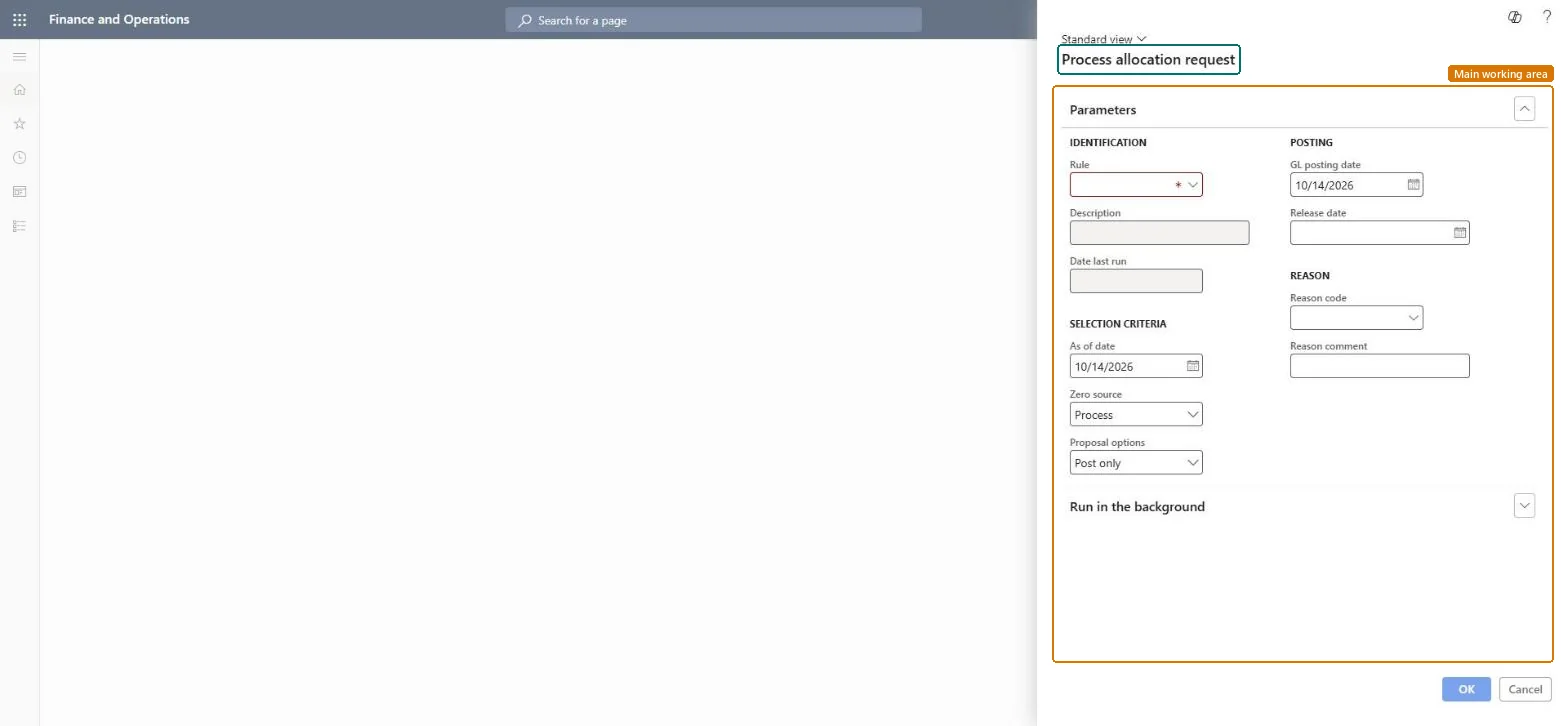
Process allocation request
The page that processes a ledger allocation rule and creates an allocation journal.
- Used by
- —
- Business process
- —
- Menu item
Action:LedgerAllocationRequest- Main table
- —
- Data entity
- —
- Setup steps
- —
Show what matters for
Everyone
1What it is and why
| What it is | The page that processes a ledger allocation rule and creates an allocation journal. |
|---|---|
| What you do here | Used to select an active ledger allocation rule, an as-of date, a zero-source option, a proposal option, and a GL posting date, and then create the allocation journal for review or direct posting. |
| Example | Select Proposal only so that the result can be reviewed and approved in Allocation journals before it posts. |
Functional consultant · Solution architect
2Where it fits
| Business process | — |
|---|---|
| Menu path | General ledger › Allocations › Process allocation request |
| Set up first | Ledger allocation rules Microsoft Learn ↗ |
| Used next by | Allocation journals Microsoft Learn ↗ |
| Related pages | — |
End user · Functional consultant
3How to do it
Microsoft's steps
- Go to General ledger > Allocations > Process allocation request.
- In the Rule field, select the allocation rule.
- In the As of date field, enter a date.
- In the Zero source field, select Stop if the process should stop when the source amount is zero.
- In the Proposal options field, select Proposal only to review the result first.
- In the GL posting date field, enter a date.
- Select OK.
Source: Microsoft Learn ↗
Field guide
| Field | What it means | Worked example | Table column |
|---|---|---|---|
| As of date | Controls which ledger balances are included when the rule uses the ledger as its data source.Microsoft Learn ↗ | — | — |
| Zero source | Stop halts the process with a message when the source amount is zero.Microsoft Learn ↗ | — | — |
| Proposal options | Proposal only creates the journal for review and approval before posting.Microsoft Learn ↗ | — | — |
| GL posting date | The date the allocation is posted to the general ledger.Microsoft Learn ↗ | — | — |
Functional consultant
4Setup decisions
| Setup step | Recommended value and why | Decision · common mistake · test |
|---|---|---|
| — No setup is made on this page. | ||
Solution architect
5Design impact
| Shared or per company | — |
|---|---|
| Can it be undone | — |
| Feature or country | — |
| If you change it later | — |
Technical architect
6Technical
| Menu item | Action:LedgerAllocationRequest Checked in Dynamics 365 |
|---|---|
| Form | LedgerAllocationRequest Checked in Dynamics 365 |
| Table | — |
| Data entities | — |
| Who can open it | — |
| Actions on the page | — |
Developer
7Developer
| Open it directly | https://<your-environment>/?mi=Action:LedgerAllocationRequest |
|---|---|
| Integrate with | — |
| Table definition | — |
Everyone
8Sources and checks
- learn.microsoft.com/dynamics365/finance/general-ledger/tasks/process-ledger-allocation-journal
- learn.microsoft.com/dynamics365/finance/general-ledger/tasks/process-ledger-allocation-journal
- Checked in a working Dynamics 365 system, version 10.0.49: the menu item, form, table and security, the page.