PAGE GUIDEWhat the page does and how to use it8 sections. Choose a role to highlight what matters to you.
Everyone
1What it is and why
What it is
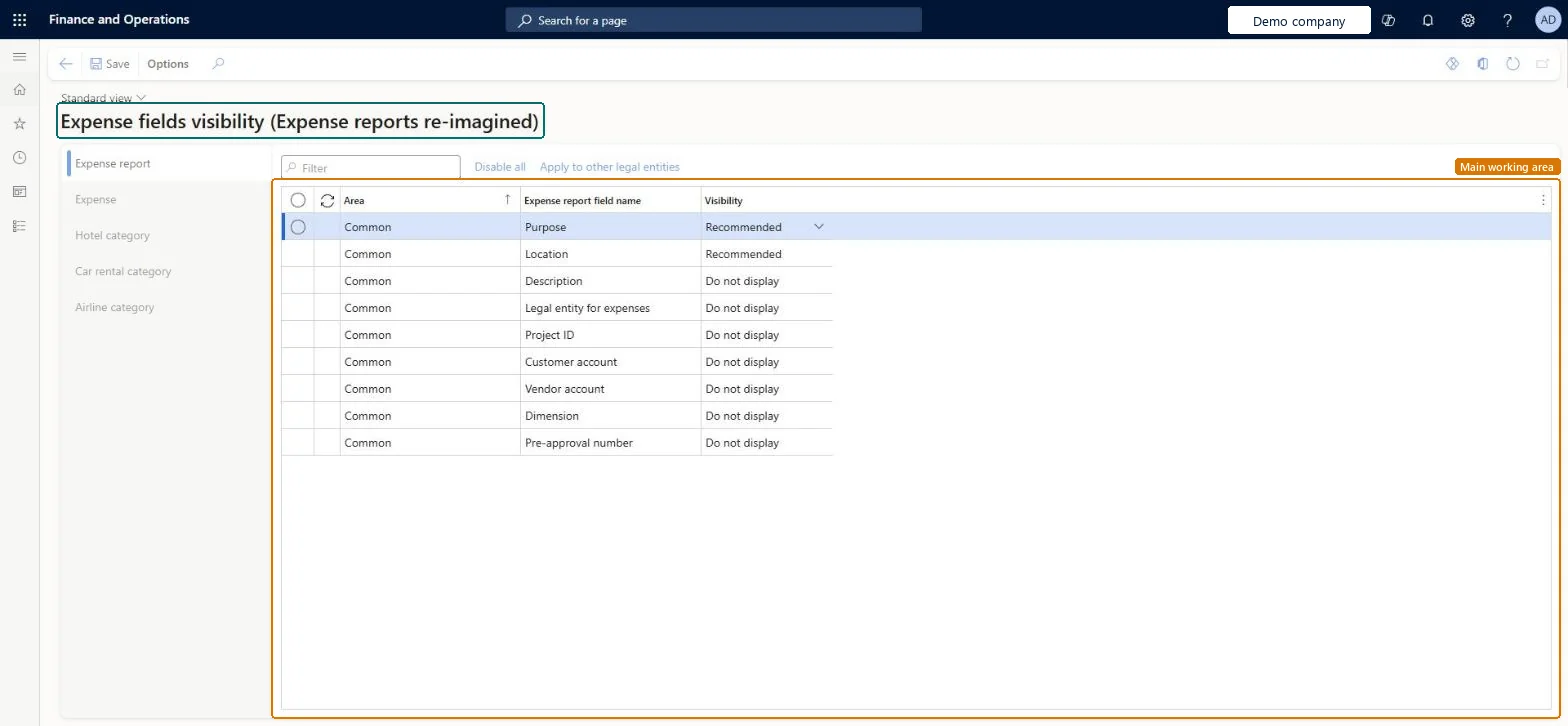
A setup page that lets you specify which expense fields are turned off for the organization in the reimagined expense experience.
What you do here
Use this page to mark fields as required or recommended, or hide them, to cut down the fields employees must fill in.
Example
For example, to let employees add financial dimensions in the expense mobile app, turn on field visibility for Dimension under Expense report and Expense here.
The page in Dynamics 365. page title tab to open what to set or check
About the examples: Examples and screenshots in this guide use BEAT, a demo company in a Dynamics 365 test environment. Use your own company's codes and values instead of copying them.
Step by step, with screenshots
Set up Expense fields visibility (Expense reports re-imagined)1 screen
Use this page to mark fields as required or recommended, or hide them, to cut down the fields employees must fill in.
Screen 1
Choose which expense report fields are required or recommended
Go to Expense management > Setup > General > Expense fields visibility (Expense reports re-imagined)
Open the page and stay on the Expense report tab
Set Visibility to Required, Recommended or Do not display for each field
Select the Expense tab and the category tabs to do the same for expense lines
Select Save
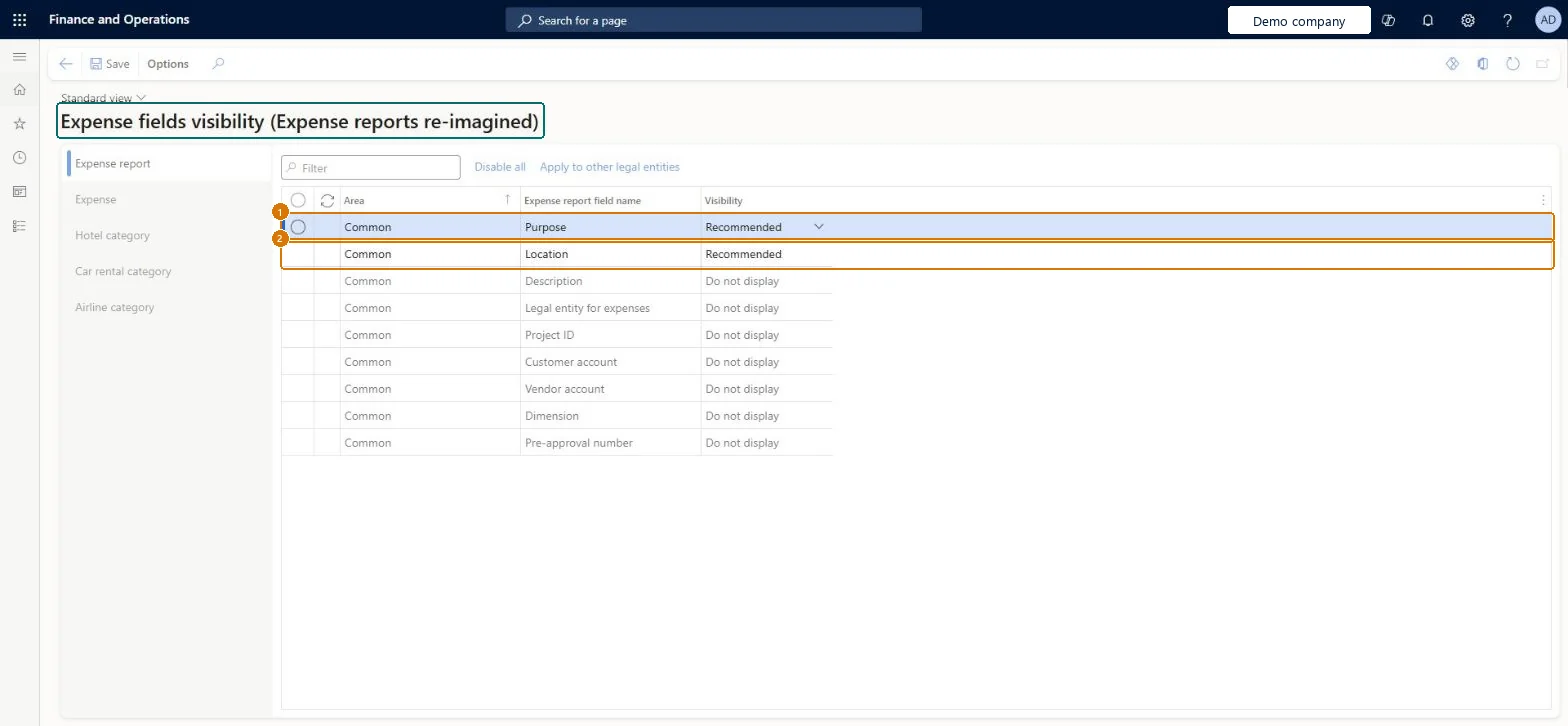
1Purpose
Recommended
2Location
Recommended
Show the full screen page title tab to open what to set or check
Steps from Microsoft
Go to Expense management > Setup > General > Expense fields visibility (Expense reports re-imagined).
Find the field on the expense report or expense.
Set it to Required, Recommended or turn it off.
Save, then create an expense in the workspace and check the field.
Whether employees must, should or can't fill in the report purpose: Required blocks save without it, Recommended shows it on the main page, Do not display hides it.Microsoft Learn
Recommended
Location
Whether employees must, should or can't fill in the location: Required blocks save without it, Recommended shows it on the main page, Do not display hides it.Microsoft Learn
Recommended
Common errors and fixes
Message
What to do
The page isn't in the menu
It is added when Expense reports reimagined is turned on in Feature management. Microsoft Learn
Test checklist
Turn on Expense reports reimagined and check the Expense fields visibility menu item appears.
Mark Purpose as required and hide Location.
Create a new expense in the Expense management workspace and check Location isn't shown and Purpose must be filled in before saving or submitting.
Mark Purpose as recommended and check it moves to the optional fields.
Hide the fields your organization doesn't use, mark Required only the fields every expense needs, and mark the rest RecommendedLearn says this page exists to cut the number of fields employees must fill in, and lets you make fields required without using the policy framework.
Which fields should be required?Expecting these settings on the review and approval pages. Learn says expense report review and approval still use the existing expense entry page, so the visibility settings only shape the reimagined entry experience.Test: A required field blocks save
Feature management and licence
Feature to turn on
Expense reports reimagined (Must be on)Expense reports reimagined enhancements (Optional)
Per company: visibility settings apply in each legal entity. Microsoft Learn
Can it be undone
Reversible: Visibility and required settings can be changed at any time. Turning on Expense reports reimagined doesn't remove the existing expense report pages or the Expense report fields page. Microsoft Learn
If you change it later
Required fields here make a field mandatory without a policy rule; turned-off fields disappear from the reimagined pages and the mobile app. Microsoft Learn
Technical architect
6Technical
Menu item
ExpenseVisibilitySetupChecked in Dynamics 365
Form
ExpenseVisibilitySetupChecked in Dynamics 365
Table
ExpenseFieldsVisibilityShown as “Expense fields visibility (Expense reports re-imagined)” in Record infoChecked in Dynamics 365
PrivilegesExpenseVisibilityManagerMaintainDutiesEnable expense management process TrvTravelAndExpenseProcessEnable1 security roleExpense administrator ExpenseAdministratorChecked in Dynamics 365
Roles to set it up and use it
To set it up or change itExpense administrator ExpenseAdministratorGive people one of these roles. On this system, 1 role can open this page.Checked in Dynamics 365
Actions on the page
Options: Personalize, Page options, Edit, ShareChecked in Dynamics 365
ExpenseFieldsVisibilityEntity (Expense fields visibility): the visibility setting of each field.Load order: Load it after Expense reports reimagined is on in the target environment.Load first: Expense reports reimagined featureMicrosoft Learn
Checked in a working Dynamics 365 system, version 10.0.49: the menu item, form, table and security, the page, the demo records and the values in the screenshots.