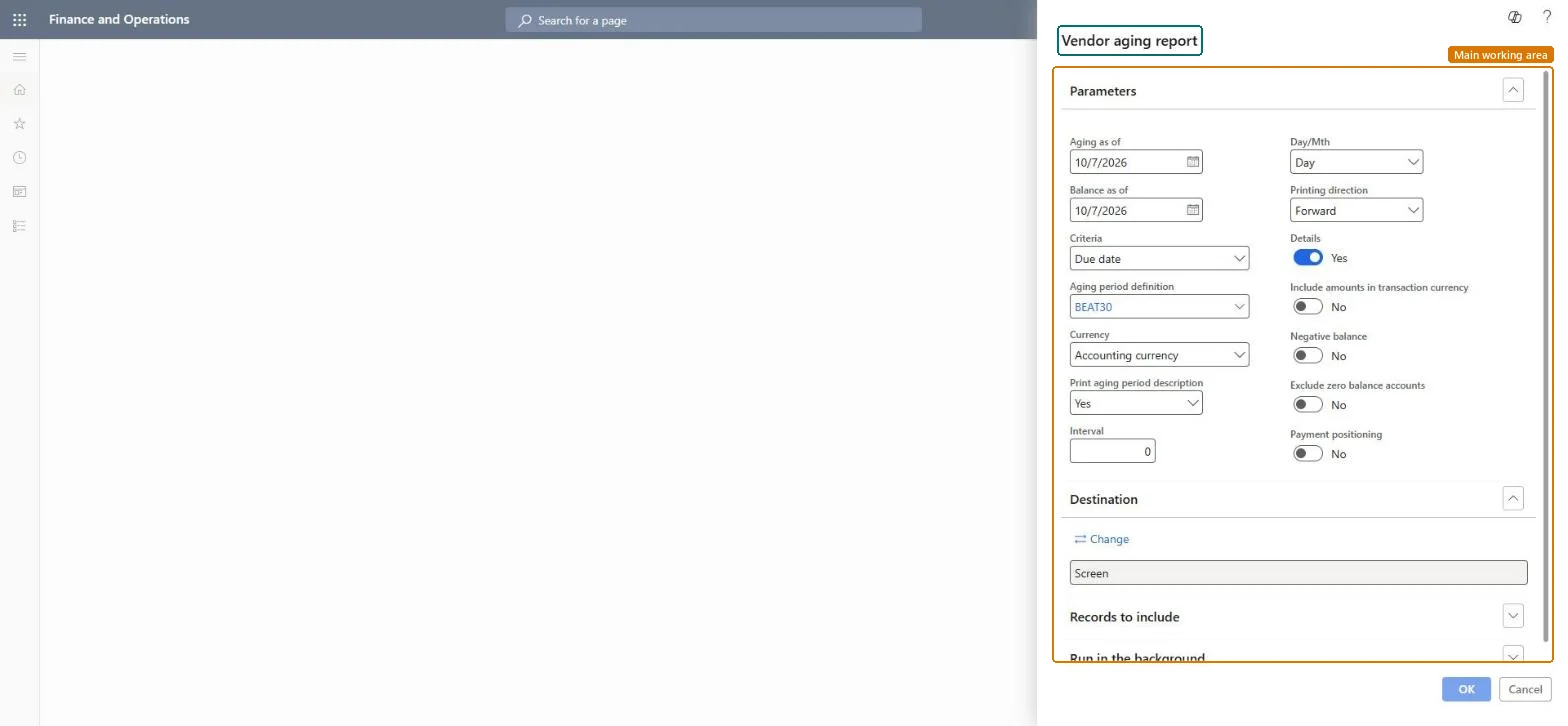
A report that ages the balances owed to vendors, including the employees who are paid their expenses as vendors, by date interval or aging period definition.
PAGE GUIDEWhat the page does and how to use it8 sections. Choose a role to highlight what matters to you.
Everyone
1What it is and why
What it is
A report that ages the balances owed to vendors, including the employees who are paid their expenses as vendors, by date interval or aging period definition.
What you do here
Use this report to see how long amounts owed to vendors have been outstanding, filtered by vendor account and group.
Example
For example, with Balance as of 30 June, criteria Due date and an aging period definition of Current, 30, 60 and 90 days, the report shows an employee's 640.00 USD expense balance in the 30-day column, waiting for the next payment run.
The page in Dynamics 365. page title tab to open what to set or check
About the examples: Examples and screenshots in this guide use BEAT, a demo company in a Dynamics 365 test environment. Use your own company's codes and values instead of copying them.
When to run it
When to run it
At period end, or before a payment run, to see how long amounts owed to vendors, including employee expense balances, have been outstanding.
How often
Monthly at period end, or before each payment run.
What the output shows
Vendor balances split into aging columns, with optional transaction details. Payments shown in the first column were not settled against invoices; a balance that looks too old often means open items that should be settled.
See how long reimbursements to employees have been waiting.
Steps from Microsoft
Go to Expense management > Inquiries and reports > Vendor aging report.
Set Balance as of to the date to show vendor balances for, and choose the Criteria: transaction date, due date or document date.
Choose an Aging period definition, or leave it empty and use Interval and Day/Mth to define the columns; definitions with more than six periods can't be printed.
Turn on Details to list the transactions behind each balance, Exclude zero balance accounts to drop settled vendors, and Payment positioning to show unsettled payments in the first column.
In Records to include, filter on vendor account or vendor group, for example employees set up as vendors, run the report, and reconcile the totals with the vendor balances.
Run it before each payment run with criteria Due date and an aging period definition of six periods or fewer.Posted expense reports create amounts owed to the employee as a vendor, and the report ages them like any vendor balance.
In this system Employee and Contractor enter their own expenses, and Expense administrator sets up the module and processes documents. The expense mobile app needs the Employee role, a company on the user account and a link to an employee with active employment. The expense administrator runs this report; no Feature management feature is needed.
Load order: The report has no data entity in Data management, so it can't be loaded from a file or a configuration template. It reads posted or entered expense data and prints it; nothing on it is loaded or migrated. Run it in each environment after the data is there.Microsoft Learn