PAGE GUIDEWhat the page does and how to use it8 sections. Choose a role to highlight what matters to you.
Everyone
1What it is and why
What it is
A report that shows the mileage that employees entered.
What you do here
Use this report to list mileage by worker, expense category or expense report.
Example
For example, an auditor runs the report for one sales rep and sees 1,500 miles in the year; with tiers of 0.45 up to 999 miles and 0.25 above, the reimbursement should be 575.00.
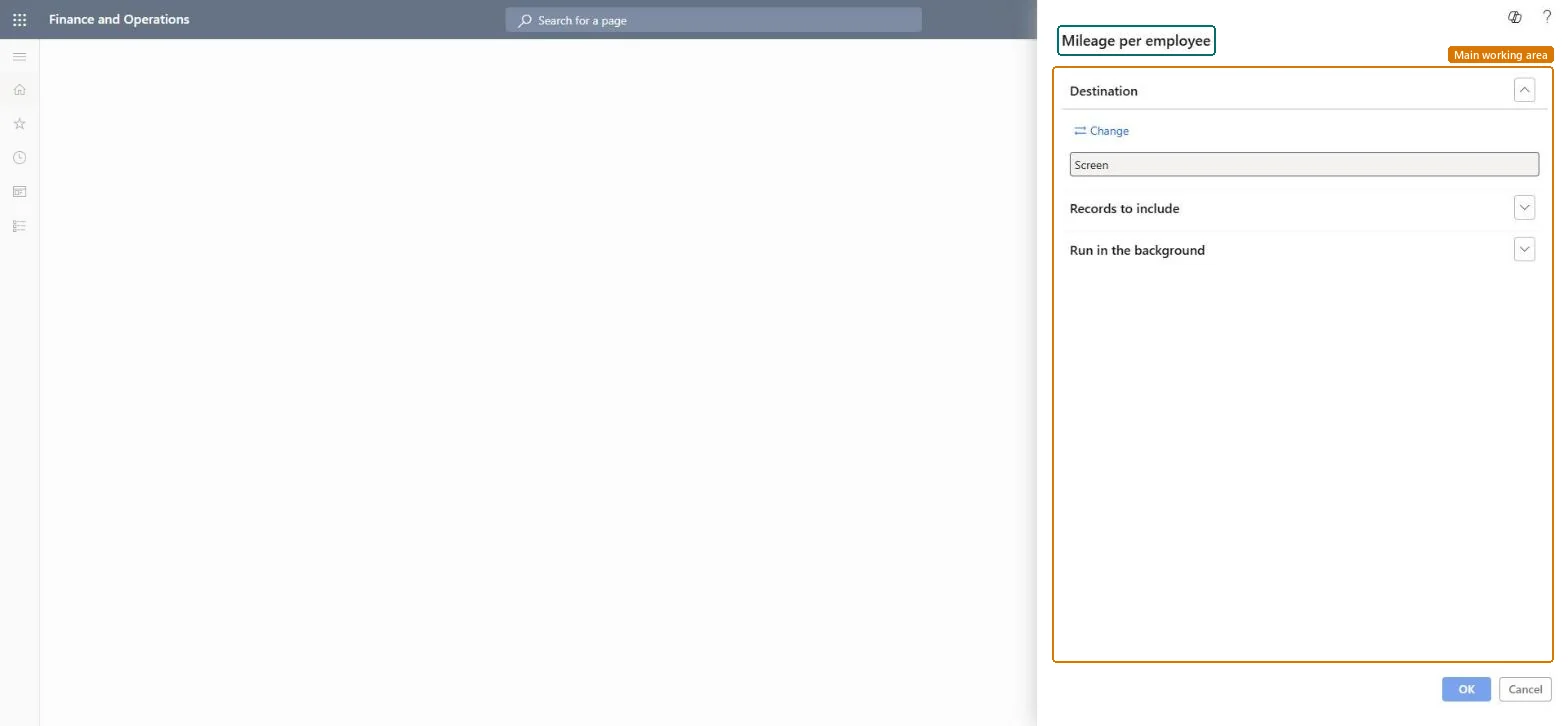
The page in Dynamics 365. page title tab to open what to set or check
About the examples: Examples and screenshots in this guide use BEAT, a demo company in a Dynamics 365 test environment. Use your own company's codes and values instead of copying them.
When to run it
When to run it
When you review mileage claims, for example during an audit or before changing the mileage rate.
How often
On demand, for example monthly.
What the output shows
Mileage entered by employees, per worker, expense category and expense report. An amount that doesn't match distance times rate usually means a different rate or a manual change on the line.
Run it per employee for the year and check the totals against the tier limits.From 10.0.18 a tier's quantity is the upper limit; above the last tier the standard rate of mileage applies.
In this system Employee and Contractor enter their own expenses, and Expense administrator sets up the module and processes documents. The expense mobile app needs the Employee role, a company on the user account and a link to an employee with active employment. The expense administrator runs this report; no Feature management feature is needed.
Per company: the report runs in the legal entity you are signed in to and reads that company's expense data. Microsoft Learn
Can it be undone
Nothing to undo: The report only reads mileage data; it changes nothing. Microsoft Learn
If you change it later
Mileage amounts come from the rate tiers of the Mileage category, or from the standard rate of mileage when no tier applies. Microsoft Learn
Technical architect
6Technical
Menu item
output:TrvMileageChecked in Dynamics 365
Form
SysOperationTemplateFormChecked in Dynamics 365
Roles to set it up and use it
To use itExpense administrator ExpenseAdministratorGive people one of these roles. On this system, 1 role can run this page.Checked in Dynamics 365
Developer
7Developer
Open it by URL
https://<your-environment>/?mi=output:TrvMileage
Data migration
Load order: The report has no data entity in Data management, so it can't be loaded from a file or a configuration template. It reads posted or entered expense data and prints it; nothing on it is loaded or migrated. Run it in each environment after the data is there.Microsoft Learn