Credit and collections › Periodic tasks › Update financials
End user · Functional consultant
3How to do it
About the examples: Examples and screenshots in this guide use BEAT, a demo company in a Dynamics 365 test environment. Use your own company's codes and values instead of copying them.
How to use it
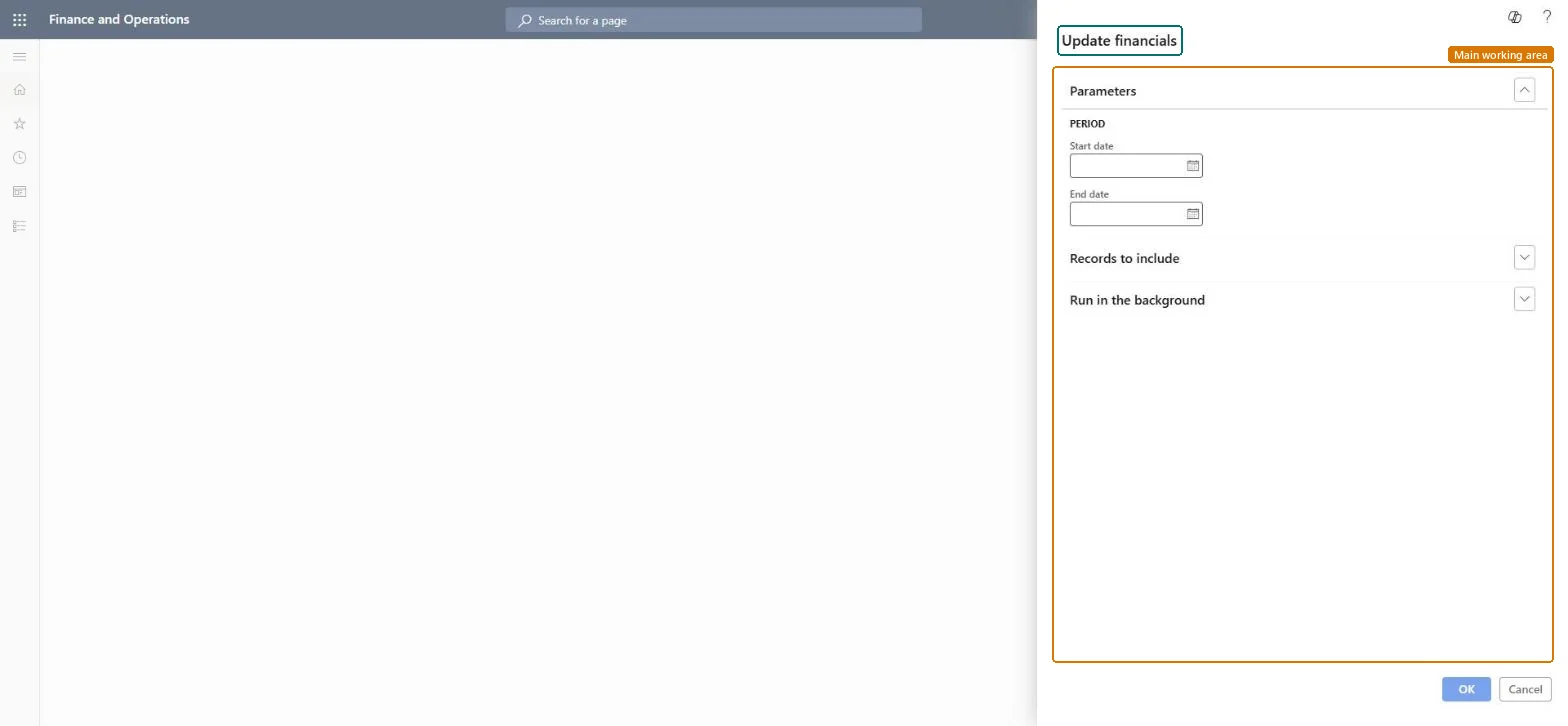
Go to Credit and collections > Periodic tasks > Update financials.
Enter the Start date and End date under Period.
Expand Records to include to set filters.
Expand Run in the background to set it up if you want.
Select OK to run it.
Source: Checked in Dynamics 365
Technical architect
4Technical
Menu item
action:smmUpdateFinancialChecked in Dynamics 365
Form
DialogChecked in Dynamics 365
Roles to set it up and use it
To use itCollections manager CollectionLetterCollectionsManagerRental manager RentalManagerRental coordinator agent RentalCoordinatorAgentRental sales manager RentalSalesManagerSales representative TradeSalesRepresentativeGive people one of these roles. On this system, 8 roles can run this page.Checked in Dynamics 365