About the examples: Examples and screenshots in this guide use BEAT, a demo company in a Dynamics 365 test environment. Use your own company's codes and values instead of copying them.
When to run it
When to run it
At the end of each statement period, after payments and invoices for the period are posted, when statements go out to all customers.
How often
Once per statement cycle that you agree with your customers.
Batch settings
Run it in the background with Use print management destination on when you send statements to many customers.
What the output shows
One statement per customer with the transactions in the date range and an opening and closing balance per currency, optionally with the credit limit and the maturity distribution. A customer without a statement often had a zero closing balance with Balance other than zero turned on.
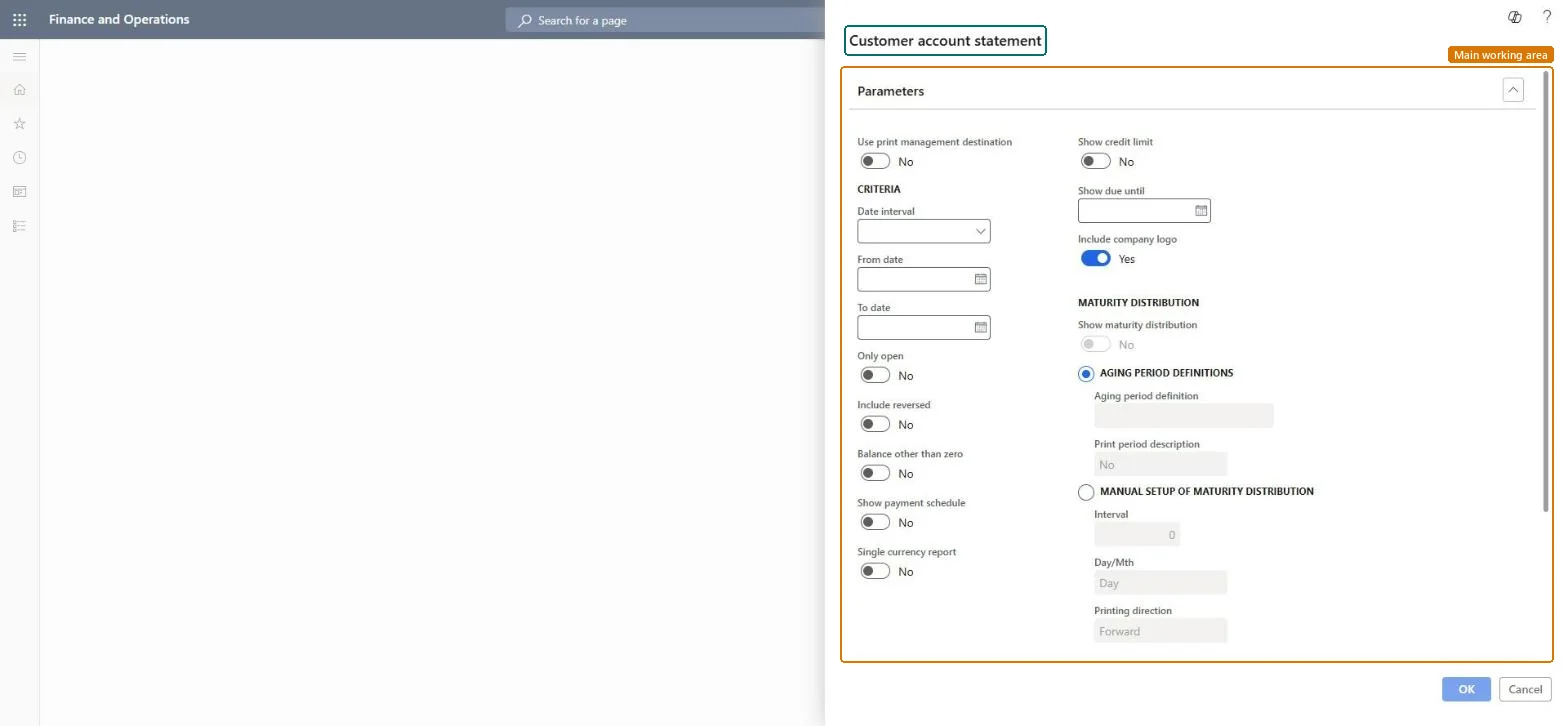
Go to Credit and collections > Periodic tasks > Customer account statement.
Choose a Date interval, or enter the From date and To date of the statement period.
Set Only open to print only unsettled transactions, Include reversed to show reversed ones, and Balance other than zero to skip customers whose closing balance is zero.
Turn on Show maturity distribution and select an Aging period definition with no more than six columns to print the aging of the balance at the bottom.
Leave Include company logo off unless your statement design shows the logo; it saves database space when you run statements for many customers.
Turn on Use print management destination so each statement goes out the way the customer's print management is set up.
Leaves out statements whose closing balance is zero.Microsoft Learn
Show credit limit
Shows the customer's credit limit on the statement.Microsoft Learn
Show maturity distribution
Prints the aging of the balance at the bottom of the statement.Microsoft Learn
Aging period definition
The aging periods used for the maturity distribution; definitions with more than six columns can't be used.Microsoft Learn
Use print management destination
Uses the customer's print management destination when the statements are generated.Microsoft Learn
Include company logo
Adds the company logo for report designs that show it; leaving it off saves database space.Microsoft Learn
Solution architect
4Design impact
Can it be undone
Nothing to undo: Statements only read customer transactions; producing them changes nothing. Microsoft Learn
Technical architect
5Technical
Menu item
output:CustAccountStatementExtChecked in Dynamics 365
Form
SysOperationTemplateFormChecked in Dynamics 365
Roles to set it up and use it
To use itCollections manager CollectionLetterCollectionsManagerCollections agent CollectionLetterCollectionsAgentAccounts receivable manager CustInvoiceAccountsReceivableManagerAccounting manager LedgerAccountingManagerAccounting supervisor LedgerAccountingSupervisorGive people one of these roles. On this system, 11 roles can run this page.Checked in Dynamics 365