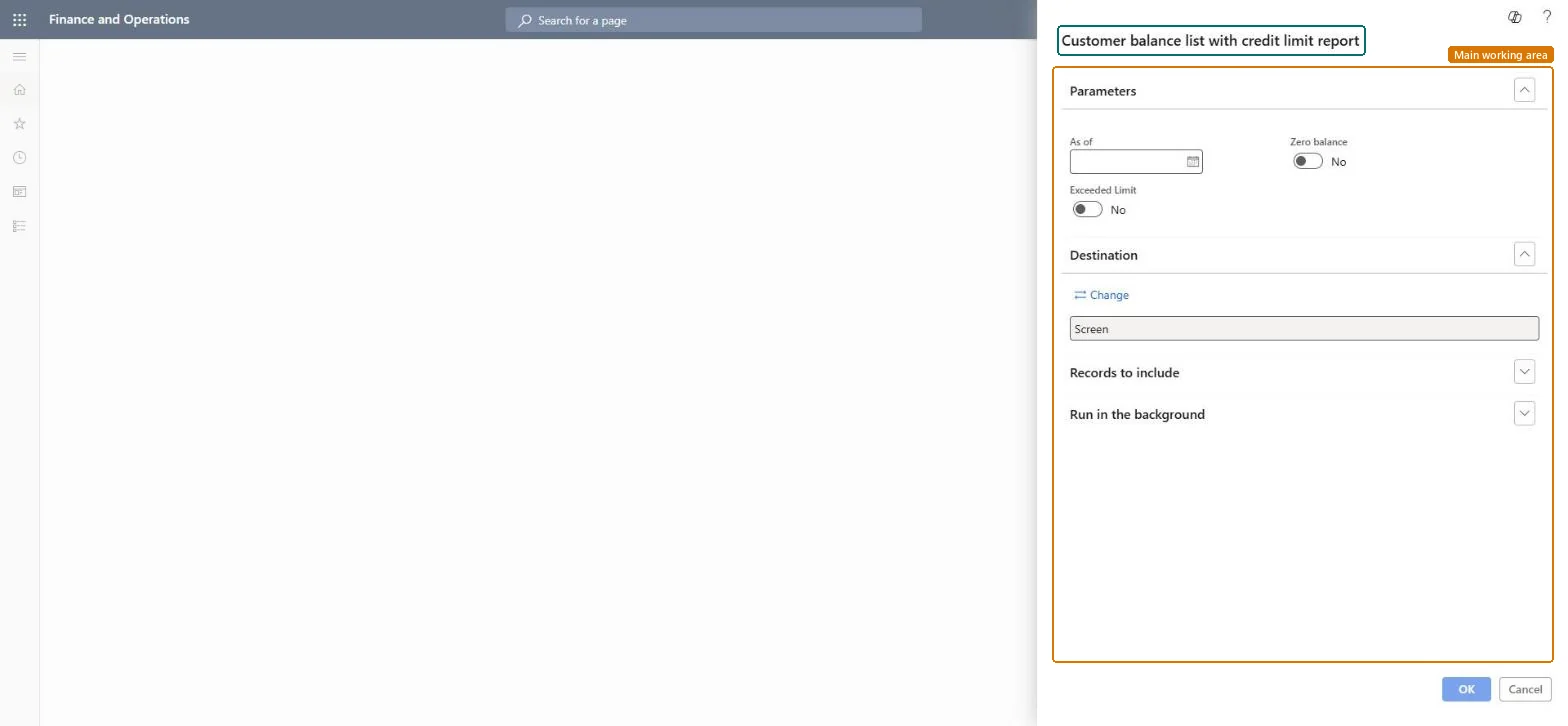
Credit and collections › Inquiries and reports › Customers › Customer balance list with credit limit report
End user · Functional consultant
3How to do it
About the examples: Examples and screenshots in this guide use BEAT, a demo company in a Dynamics 365 test environment. Use your own company's codes and values instead of copying them.
When to run it
When to run it
When you analyze how receivables changed during a subperiod and a longer period, for example quarter to date against year to date.
How often
On demand, usually at period end.
What the output shows
For each customer or main account: opening balance, debit totals (usually invoiced), credit totals (usually paid) and closing balance. A closing balance that doesn't follow from the columns usually means the dates overlap in an unexpected way.
Go to Credit and collections > Inquiries and reports > Customers > Customer balance list with credit limit report.
Enter the From date for the Opening balance column, the Report period start date for the Debit and Credit columns, and the To date for the Closing balance column.
Choose a Currency and, in Group and sort by, group by customer or by main account.
In Criteria, choose all accounts or only those with an opening balance, transactions or a closing balance; turn on Include details to show main account details when grouping by customer.
Check that opening balance plus debit minus credit gives the closing balance for each customer.
Nothing to undo: The balance list only reads customer transactions; it changes nothing. Microsoft Learn
Technical architect
5Technical
Menu item
output:CustBalanceListChecked in Dynamics 365
Form
SysOperationTemplateFormChecked in Dynamics 365
Roles to set it up and use it
To use itCollections manager CollectionLetterCollectionsManagerCollections agent CollectionLetterCollectionsAgentAccounts receivable manager CustInvoiceAccountsReceivableManagerAccounting manager LedgerAccountingManagerAccounting supervisor LedgerAccountingSupervisorGive people one of these roles. On this system, 13 roles can run this page.Checked in Dynamics 365