About the examples: Examples and screenshots in this guide use BEAT, a demo company in a Dynamics 365 test environment. Use your own company's codes and values instead of copying them.
Steps from Microsoft
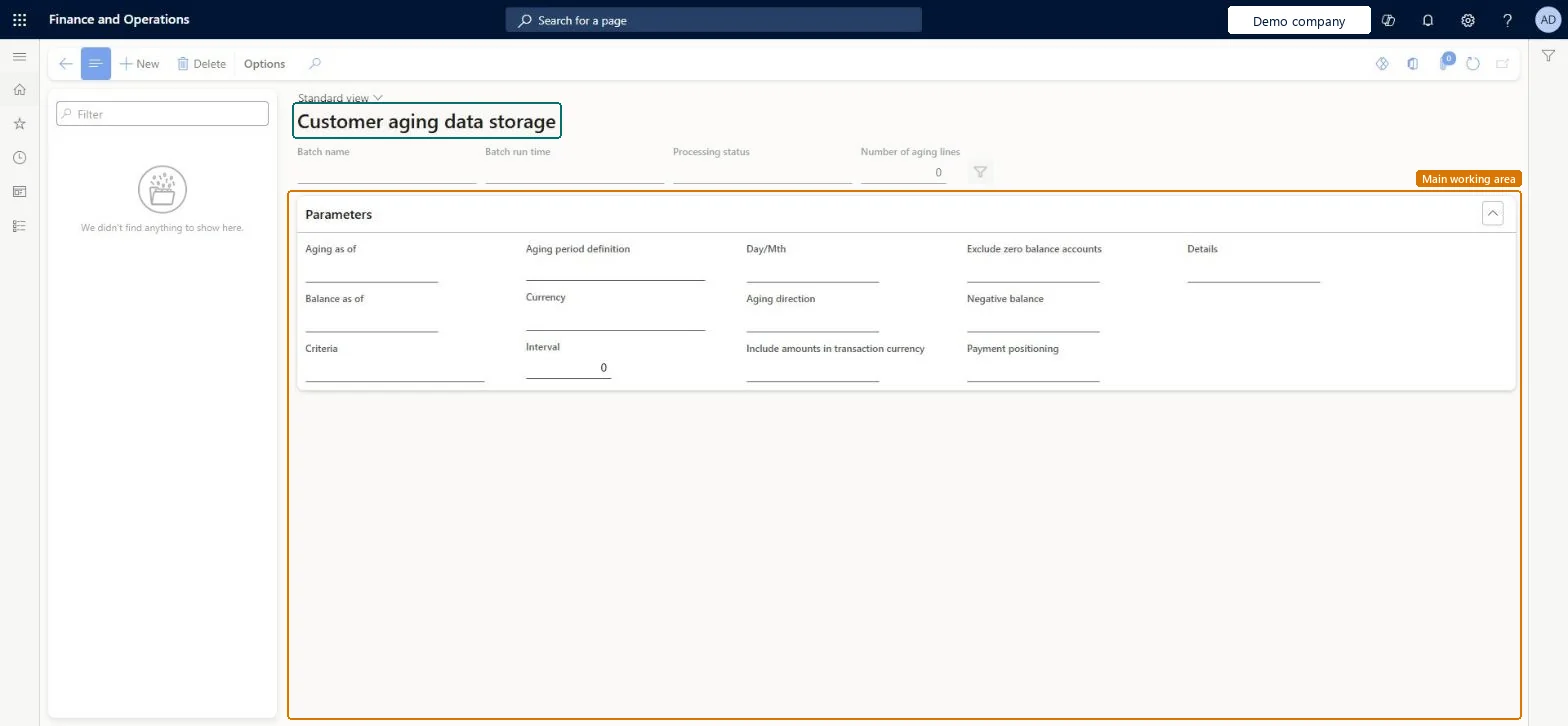
Go to Credit and collections > Inquiries and reports > Customers > Customer aging data storage.
Select New.
In the Name field, enter a name for the process.
Set the remaining parameters as you need.
Select OK.
Refresh the page to see the batch name, batch run time and processing status.
Select Filter next to Number of aging lines to review the filters used.
Status of the batch job, such as Ended or Waiting for a recurring job.Microsoft Learn
Number of aging lines
Number of aging lines the run produced, set when the batch job ends.Microsoft Learn
Solution architect
4Design impact
If you change it later
The page does not show the aging results; export them through the data entity, filtered to the latest run. Microsoft Learn
Technical architect
5Technical
Menu item
CustAgingDataHeaderStorageChecked in Dynamics 365
Form
CustAgingDataHeaderStorageChecked in Dynamics 365
Table
CustAgingDataHeaderStorageChecked in Dynamics 365
Roles to set it up and use it
To use itCollections manager CollectionLetterCollectionsManagerCollections agent CollectionLetterCollectionsAgentAccounts receivable manager CustInvoiceAccountsReceivableManagerAccounting manager LedgerAccountingManagerAccounting supervisor LedgerAccountingSupervisorGive people one of these roles. On this system, 12 roles can open this page.Checked in Dynamics 365