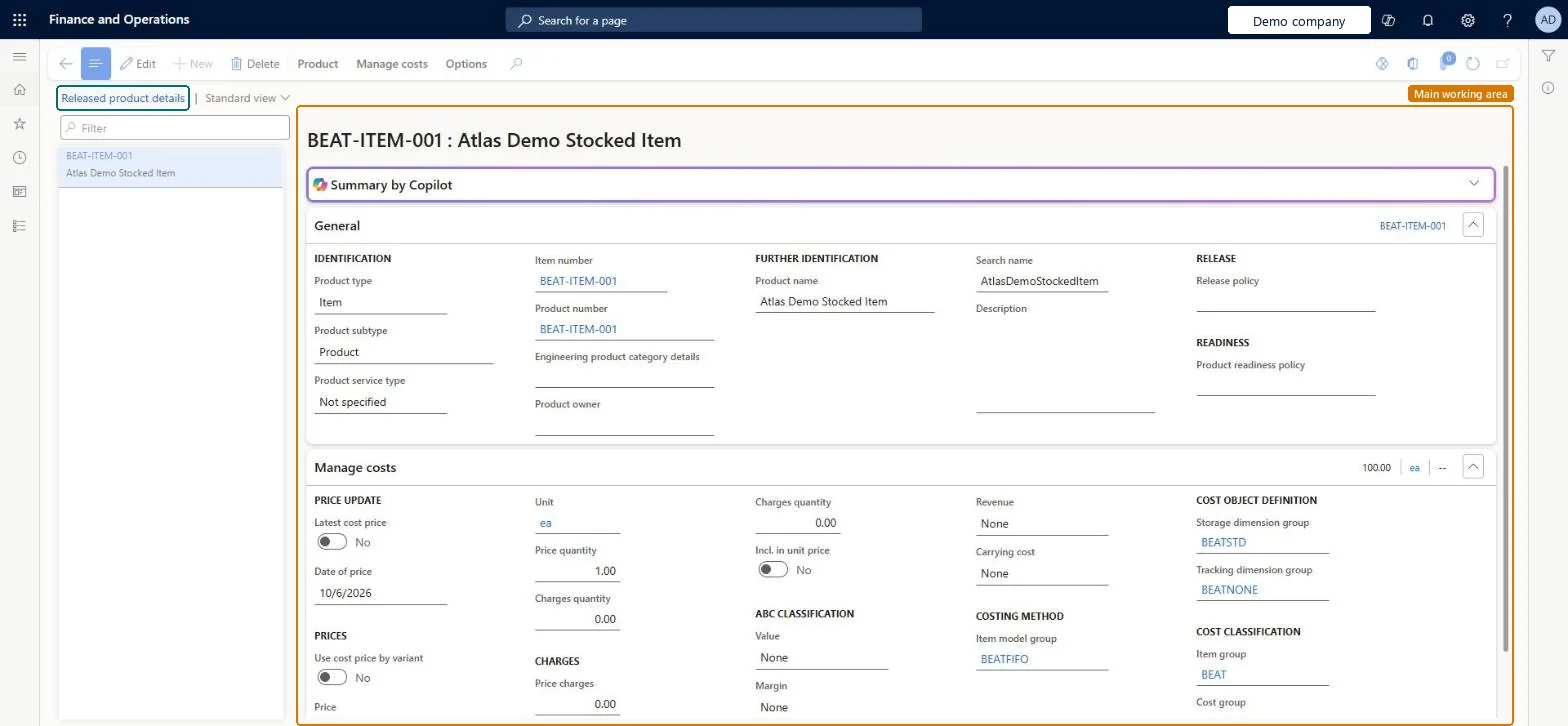
A details page that shows a released product together with the settings that drive its costing, such as prices, costing method, cost object definition and cost classification.
PAGE GUIDEWhat the page does and how to use it8 sections. Choose a role to highlight what matters to you.
Everyone
1What it is and why
What it is
A details page that shows a released product together with the settings that drive its costing, such as prices, costing method, cost object definition and cost classification.
What you do here
Use this page to review and maintain the cost settings of released products, including the item model group, item group, cost group and the storage and tracking dimension groups.
The page in Dynamics 365. page title tab to open what to set or check
Cost management › Inventory accounting › Released products
End user · Functional consultant
3How to do it
About the examples: Examples and screenshots in this guide use BEAT, a demo company in a Dynamics 365 test environment. Use your own company's codes and values instead of copying them.
Setup steps on this page
Set up Released products
Use this page to set a released product's default item cost, either by entering a value in the Price field on the Manage costs FastTab or by creating a standard cost from Item price on the Manage costs tab of the Action Pane.
How to use it
Go to Cost management > Inventory accounting > Released products.
Select the product in the list pane. Use the Filter field to find it.
On the General FastTab, review the identification fields, such as Product type, Item number and Product name.
On the Manage costs FastTab, review the Price update, Prices and Charges fields, the Item model group under Costing method, the Storage dimension group and Tracking dimension group under Cost object definition, and the Item group and Cost group under Cost classification.
Select Edit on the Action Pane to change a value.
Open the Manage costs tab on the Action Pane for the cost actions of the product.
Source: Checked in Dynamics 365
Test checklist
Open the released product, check the item model group and enter a Price on the Manage costs FastTab.
Post an inventory issue (movement journal) for the item when there are no financially updated receipts.
Check the issue cost on the inventory transaction equals the Price you entered, not zero.
Activate a standard cost for the item in a costing version and repeat; check the costing version price is used before the Manage costs price.
Select Use latest cost price, post a purchase invoice, and check Price is updated to the invoice price.
Give every actual-cost item a fallback cost: an active standard cost in a costing version (Item price) or a value in Price on the Manage costs FastTab.When the running average can't be calculated (zero or negative quantity or amount), issues are posted at the default item cost. A fallback price stops issues being posted at zero cost, especially when Include physical value is off.
Which inventory model (item model group) should the item use?Relying on Use latest cost price alone. Without a default price or an active cost, an issue can still post at zero cost until inventory close adjusts it, possibly in a later financial period.
One-way: Warning: once an item uses a Moving average item model group, its costing method can't be changed to FIFO, LIFO or weighted average. Moving from standard cost to moving average needs inventory quantity and value taken to zero first. The default Price itself can be changed any time and affects later issues only. Microsoft Learn
Technical architect
6Technical
Menu item
CostProductDetailsListChecked in Dynamics 365
Form
EcoResProductDetailsExtendedChecked in Dynamics 365
Table
InventTableShown as “ITEMS” in Record infoKey field: ItemIdChecked in Dynamics 365
To set it up or change itInventory accountant InventCostAccountantInventory accountant clerk InventCostCostClerkTo use itAccounting manager LedgerAccountingManagerGive people one of these roles. On this system, 3 roles can open this page.Checked in Dynamics 365
Actions on the page
Product: Set up, Product media managementManage costsChecked in Dynamics 365
EcoResReleasedProductV2Entity (Released products V2): loaded for each company, in Microsoft's default template 310 - Product information management.Load order: Microsoft's default template 310 - Product information management loads Released products V2 at execution unit 1, level 310, sequence 70. Lower levels load first, and entities at the same level load in sequence order.Load first: Country/regions, States, Units, Buyer groups, Calculation groups, the default templates at lower levels (System setup to Inventory management)Microsoft Learn