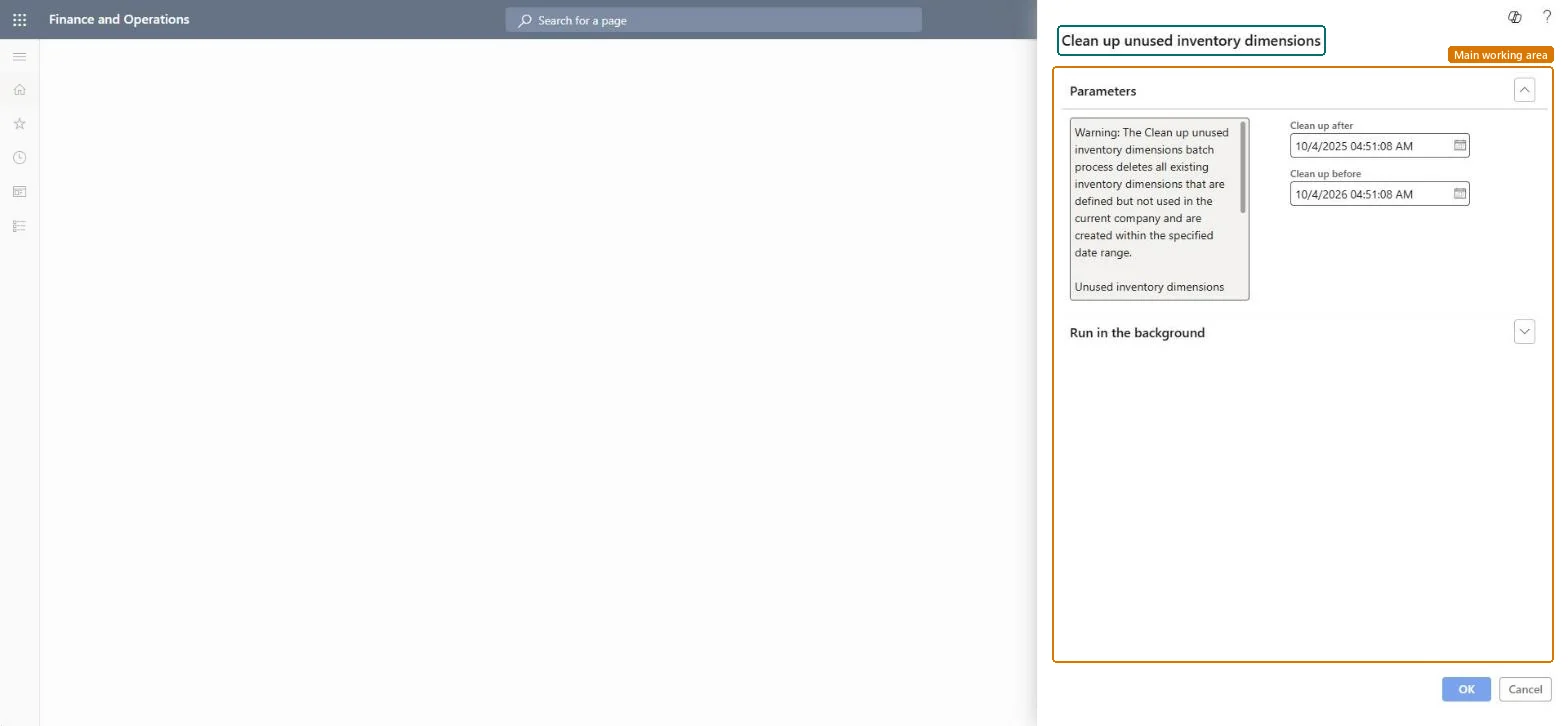
About the examples: Examples and screenshots in this guide use BEAT, a demo company in a Dynamics 365 test environment. Use your own company's codes and values instead of copying them.
When to run it
When to run it
Only when the inventory dimensions table has grown with unused combinations and you have a clear reason to clean it, after a trial run in a test environment.
How often
Rarely, on demand; Microsoft advises not to run it without a good reason.
Batch settings
Run it as a scheduled batch job outside business hours, as Microsoft recommends.
What the output shows
Unused inventory dimension combinations in the chosen range are removed from the InventDim table. Combinations referenced by order lines, inventory transactions or on-hand records stay. If the same combination is needed again later, the system creates a new record with a new InventDimId.
Go to Cost management > Inventory accounting > Clean up > Inventory dimensions cleanup.
Read the warning under Parameters: every inventory dimension combination that is defined but not used in the current company is deleted for good, and no alert or database log is created.
Enter Clean up after and Clean up before to target only the dimension combinations that were created in that date and time range.
Schedule it under Run in the background for a time outside business hours, then select OK.
Compare the number of inventory dimension records before and after the run, and open a few orders and on-hand records to see that dimensions still in use are intact.
No: Deleted dimension combinations can't be restored and nothing is logged. Run it only after testing, with a narrow date range. Microsoft Learn
If you change it later
Unused dimension combinations are deleted for good and no log is kept, so run the job only with good reason and outside business hours. Microsoft Learn
Technical architect
5Technical
Menu item
action:InventUnusedDimCleanUpChecked in Dynamics 365
Form
DialogChecked in Dynamics 365
Roles to set it up and use it
To use itInformation technology manager SysServerITManagerGive people one of these roles. On this system, 1 role can run this page.Checked in Dynamics 365