About the examples: Examples and screenshots in this guide use BEAT, a demo company in a Dynamics 365 test environment. Use your own company's codes and values instead of copying them.
When to run it
When to run it
Before and after you activate the pending costs of a costing version, and before inventory revaluation or period end.
How often
On demand, at each costing version update.
What the output shows
One line per item (and per dimension when VIEW options are on) with its price as per the date, from active records or the selected version. A missing price usually means no record exists for that site or date and no fallback was set.
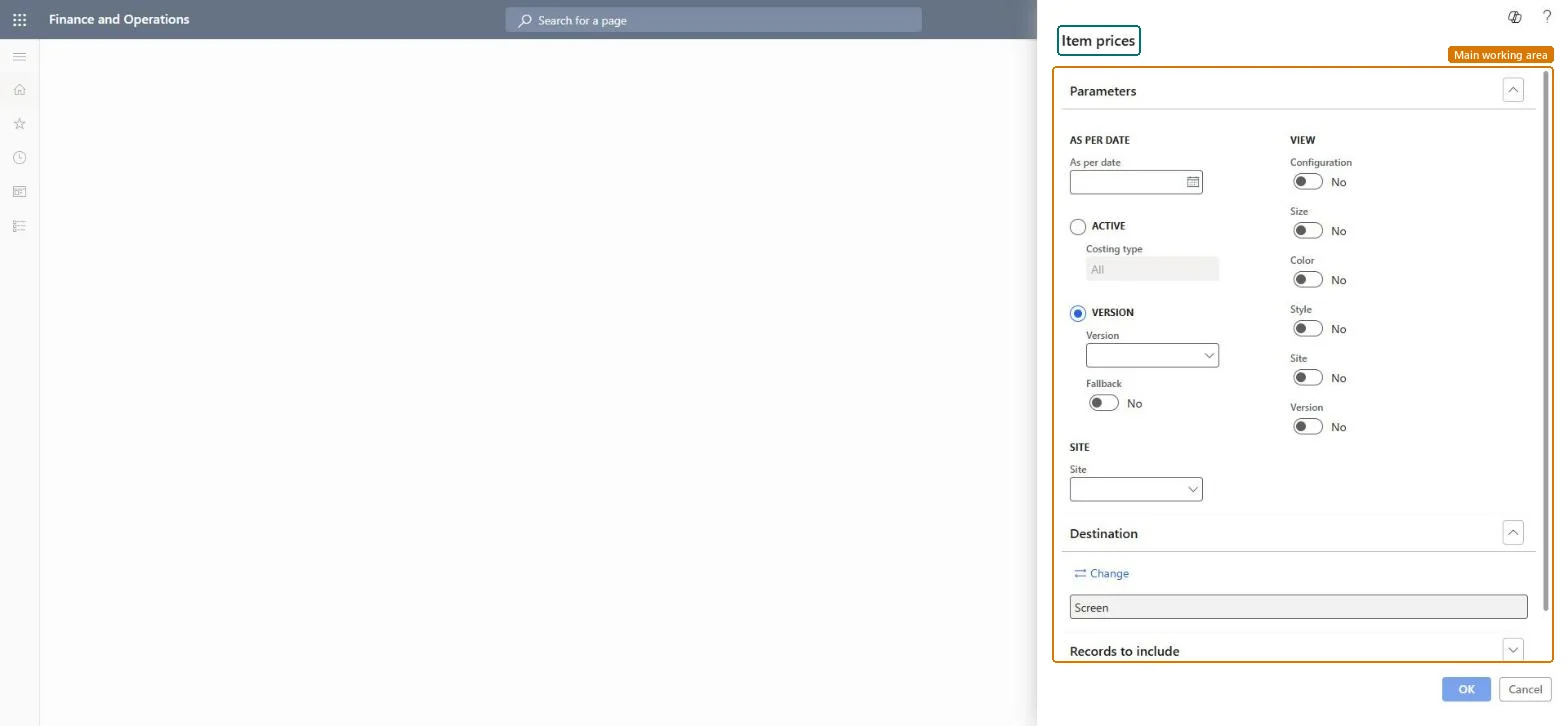
Go to Cost management > Inquiries and reports > Predetermined cost reports > Item prices.
Enter the As per date the prices should apply to and, if you only want one site, select a Site.
Select ACTIVE and a Costing type to print the active cost records, or select VERSION, choose the Version and set Fallback to print the pending or active records of one costing version.
Under VIEW, turn on Configuration, Size, Color, Style, Site and Version when prices differ by those dimensions or you need to see which version each price comes from.
Filter on the items or item group in Records to include, run the report and compare the printed prices with what you expect to activate.
Nothing to undo: The report only reads item cost records; it changes nothing. Microsoft Learn
Technical architect
5Technical
Menu item
output:InventPriceOverviewChecked in Dynamics 365
Form
SysOperationTemplateFormChecked in Dynamics 365
Roles to set it up and use it
To use itInventory accountant InventCostAccountantInventory accountant clerk InventCostCostClerkAccounting manager LedgerAccountingManagerChief executive officer CompanyChiefExecutiveOfficerGive people one of these roles. On this system, 4 roles can run this page.Checked in Dynamics 365