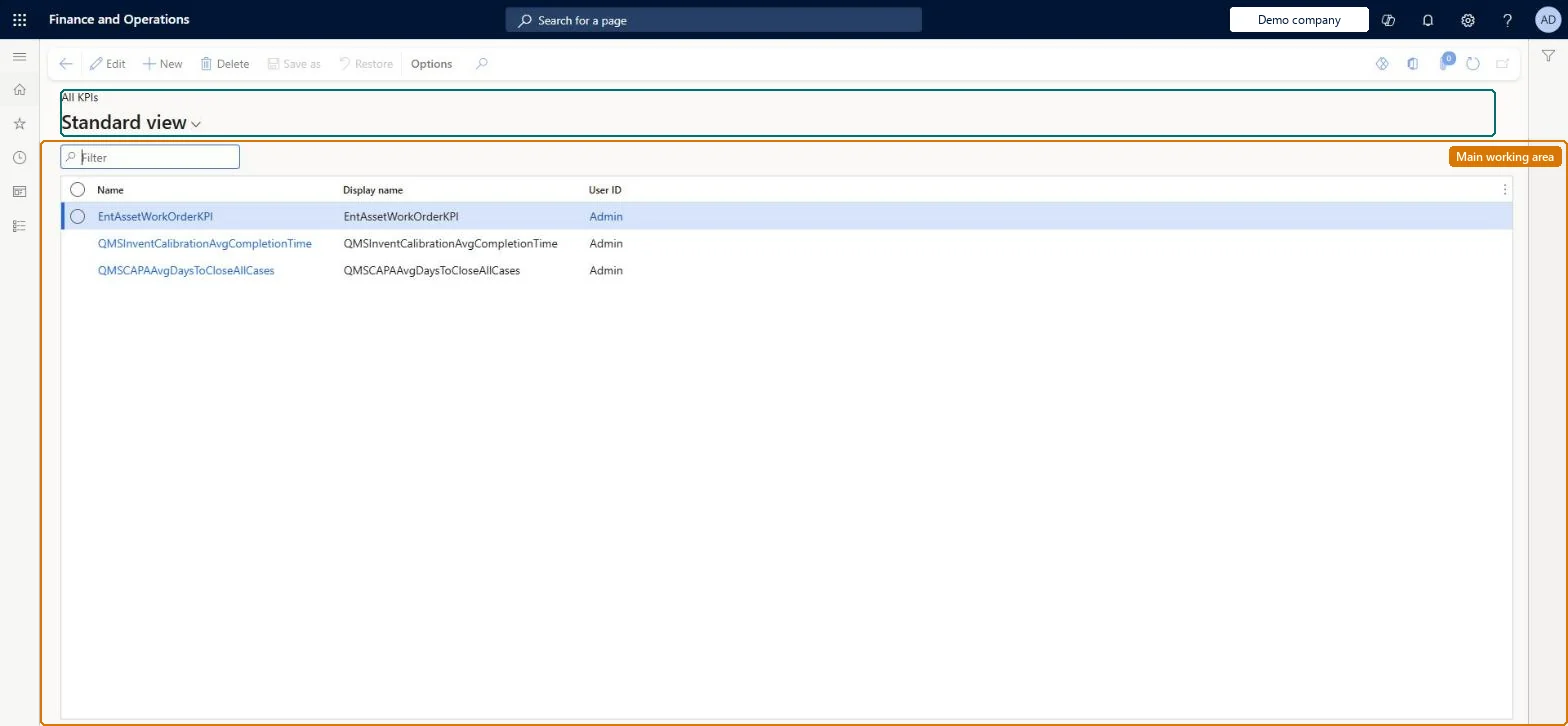
A list of the key performance indicators (KPIs) defined in the system, which track performance against a goal and appear as tiles in workspaces or on the dashboard.
PAGE GUIDEWhat the page does and how to use it8 sections. Choose a role to highlight what matters to you.
Everyone
1What it is and why
What it is
A list of the key performance indicators (KPIs) defined in the system, which track performance against a goal and appear as tiles in workspaces or on the dashboard.
What you do here
Use this page to open a KPI, view its details and charts, and change its goal and thresholds or create new KPIs without development work.
Example
For example, BEAT's finance manager opens a revenue KPI, raises the goal from 1,000,000.00 to 1,200,000.00 and switches the thresholds to percentages (red below 80, green above 95). The KPI tile on the workspace turns from green to amber because the current value is now below the new goal.
The page in Dynamics 365. page title tab to open what to set or check
About the examples: Examples and screenshots in this guide use BEAT, a demo company in a Dynamics 365 test environment. Use your own company's codes and values instead of copying them.
Setup steps on this page
Set KPI goals and thresholds
Give each KPI a goal and thresholds that match the business target.
Steps from Microsoft
Go to Common > Common > All KPIs.
Select the KPI you want from the list to open its details page.
Select Edit.
Enter the new goal value and change the threshold settings as needed.
Set the goal from the approved budget and use percentage thresholds so the colours still fit when the goal changesPercentage thresholds are calculated against the goal, so they follow a new goal without being edited again.
On the live system, these roles can open the page: System user, TestEssentialsRole.
Checked in Dynamics 365
Solution architect
5Design impact
Shared or per company
Shared: a KPI's goal and thresholds apply to everyone who sees the KPI tile. Microsoft Learn
Can it be undone
Reversible: A KPI's goal and thresholds can be edited again at any time from its details page. Saving a change re-evaluates the KPI, so the status colour on its tile can change for every user who sees that tile. Microsoft Learn
If you change it later
Saving a changed goal or threshold re-evaluates the KPI, so the status colour on its tile can change. Microsoft Learn
Technical architect
6Technical
Menu item
KPIDetailsGridMenuItemChecked in Dynamics 365
Form
KPIDetailsChecked in Dynamics 365
Table
AxKPITableShown as “AXKPITABLE” in Record infoChecked in Dynamics 365
Who can open it
PrivilegesOpen tile catalog KPIDetailsGridPrivilegeDutiesKPIDetailsGridDuty4 security rolesAifTestSecRoleEventTestRoleSystem user SystemUserTestEssentialsRoleChecked in Dynamics 365
Roles to set it up and use it
To set it up or change itSystem user SystemUserTestEssentialsRole Give people one of these roles. On this system, 2 roles can open this page.Checked in Dynamics 365
Actions on the page
(Action Pane without tabs): Save as, RestoreChecked in Dynamics 365