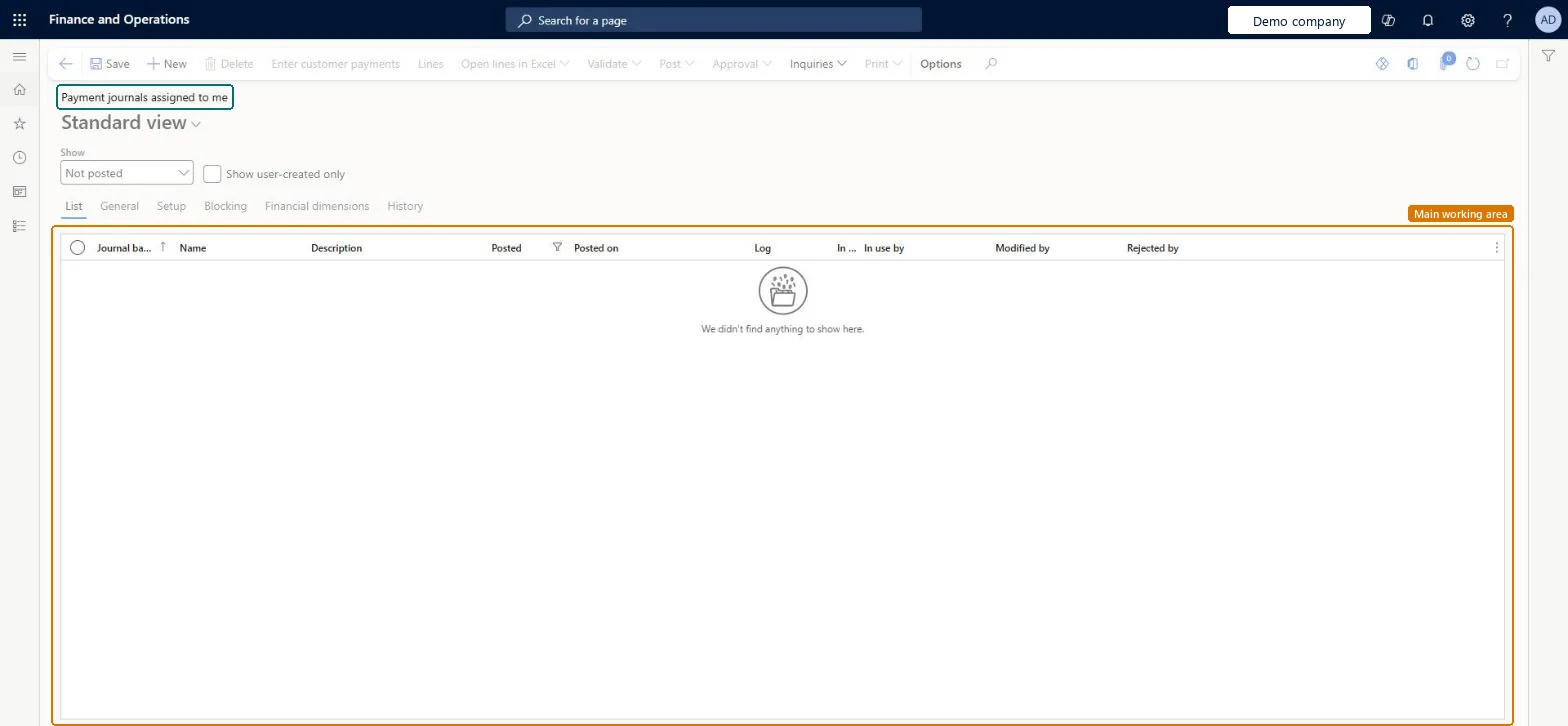
A list page that shows payment journals that are assigned to the current user, with the journal batch number, name, description, posted status and who modified or rejected each journal.
Accounts receivable clerk, Accounts receivable manager, Auditor and 11 more roles
Business process
Record a customer payment in a journal using Dynamics 365 Finance
Menu item
CustPaymentAssignedToMeListPage
Main table
LedgerJournalTable
Data entity
CustomerPaymentJournalHeaderEntity
Show what matters for
PAGE GUIDEWhat the page does and how to use it7 sections. Choose a role to highlight what matters to you.
Everyone
1What it is and why
What it is
A list page that shows payment journals that are assigned to the current user, with the journal batch number, name, description, posted status and who modified or rejected each journal.
What you do here
Use this page to find the payment journals that are waiting for you and to open their lines, validate them or post them from the Action Pane.
The page in Dynamics 365. page title tab to open what to set or check
Accounts receivable › Payments › Payment journals assigned to me
End user · Functional consultant
3How to do it
About the examples: Examples and screenshots in this guide use BEAT, a demo company in a Dynamics 365 test environment. Use your own company's codes and values instead of copying them.
How to use it
Go to Accounts receivable > Payments > Payment journals assigned to me.
Choose what to list in the Show field, and select Show user-created only if needed.
Check the Journal batch number, Name, Description, Posted, Log, In use by, Modified by and Rejected by columns.
Select New to create a journal, or select a journal and select Lines.
Use Validate or Post on the Action Pane for the selected journal, and select Save if you changed anything.
PrivilegesMaintain customer payment journal transactions LedgerJournalTable_CustPaymMaintainView customer payment journal transactions LedgerJournalTable_CustPaymViewDutiesInquire into collections status CollectionLetterCollectionsStatusInquirReview invoice and cash process performance CustInvoiceInvoiceAndCashProcPerfReviewMaintain customer payments PaymCustomerPaymentsMaintainInquire into customer payments status PaymCustomerPaymentsStatusInquireMaintain customer invoices for payment RentalCustomerPaymentMaintain14 security rolesAuditor AuditPolicyManagerCollections agent CollectionLetterCollectionsAgentCollections manager CollectionLetterCollectionsManagerChief executive officer CompanyChiefExecutiveOfficerChief financial officer CompanyChiefFinancialOfficerAccounts receivable clerk CustInvoiceAccountsReceivableClerkAccounts receivable manager CustInvoiceAccountsReceivableManagerAccountant LedgerAccountantAccounting manager LedgerAccountingManagerAccounting supervisor LedgerAccountingSupervisorFinancial controller LedgerFinancialControllerAccounts receivable centralized payments clerk PaymAccountsReceivableCentralPaymClerkAccounts receivable payments clerk PaymAccountsReceivablePaymentsClerkRental manager RentalManagerChecked in Dynamics 365
Roles to set it up and use it
To set it up or change itRental manager RentalManagerAccounts receivable payments clerk PaymAccountsReceivablePaymentsClerkTo use itAccounts receivable manager CustInvoiceAccountsReceivableManagerAccounts receivable clerk CustInvoiceAccountsReceivableClerkAccounting manager LedgerAccountingManagerCollections manager CollectionLetterCollectionsManagerAccounts receivable centralized payments clerk PaymAccountsReceivableCentralPaymClerkGive people one of these roles. On this system, 14 roles can open this page.Checked in Dynamics 365
Actions on the page
Options: Personalize, Page options, Edit, ShareChecked in Dynamics 365