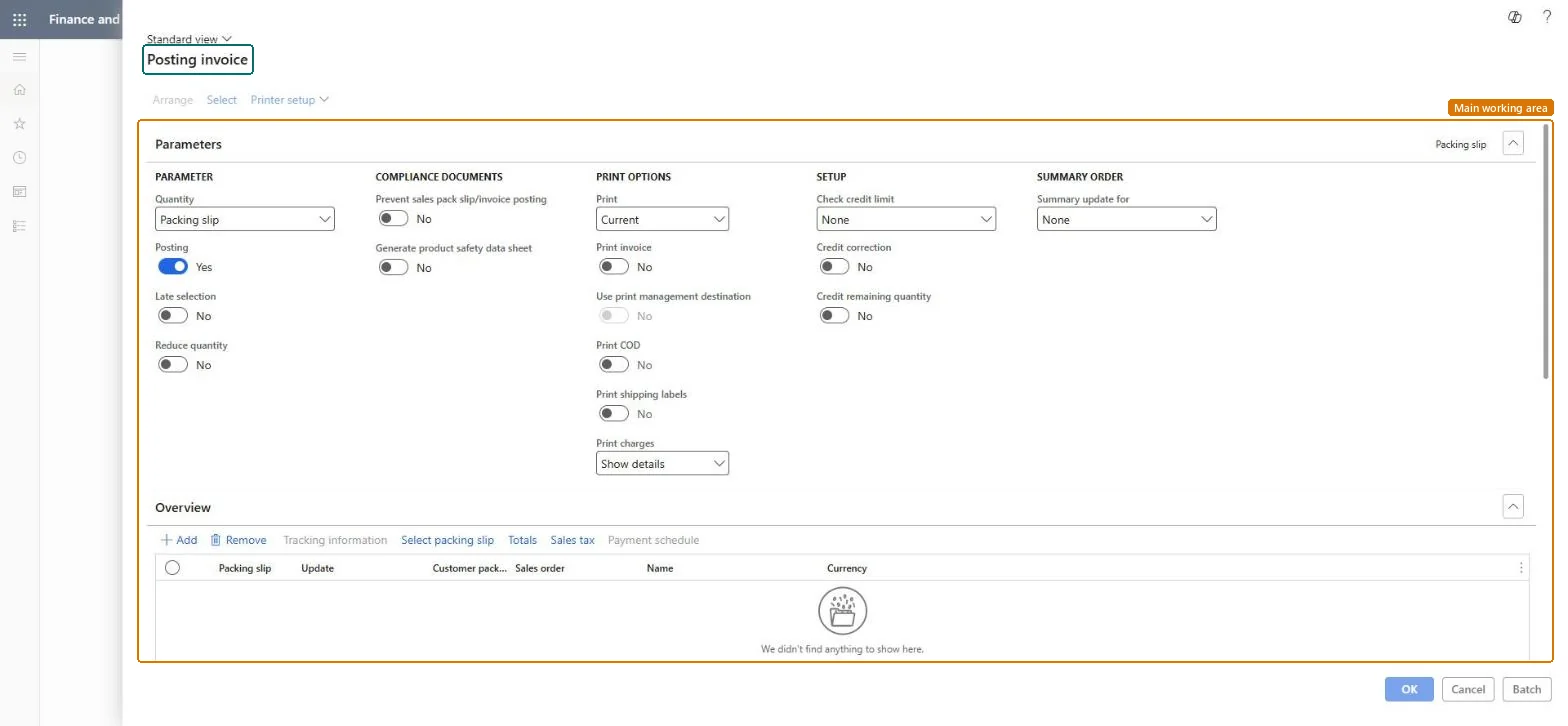
A dialog that opens the Posting invoice form for posting sales invoices, where you set the quantity, posting, print, credit limit check and summary update options and list the packing slips to include.
Invoice sales orders in Dynamics 365 Supply Chain Management
Menu item
action:SalesFormLetter_InvoiceJournalPost
Show what matters for
PAGE GUIDEWhat the page does and how to use it7 sections. Choose a role to highlight what matters to you.
Everyone
1What it is and why
What it is
A dialog that opens the Posting invoice form for posting sales invoices, where you set the quantity, posting, print, credit limit check and summary update options and list the packing slips to include.
What you do here
Use this dialog to post invoices for the selected sales orders, choosing the invoicing parameters and the packing slips to include, and then select OK to post now or Batch to schedule the posting.
The page in Dynamics 365. page title tab to open what to set or check
About the examples: Examples and screenshots in this guide use BEAT, a demo company in a Dynamics 365 test environment. Use your own company's codes and values instead of copying them.
When to run it
When to run it
When packing slips for sales orders are posted and the deliveries are ready to be billed.
How often
On demand, or as often as you bill deliveries; Learn gives no fixed cadence.
Batch settings
Use Batch for a large set of packing slips, with Late selection on if the job is scheduled.
What the output shows
Posted customer invoices for the listed orders and packing slips, with invoice numbers in the invoice journal. If an invoice quantity is too low, check the Quantity option; if an order is missing, it usually failed the credit limit check.
Go to Accounts receivable > Invoices > Batch invoicing > Invoice journal post.
Under Parameters, set Quantity, for example Packing slip to invoice what was delivered, and keep Posting on Yes so the invoices are journalized.
Use Late selection for a scheduled run and Reduce quantity when the invoiced quantity must not exceed available inventory.
Set Print invoice and Print, then choose Check credit limit (None, Balance, Balance + packing slip or product receipt, or Balance+All) and Summary update for.
In the Overview section, select Add or Select packing slip to pick the packing slips to invoice, select Arrange if orders should be combined, then post and open the invoice journal to check the result.
No: Posted invoices can't be removed. Reverse them with a credit note, so run the Simulate invoice dialog first when in doubt. Microsoft Learn
If you change it later
Posts invoices for the selected orders, updating customer balances, the ledger, inventory transactions and the order status. Microsoft Learn
Technical architect
5Technical
Menu item
action:SalesFormLetter_InvoiceJournalPostChecked in Dynamics 365
Form
SalesEditLinesChecked in Dynamics 365
Roles to set it up and use it
To use itAccounts receivable clerk CustInvoiceAccountsReceivableClerkRental manager RentalManagerRental coordinator agent RentalCoordinatorAgentGive people one of these roles. On this system, 3 roles can run this page.Checked in Dynamics 365