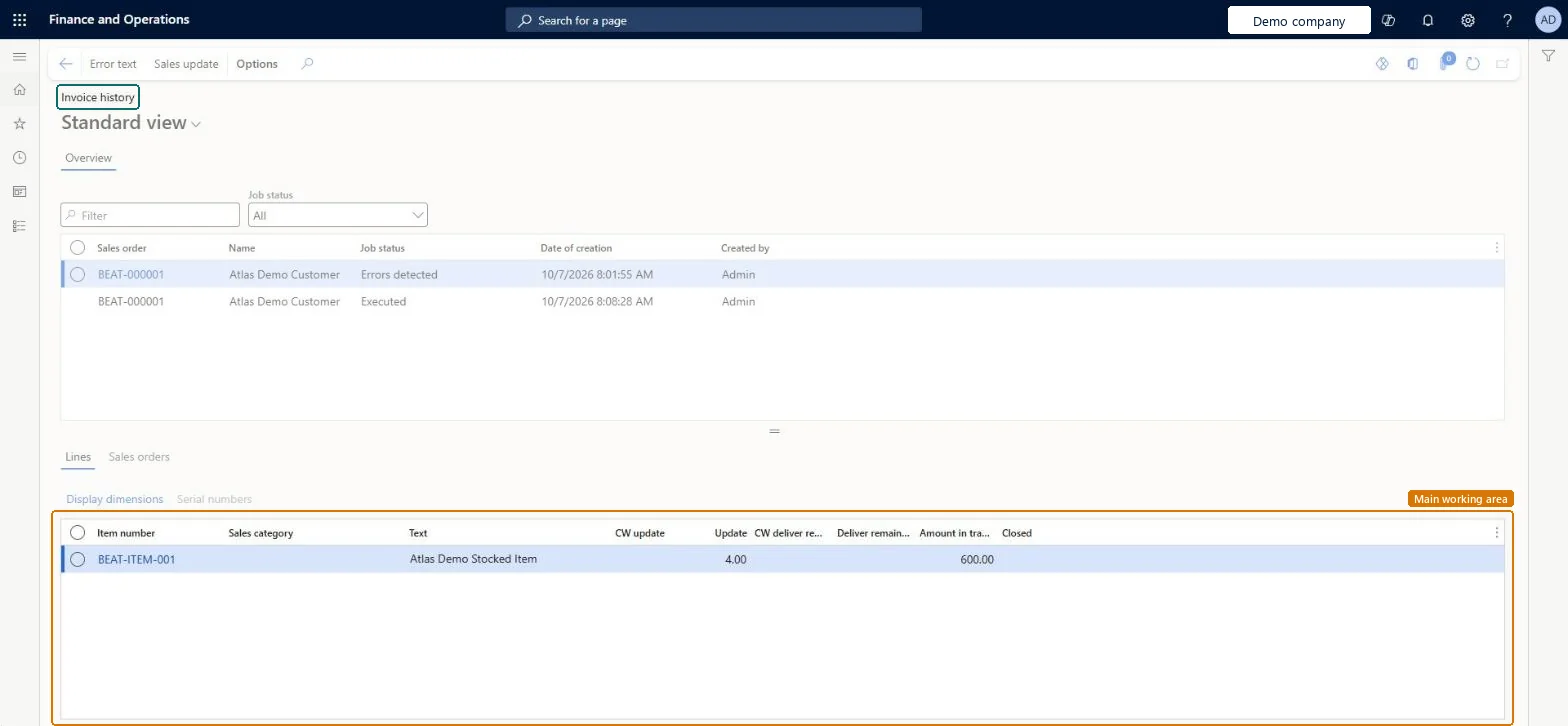
An inquiry page that shows the history of invoicing jobs for sales orders, with the sales order, customer name, job status, date of creation and creator, and the lines of the selected job.
Accounts receivable clerk, Information technology manager
Business process
Invoice sales orders in Dynamics 365 Supply Chain Management
Menu item
SalesPostingHistoryInvoice
Main table
SalesParmTable
Show what matters for
PAGE GUIDEWhat the page does and how to use it7 sections. Choose a role to highlight what matters to you.
Everyone
1What it is and why
What it is
An inquiry page that shows the history of invoicing jobs for sales orders, with the sales order, customer name, job status, date of creation and creator, and the lines of the selected job.
What you do here
Use this page to review invoicing jobs for sales orders and to open the Error text and Sales update details for a selected job.
Example
For example, sales order BEAT-000001 for the demo customer appears with the job status Errors detected and again with the job status Executed.
The page in Dynamics 365. page title tab to open what to set or check
Accounts receivable › Inquiries and reports › Invoices › Invoice history
End user · Functional consultant
3How to do it
About the examples: Examples and screenshots in this guide use BEAT, a demo company in a Dynamics 365 test environment. Use your own company's codes and values instead of copying them.
How to use it
Go to Accounts receivable > Inquiries and reports > Invoices > Invoice history.
Type in the Filter box, or pick a value in the Job status list, to narrow the invoicing jobs shown.
Select a job in the top grid, which shows Sales order, Name, Job status, Date of creation and Created by.
Review the Lines tab below to see the item number, text and amount for the selected job.
Select the Sales orders tab to see the sales orders for the selected job.
Select Error text or Sales update in the Action Pane to open those details for the selected job.
SalesParmTableShown as “Sales order - update table” in Record infoChecked in Dynamics 365
Who can open it
PrivilegesMaintain customer invoice update history SalesPostingHistoryInvoiceMaintainView customer invoice update history SalesPostingHistoryInvoiceViewDutiesMaintain customer invoice transactions CustInvoiceCustomerInvoiceTransMaintainMaintain system settings SysServerSettingsMaintain2 security rolesAccounts receivable clerk CustInvoiceAccountsReceivableClerkInformation technology manager SysServerITManagerChecked in Dynamics 365
Roles to set it up and use it
To set it up or change itAccounts receivable clerk CustInvoiceAccountsReceivableClerkTo use itInformation technology manager SysServerITManagerGive people one of these roles. On this system, 2 roles can open this page.Checked in Dynamics 365
Actions on the page
Options: Personalize, Page options, ShareChecked in Dynamics 365