About the examples: Examples and screenshots in this guide use BEAT, a demo company in a Dynamics 365 test environment. Use your own company's codes and values instead of copying them.
When to run it
When to run it
When you analyze sales volume per customer, for example for account reviews or rebate discussions.
How often
On demand, or at period end for sales analysis.
What the output shows
Customer invoice totals sorted by invoice account or by order account. Totals differ between the two options when customers order on one account and are billed on another.
Go to Accounts receivable > Inquiries and reports > Customers > Customer turnover report.
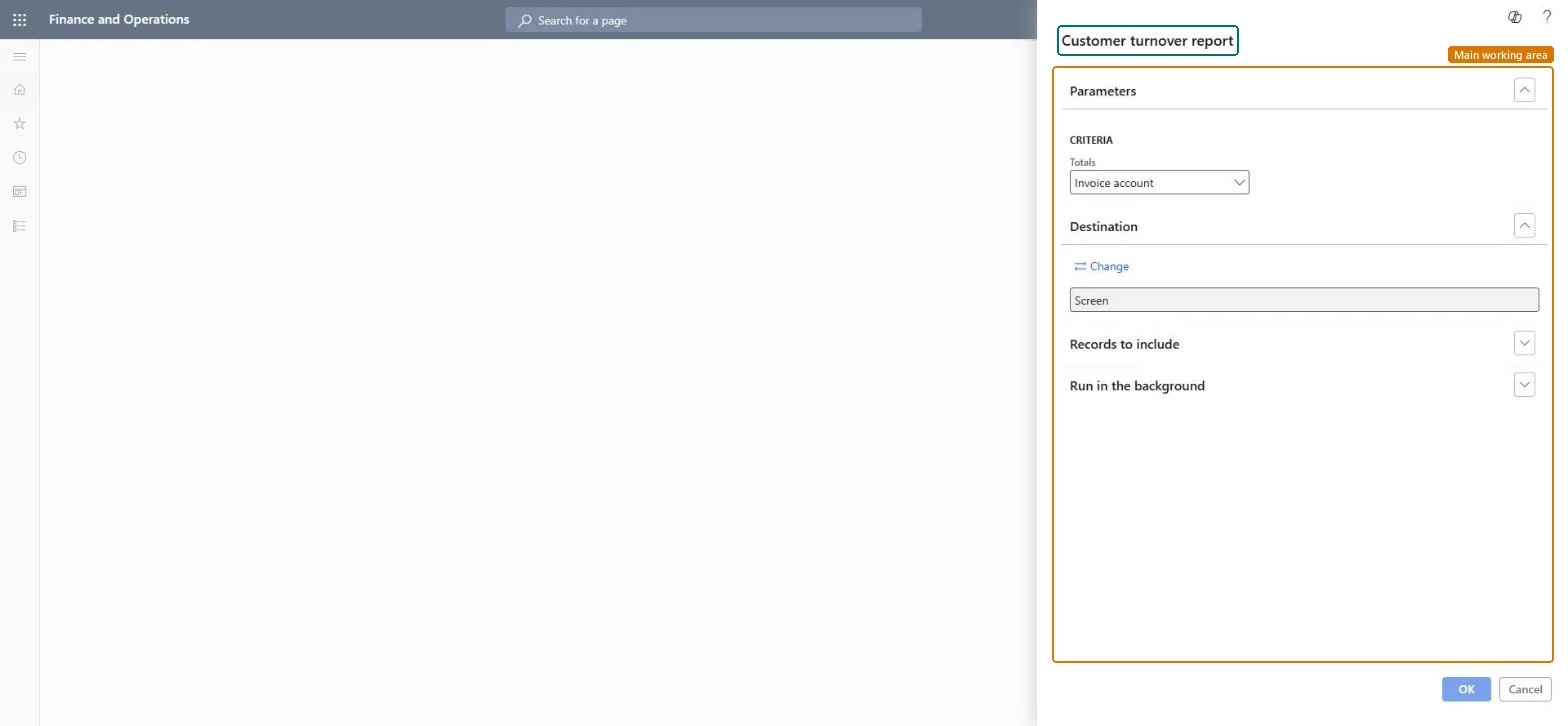
In Criteria (shown as the Totals option), choose Invoice account to total by the account that is billed, or Order account to total by the ordering customer.
Filter on the customers and the invoice period you want totals for.
Run the report and compare the totals of the largest customers with your sales figures.
Chooses whether invoice totals are shown by invoice account or by order account.Microsoft Learn
Solution architect
4Design impact
Can it be undone
Nothing to undo: The report only reads posted invoice totals. Microsoft Learn
Technical architect
5Technical
Menu item
Output:CustRevenueChecked in Dynamics 365
Form
SysOperationTemplateFormChecked in Dynamics 365
Roles to set it up and use it
To use itAccounts receivable manager CustInvoiceAccountsReceivableManagerAccounting manager LedgerAccountingManagerCollections manager CollectionLetterCollectionsManagerFinancial controller LedgerFinancialControllerAuditor AuditPolicyManagerGive people one of these roles. On this system, 9 roles can run this page.Checked in Dynamics 365