BeyondERP.Newsletter
Menu

Report page · Accounts receivable

Customer auditor report

A report that shows the total amounts posted for each posting profile, sorted by customer account.

Business process
Manage accounts receivable
Menu item
Output:CustReport_Auditor
Show what matters for
PAGE GUIDEWhat the page does and how to use it7 sections. Choose a role to highlight what matters to you.
Everyone

1What it is and why

What it isA report that shows the total amounts posted for each posting profile, sorted by customer account.
What you do hereUse this report to review customer postings grouped by the posting profiles that handle invoices, payments, and other transaction types.
ExampleFor example, you can use it to trace customer transactions that were posted to the general ledger.
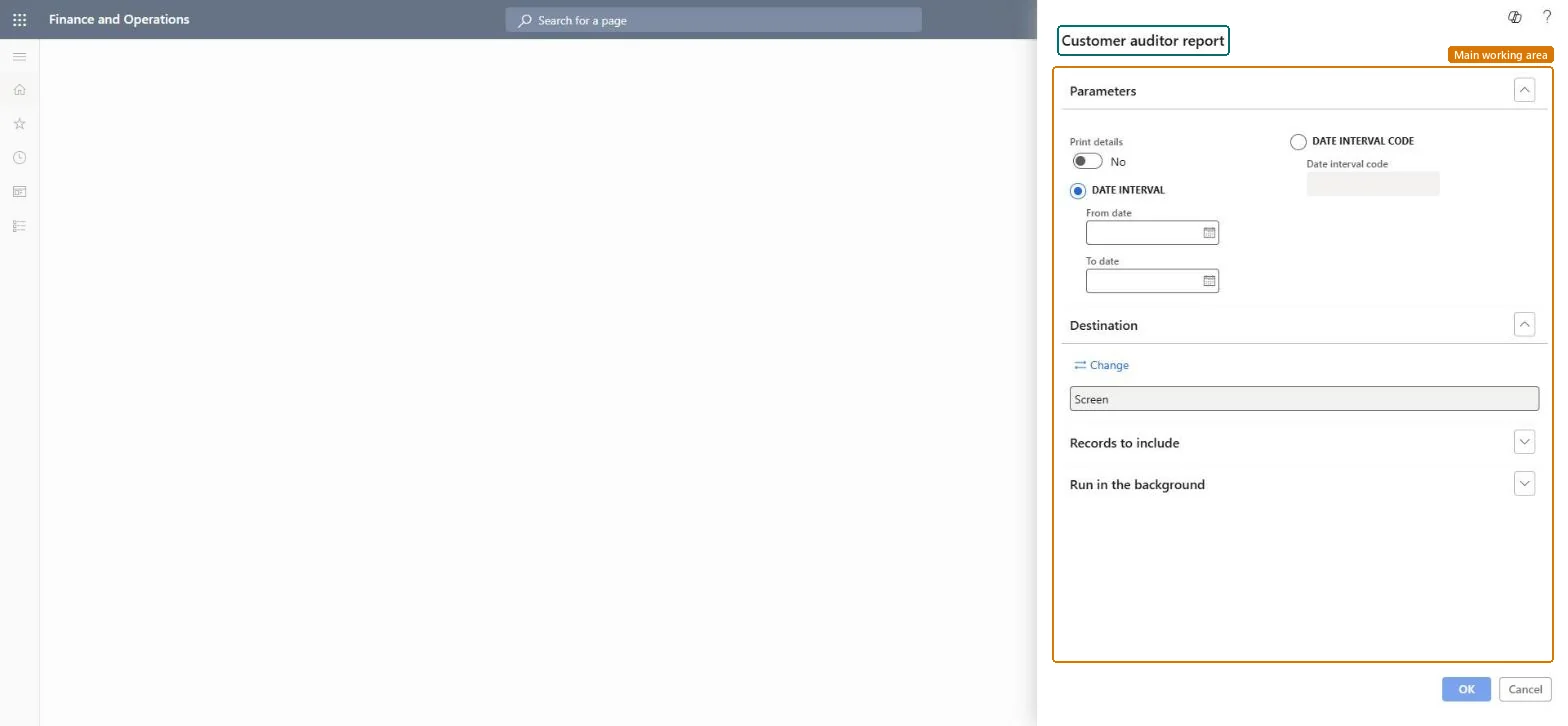
Customer auditor report page in Dynamics 365
The page in Dynamics 365. page title tab to open what to set or check
Functional consultant · Solution architect

2Where it fits

Business processManage accounts receivable
Menu pathAccounts receivable › Inquiries and reports › Customers › Customer auditor report
Set up firstDate intervals Microsoft Learn Customer posting profiles Microsoft Learn
End user · Functional consultant

3How to do it

About the examples: Examples and screenshots in this guide use BEAT, a demo company in a Dynamics 365 test environment. Use your own company's codes and values instead of copying them.

When to run it

When to run itDuring an audit or period close, when you need customer postings totaled per posting profile.
How oftenOn demand, typically at period or year end.
What the output showsTotal amounts posted per posting profile, sorted by customer account, with transactions and opening and closing balances when Print details is on. A total under an unexpected posting profile means the profile was overridden on the transaction or changed on the customer.

Source: Microsoft Learn

Steps from Microsoft

  1. Go to Accounts receivable > Inquiries and reports > Customers > Customer auditor report.
  2. Choose Date interval and enter the From date and To date, or choose Date interval code and pick a predefined range.
  3. Turn on Print details to list each transaction plus the opening and closing balances for the period.
  4. Filter on the customers to audit, run the report and compare the totals per posting profile with the summary accounts in the ledger.

Source: Microsoft Learn

Fields on the page

FieldWhat it means
Print detailsPrints each transaction plus opening and closing balances for the period.Microsoft Learn
Date intervalLets you enter a From date and To date range.Microsoft Learn
Date interval codeA predefined date range to report on.Microsoft Learn
Solution architect

4Design impact

Can it be undoneNothing to undo: The report only reads posted customer transactions. Microsoft Learn
Technical architect

5Technical

Menu itemOutput:CustReport_Auditor Checked in Dynamics 365
FormSysOperationTemplateForm Checked in Dynamics 365
Roles to set it up and use itTo use itAccounts receivable manager CustInvoiceAccountsReceivableManagerAccounting manager LedgerAccountingManagerFinancial controller LedgerFinancialControllerAuditor AuditPolicyManagerChief financial officer CompanyChiefFinancialOfficerGive people one of these roles. On this system, 6 roles can run this page.Checked in Dynamics 365
Developer

6Developer

Open it by URLhttps://<your-environment>/?mi=Output:CustReport_Auditor
Everyone

7Sources