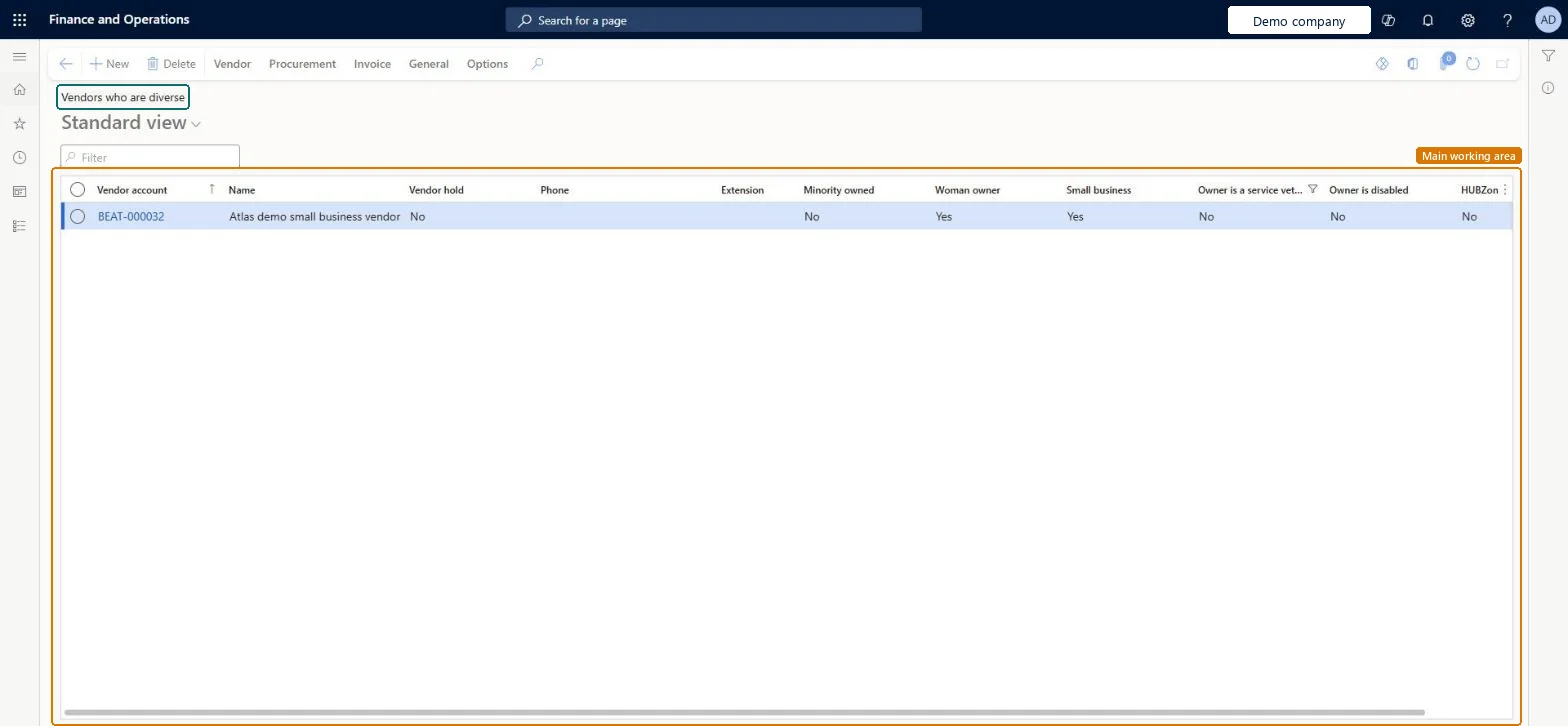
A list page that shows vendors together with their ownership classification fields, such as Minority owned, Woman owner, Small business, Owner is a service veteran, Owner is disabled and HUBZone.
Accounts payable manager, Purchasing agent, Purchasing Agent - Public Sector and 7 more roles
Business process
Develop supplier segments
Menu item
VendTableDiverseListPage
Main table
VendTable
Data entity
VendVendorV2Entity
Show what matters for
PAGE GUIDEWhat the page does and how to use it8 sections. Choose a role to highlight what matters to you.
Everyone
1What it is and why
What it is
A list page that shows vendors together with their ownership classification fields, such as Minority owned, Woman owner, Small business, Owner is a service veteran, Owner is disabled and HUBZone.
What you do here
Use this page to review vendors by ownership classification and to open a vendor record from the list.
The page in Dynamics 365. page title tab to open what to set or check
Accounts payable › Vendors › Vendors who are diverse
End user · Functional consultant
3How to do it
About the examples: Examples and screenshots in this guide use BEAT, a demo company in a Dynamics 365 test environment. Use your own company's codes and values instead of copying them.
How to use it
Go to Accounts payable > Vendors > Vendors who are diverse.
Type in the Filter box to narrow the list.
Scroll across the columns to see Minority owned, Woman owner, Small business, Owner is a service veteran, Owner is disabled and HUBZone for each vendor.
Use the Vendor, Procurement, Invoice and General tabs on the Action Pane to work with a selected vendor.
Select New to add a vendor.
Source: Checked in Dynamics 365
Functional consultant
4Setup decisions
Number sequences
Reference
Shared or per company
Note
Vendor account
Per company
New records on this page take their Vendor account from the VendAccount reference; BEAT uses number sequence Acco_99. Checked in Dynamics 365
PrivilegesMaintain sensitive vendor profile fields VendProfileMaintainView sensitive vendor profile fields VendProfileViewDutiesMaintain additional AP information RentalMaintainAdditionalAPInfoMaintain company information in the vendor collaboration interface VendProfileExternalMaintainView company information in the vendor collaboration interface VendProfileExternalView10 security rolesAuditor AuditPolicyManagerRental manager RentalManagerBuying agent TradeBuyingAgentPurchasing manager TradePurchasingManagerAccounts payable manager VendInvoiceAccountsPayableManagerPurchasing agent VendPurchasingAgentPurchasing Agent - Public Sector VendPurchasingAgent_PSNVendor account manager VendVendorAccountManagerVendor contact (external) VendVendorContactVendor admin (external) VendVendorContactExternalAdminChecked in Dynamics 365
Roles to set it up and use it
To set it up or change itAccounts payable manager VendInvoiceAccountsPayableManagerRental manager RentalManagerPurchasing manager TradePurchasingManagerPurchasing Agent - Public Sector VendPurchasingAgent_PSNPurchasing agent VendPurchasingAgentTo use itAuditor AuditPolicyManagerBuying agent TradeBuyingAgentVendor account manager VendVendorAccountManagerVendor contact (external) VendVendorContactGive people one of these roles. On this system, 10 roles can open this page.Checked in Dynamics 365
Actions on the page
Vendor: Maintain, Copy, Set up, Transactions, Tax information, Related information, RegistrationProcurement: New, Related information, Agreements, Set upInvoice: New, Set up, Settle, Related information, PrepaymentGeneral: Activities, Set up, New, Accounts, Market, StatisticsOptions: Personalize, Page options, ShareChecked in Dynamics 365
VendVendorV2Entity (Vendors V2): loaded for each company, in Microsoft's default template 120 - Accounts payable.Load order: Microsoft's default template 120 - Accounts payable loads Vendors V2 at execution unit 1, level 120, sequence 35. Lower levels load first, and entities at the same level load in sequence order.Load first: the default templates at lower levels (System setup to Bank)Microsoft Learn