BeyondERP.Newsletter
Menu

Master data page · Accounts payable

Vendors past due

A list page that shows vendors that have past due invoices, with each vendor's account, name, hold status and credit limit.

Used by
Auditor, Chief executive officer, Chief financial officer and 19 more roles
Business process
Issue and settle supplier payments
Menu item
VendTablePastDueListPage
Main table
VendTable
Data entity
VendVendorV2Entity
Show what matters for
PAGE GUIDEWhat the page does and how to use it8 sections. Choose a role to highlight what matters to you.
Everyone

1What it is and why

What it isA list page that shows vendors that have past due invoices, with each vendor's account, name, hold status and credit limit.
What you do hereUse this page to see which vendors you owe overdue amounts to and to open a vendor record from the list.
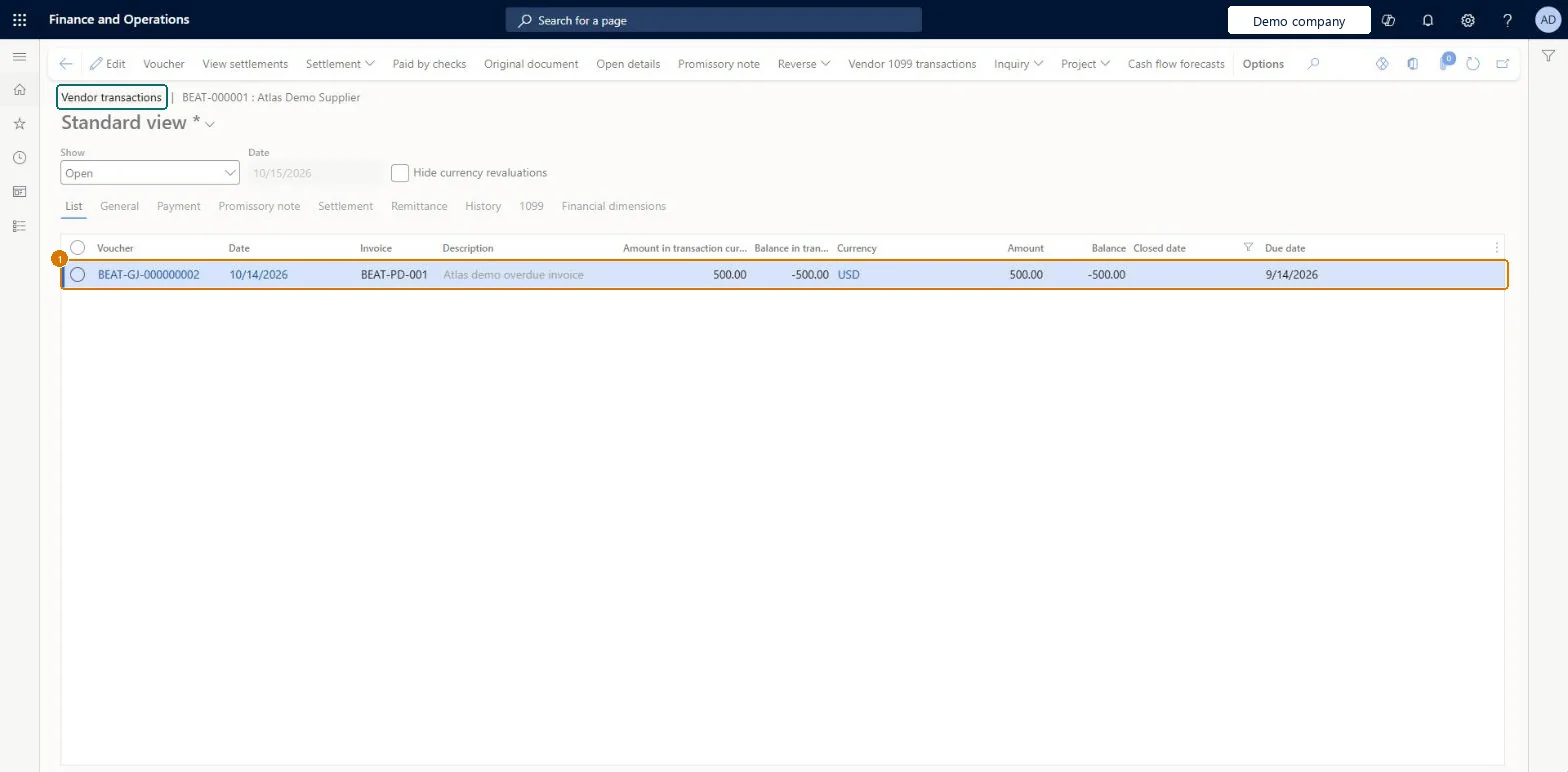
ExampleFor example, vendor BEAT-000001 appears because it has an overdue invoice, BEAT-PD-001, for 500.00 USD.
Vendors past due page in Dynamics 365
The page in Dynamics 365. page title tab to open what to set or check
Functional consultant · Solution architect

2Where it fits

Business processManage accounts payable › Issue and settle supplier payments
Menu pathAccounts payable › Vendors › Vendors past due
End user · Functional consultant

3How to do it

About the examples: Examples and screenshots in this guide use BEAT, a demo company in a Dynamics 365 test environment. Use your own company's codes and values instead of copying them.

Worked example

  1. Screen 1

    See why the vendor is past due

    Go to Accounts payable > Vendors > Vendors past due

    1. Select the vendor
    2. On the Vendor tab, select Transactions
    3. Set Show to Open
    4. Add the Due date column (right-click a column header, Insert columns)

    Check Invoice BEAT-PD-001 is open with a balance of -500.00 and a due date of 9/14/2026. The vendor is listed as past due because that due date is earlier than the date the inquiry is run.

    See why the vendor is past due (zoomed on the outlined fields)
    Show the full screenSee why the vendor is past due
    page title tab to open what to set or check

How to use it

  1. Go to Accounts payable > Vendors > Vendors past due.
  2. Type in the Filter box to narrow the list.
  3. Read the Vendor account, Name, Vendor hold and Credit limit columns for each vendor.
  4. Select a vendor account link to open that vendor.
  5. Use the Vendor, Procurement, Invoice and General tabs on the Action Pane to work with the selected vendor.

Source: Checked in Dynamics 365

Functional consultant

4Setup decisions

Number sequences

ReferenceShared or per companyNote
Vendor accountPer companyNew records on this page take their Vendor account from the VendAccount reference; BEAT uses number sequence Acco_99. Checked in Dynamics 365
Solution architect

5Design impact

Shared or per companyPer company: each legal entity has its own records. Microsoft data model
Technical architect

6Technical

Menu itemVendTablePastDueListPage Checked in Dynamics 365
FormVendTableListPage Checked in Dynamics 365
TableVendTableShown as “Vendors” in Record infoKey field: AccountNumChecked in Dynamics 365
Data entitiesVendVendorV2EntityVendors V2 Microsoft data model DimAttributeVendTableEntityVendors Microsoft data model VendPaymentBIVendTableVendors Microsoft data model VendPaymentBIVendTableV2Vendors Microsoft data model
Who can open itPrivilegesMaintain vendors VendTableMaintainView vendors VendTableViewDuties InvoiceCaptureMaintainInquire into vendor positive payments PaymVendPositivePayInquireInquire into vendor master VendVendorMasterInquireMaintain vendor master VendVendorMasterMaintain
22 security rolesAuditor AuditPolicyManagerChief executive officer CompanyChiefExecutiveOfficerChief financial officer CompanyChiefFinancialOfficerInvoice capture operator InvoiceCaptureOperatorLanded cost agent ITMAgentLanded cost manager ITMManagerAccountant LedgerAccountantAccounting manager LedgerAccountingManagerAccounting supervisor LedgerAccountingSupervisorFinancial controller LedgerFinancialControllerand 12 more
Checked in Dynamics 365
Roles to set it up and use itTo set it up or change itAccounts payable manager VendInvoiceAccountsPayableManagerPurchasing manager TradePurchasingManagerAccounting manager LedgerAccountingManagerPurchasing Agent - Public Sector VendPurchasingAgent_PSNPurchasing agent VendPurchasingAgentTo use itAccounting supervisor LedgerAccountingSupervisorAccounts payable clerk VendInvoiceAccountsPayableClerkChief financial officer CompanyChiefFinancialOfficerFinancial controller LedgerFinancialControllerAccountant LedgerAccountantGive people one of these roles. On this system, 22 roles can open this page.Checked in Dynamics 365
Developer

7Developer

Open it by URLhttps://<your-environment>/?mi=VendTablePastDueListPage
Integrate withVendVendorV2Entity data entity Microsoft data model
Data migrationVendVendorV2Entity (Vendors V2): loaded for each company, in Microsoft's default template 120 - Accounts payable.Load order: Microsoft's default template 120 - Accounts payable loads Vendors V2 at execution unit 1, level 120, sequence 35. Lower levels load first, and entities at the same level load in sequence order.Load first: the default templates at lower levels (System setup to Bank)Microsoft Learn
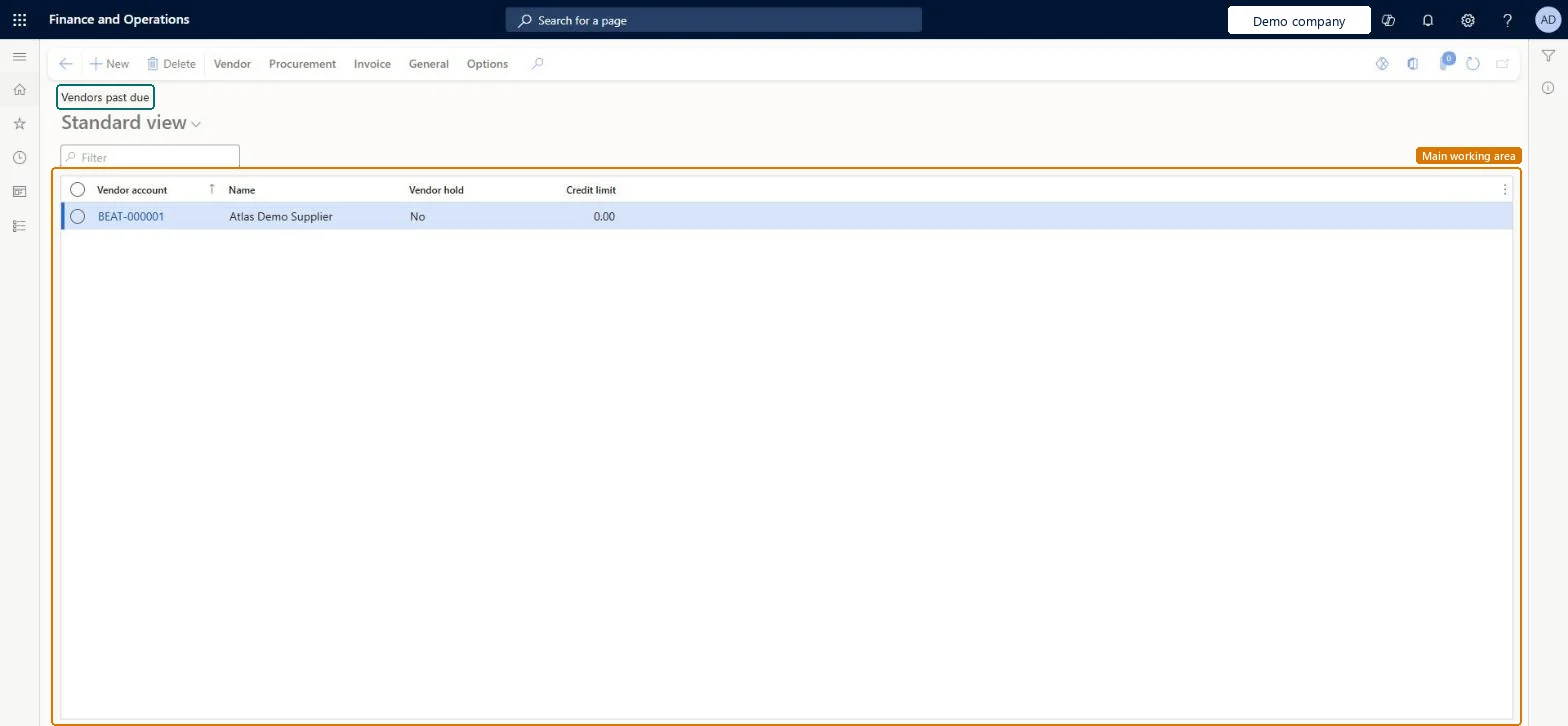
Table definitionVendTable columns and relations Microsoft data model
Everyone

8Sources