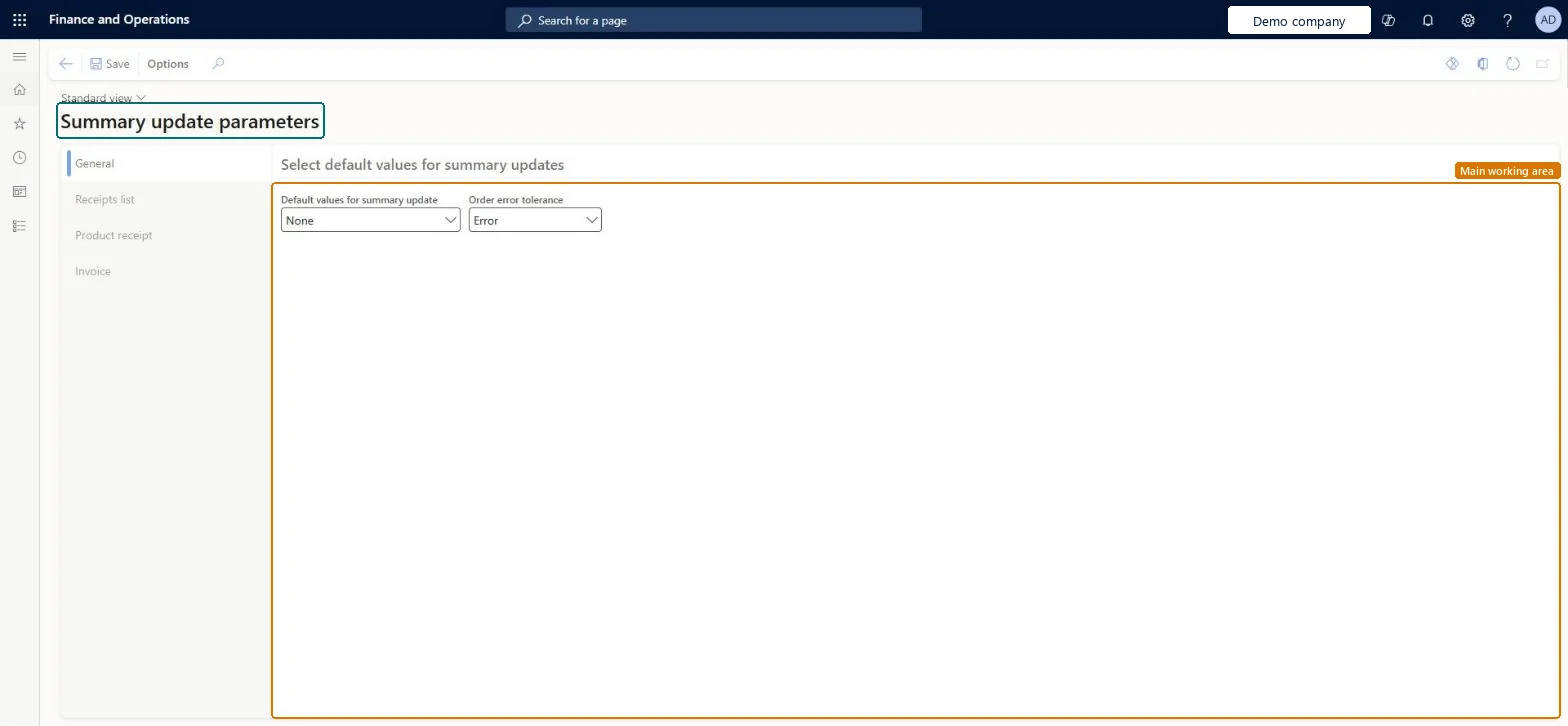
A setup page holding the legal entity's default values for summary update, which controls whether multiple purchase orders are consolidated into a single vendor invoice.
Maintain vendors in Dynamics 365 Supply Chain Management
Menu item
PurchSummaryParameters
Main table
PurchParameters
Data entity
PurchProcurementDocumentEntryPolicyEntity
Setup steps
1 on this page
Show what matters for
PAGE GUIDEWhat the page does and how to use it8 sections. Choose a role to highlight what matters to you.
Everyone
1What it is and why
What it is
A setup page holding the legal entity's default values for summary update, which controls whether multiple purchase orders are consolidated into a single vendor invoice.
What you do here
Use this page to set the initial Summary update for value that appears in future posting dialogs; the value in the posting dialog still governs each posting.
Example
If summary updating isn't your organization's intended practice and posting keeps failing with 'Summary order must be specified', you set the default value for summary update to None.
The page in Dynamics 365. page title tab to open what to set or check
About the examples: Examples and screenshots in this guide use BEAT, a demo company in a Dynamics 365 test environment. Use your own company's codes and values instead of copying them.
Step by step, with screenshots
Set up Summary update parameters1 screen
Sets the legal-entity default for whether and how several purchase orders are consolidated into one document when receipts or invoices are posted.
Screen 1
Set the summary update defaults
Go to Accounts payable > Setup > Summary update parameters, General tab
Open the General tab
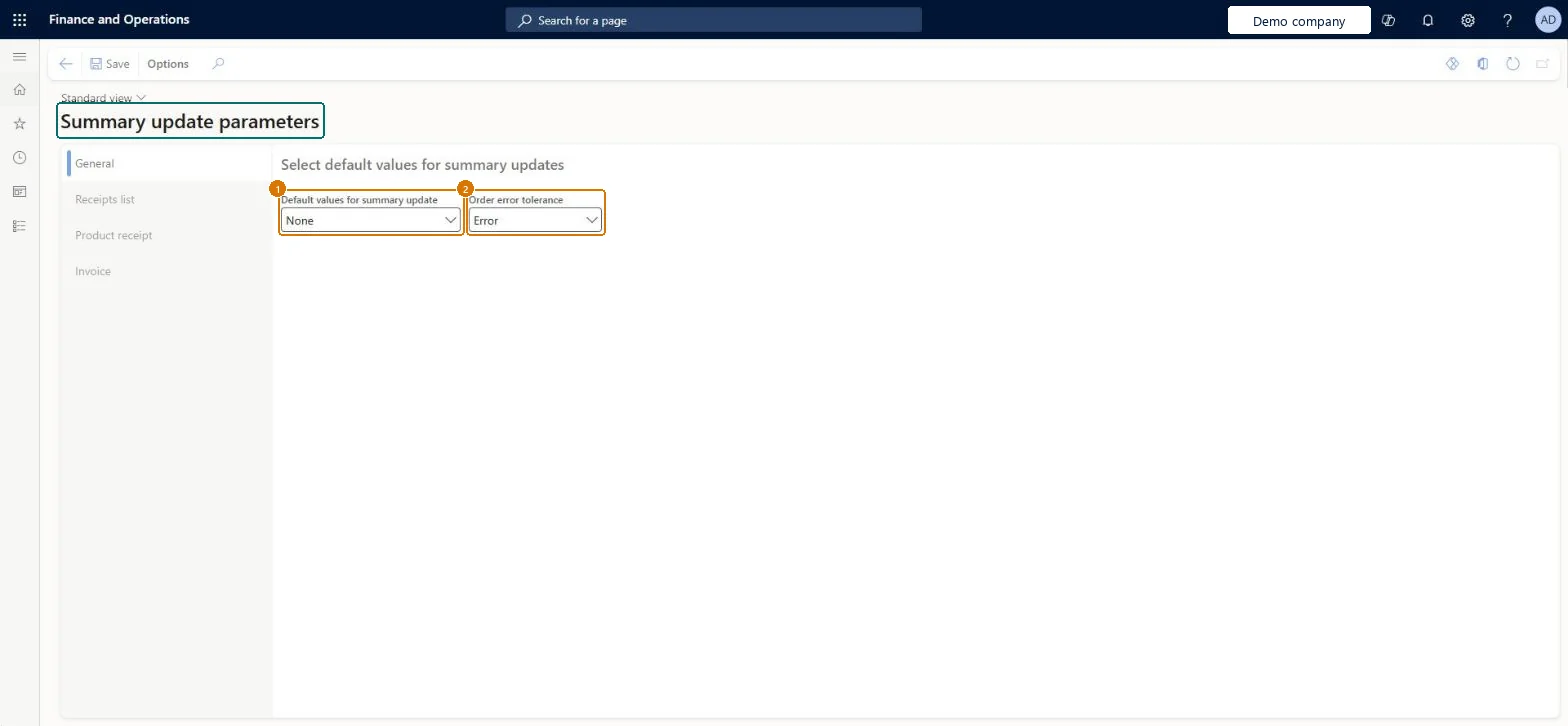
Set Default values for summary update and Order error tolerance
Select Save
1Default values for summary update
None
2Order error tolerance
Error
Show the full screen page title tab to open what to set or check
Steps from Microsoft
Go to Summary update parameters.
Open the General tab.
Set Default values for summary update to the value your organization normally uses, for example None when purchase orders shouldn't be combined on one invoice.
The starting value for Summary update for in future vendor invoice posting dialogs in this legal entity.Microsoft Learn
None
SummaryUpdateBy
Order error tolerance
Error
SummaryErrorTolerance
Common errors and fixes
Message
What to do
Summary order must be specified.
Reopen the posting dialog and set Summary update for to None, or select a valid summary order from the selected purchase orders, then post again. Microsoft Learn
Test checklist
Set the default and save.
Open the vendor invoice posting dialog for two purchase orders of one vendor.
Check Summary update for shows the default.
Post and check one invoice per order (None) or one combined invoice (Order with a summary order).
Default values for summary update set to how the legal entity really invoices purchase orders; None when each purchase order is invoiced on its ownThe parameter only supplies the starting value of Summary update for in future posting dialogs. Learn advises None only when no summary updating is the intended default for that legal entity.
Default set to Order when users don't pick a summary order: vendor invoice posting stops with 'Summary order must be specified.' Changing the parameter doesn't fix an invoice already open in the posting dialog.
Reversible: The default only initializes future posting dialogs in the legal entity. Microsoft Learn
If you change it later
A change only sets the default for future postings. It doesn't change posted documents or an invoice that is already open for posting. Microsoft Learn
Technical architect
6Technical
Menu item
PurchSummaryParametersChecked in Dynamics 365
Form
PurchSummaryParametersChecked in Dynamics 365
Table
PurchParametersShown as “Purchase parameters” in Record infoChecked in Dynamics 365
Data entities
PurchProcurementDocumentEntryPolicyEntityProcurement type document entry policies Microsoft data model PurchProcurementDocumentDefaultsEntityProcurement type document default values Microsoft data model PurchProcurementDocumentProcessingPolicyEntityProcurement type document processing policies Microsoft data model
Who can open it
PrivilegesMaintain accounts payable parameters VendParametersMaintainDutiesEnable purchasing process ProcPurchasingProcessEnableEnable purchase order to invoice process PurchOrderToInvoiceProcessEnableEnable invoice and payment process VendInvoiceInvoicePaymentProcessEnable3 security rolesAccounting supervisor LedgerAccountingSupervisorPurchasing manager TradePurchasingManagerAccounts payable manager VendInvoiceAccountsPayableManagerChecked in Dynamics 365
Roles to set it up and use it
To set it up or change itAccounts payable manager VendInvoiceAccountsPayableManagerAccounting supervisor LedgerAccountingSupervisorPurchasing manager TradePurchasingManagerGive people one of these roles. On this system, 3 roles can open this page.Checked in Dynamics 365
Actions on the page
Options: Personalize, Page options, Edit, ShareChecked in Dynamics 365
Checked in a working Dynamics 365 system, version 10.0.49: the menu item, form, table and security, the page, the demo records and the values in the screenshots.