PAGE GUIDEWhat the page does and how to use it7 sections. Choose a role to highlight what matters to you.
Everyone
1What it is and why
What it is
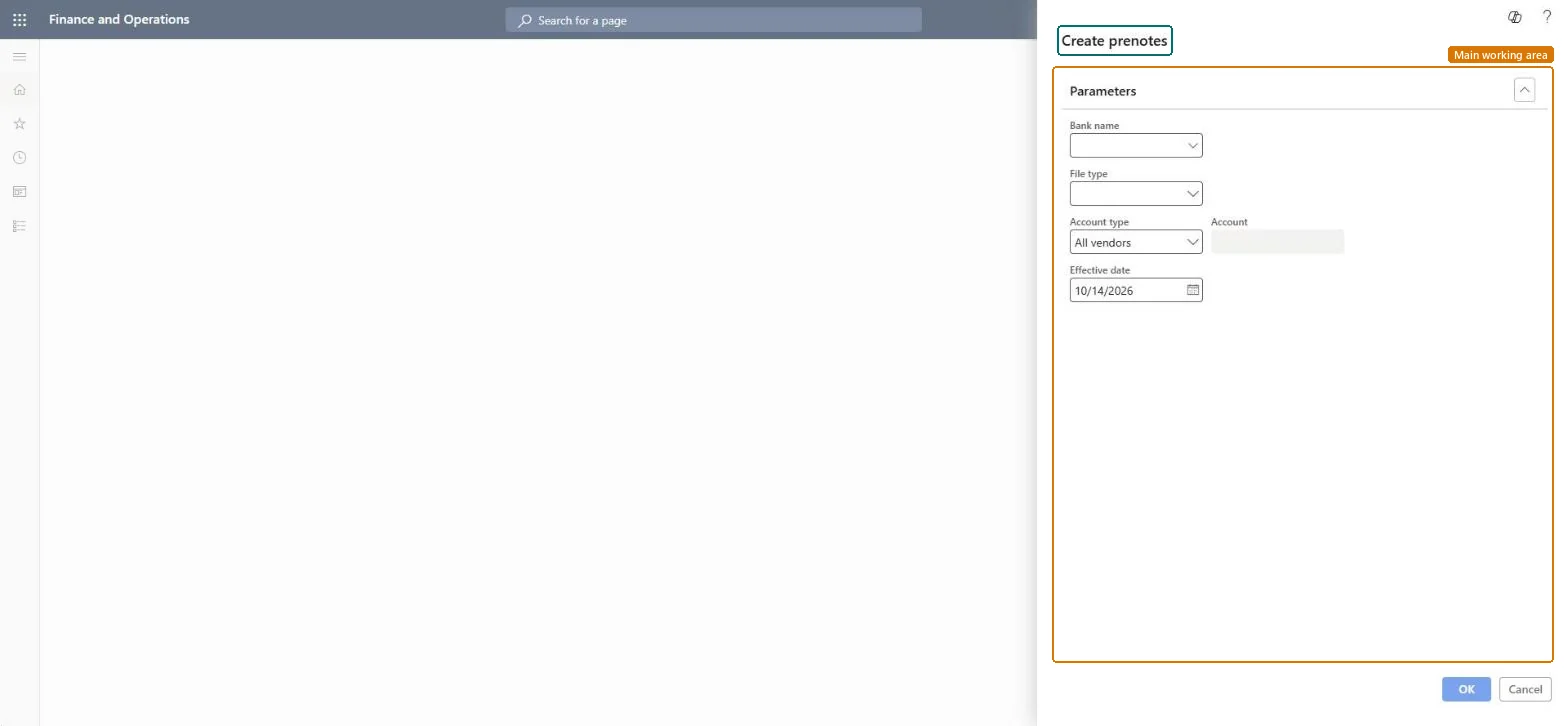
A periodic job that creates vendor (or customer) prenotes for your organization's bank.
What you do here
Use this periodic task to create a prenote file that the bank uses to check vendor bank account data, such as routing numbers and account numbers, before electronic payments are made.
The page in Dynamics 365. page title tab to open what to set or check
About the examples: Examples and screenshots in this guide use BEAT, a demo company in a Dynamics 365 test environment. Use your own company's codes and values instead of copying them.
When to run it
When to run it
When a vendor bank account is new or changed, before you pay the vendor electronically.
How often
On demand, each time vendor bank details are added or changed.
What the output shows
A prenote file for your bank with the routing and account numbers of the selected vendor bank accounts. A vendor missing from the file usually has no bank account that matches the selection.
Your organization's bank that the prenotes are created for.Microsoft Learn
File type
The prenote file type, such as CCD, CTX or PPD; check with your bank.Microsoft Learn
Account type
Which accounts to create prenotes for, such as all vendors or one vendor.Microsoft Learn
Account
The single account the prenote is for, when the account type is Customer or Vendor.Microsoft Learn
Solution architect
4Design impact
Can it be undone
No: The prenote file is created for the bank; recreate it if the data was wrong. Microsoft Learn
If you change it later
Creates prenotes for the selected vendor bank accounts so the bank can check routing and account numbers before electronic payments. Microsoft Learn
Technical architect
5Technical
Menu item
Action:PrenoteAPChecked in Dynamics 365
Form
DialogChecked in Dynamics 365
Roles to set it up and use it
To use itAccounts payable manager VendInvoiceAccountsPayableManagerAccounting supervisor LedgerAccountingSupervisorAccountant LedgerAccountantTreasurer PaymTreasurerGive people one of these roles. On this system, 4 roles can run this page.Checked in Dynamics 365