About the examples: Examples and screenshots in this guide use BEAT, a demo company in a Dynamics 365 test environment. Use your own company's codes and values instead of copying them.
Step by step, with screenshots
Set up Process automations1 screen
Schedules recurring vendor payment proposal series that select invoices by relative dates and create unposted payment journals automatically.
Screen 1
Schedule the vendor payment proposal
Go to Accounts payable > Payment setup > Process automations, Scheduled tab
On the Scheduled tab, select Create new process automation
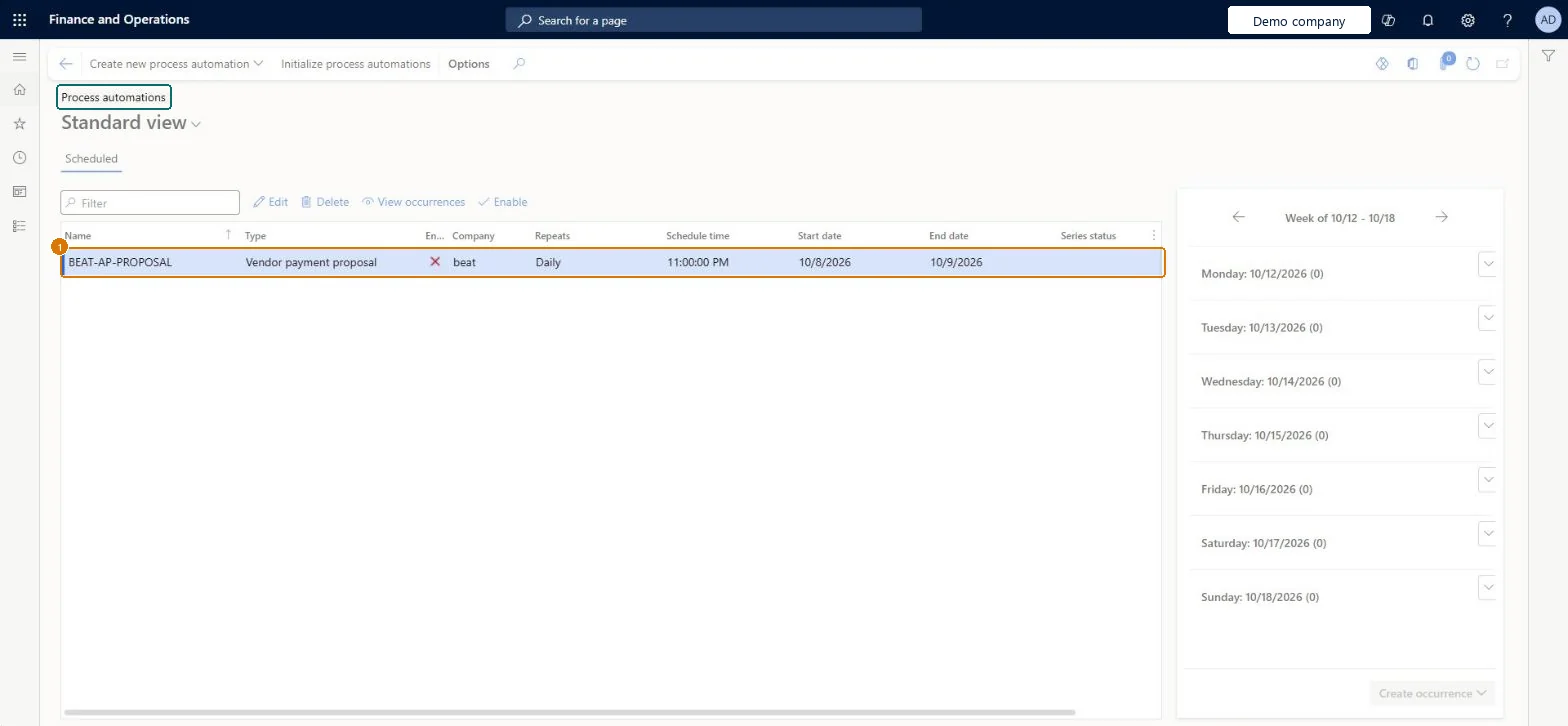
Name the series BEAT-AP-PROPOSAL and choose Vendor payment proposal
Set how often it repeats, the time and the date range
Select Enable when you want it to start running
Type
Vendor payment proposal
Company
beat
Repeats
Daily
Schedule time
11:00:00 PM
Start date
10/8/2026
End date
10/9/2026
Show the full screen page title tab to open what to set or check
How to use it
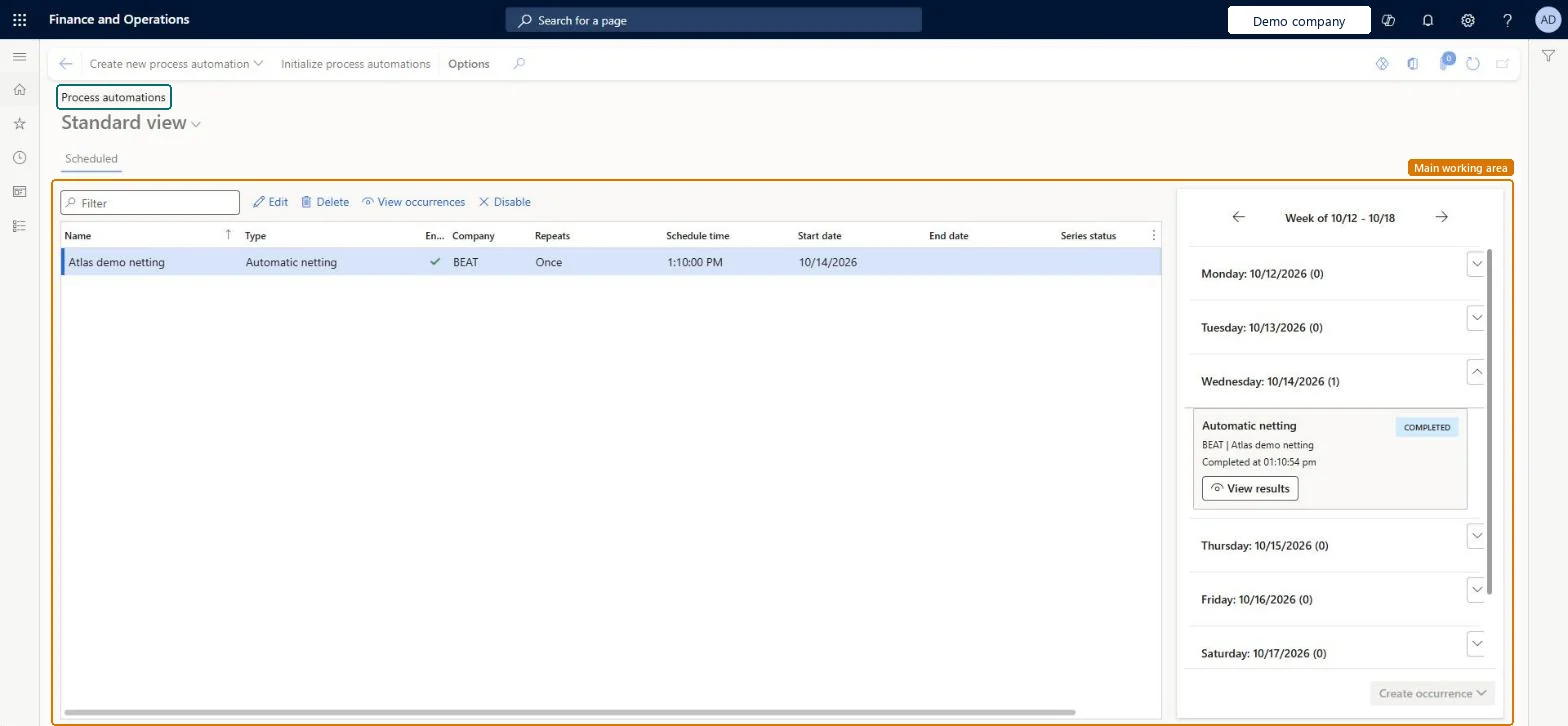
Go to Accounts payable > Payments > Netting > Process automations.
Select Create new process automation to schedule a new one.
Select an existing automation in the Scheduled list, then select Edit, Delete or Disable.
Select View occurrences to see the runs for the selected automation.
Use the week calendar on the right to check each day's runs, and select View results on a completed run.
Select Initialize process automations to set up the automations.
One vendor payment proposal series per payment run (for example Domestic_Check weekly on Monday at an early time such as 2:00 AM), with Define to date criteria set to Yes and a relative day adjustmentAll dates are relative because the proposal date changes every run, and an early schedule finishes before the business day. The journals are created unposted, so existing approvals still apply.
Reversible: A scheduled series can be edited or disabled on the Process automation page; netting already posted by a run is reversed from Netting history. Microsoft Learn
Technical architect
6Technical
Menu item
CustVendNettingAutomationScheduleSeriesChecked in Dynamics 365
Form
ProcessScheduleSeriesChecked in Dynamics 365
Table
ProcessScheduleSeriesShown as “Schedule series” in Record infoChecked in Dynamics 365
To set it up or change itAccounts payable payments clerk PaymAccountsPayablePaymentsClerkAccounts receivable payments clerk PaymAccountsReceivablePaymentsClerkGive people one of these roles. On this system, 2 roles can open this page.Checked in Dynamics 365
Actions on the page
Buttons: Create new process automation, Initialize process automationsChecked in Dynamics 365
Checked in a working Dynamics 365 system, version 10.0.49: the menu item, form, table and security, the page, the demo records and the values in the screenshots.