BeyondERP.Newsletter
Menu

Setup page · Accounts payable

Cover page for payments report

A public sector setup page for the cover and signature pages of a payments report.

Used by
Accounts payable manager, Accounting supervisor
Business process
Issue and settle supplier payments
Menu item
VendCoverPageSetup
Main table
VendCoverPageLayout
Setup steps
1 on this page
Show what matters for
PAGE GUIDEWhat the page does and how to use it7 sections. Choose a role to highlight what matters to you.
Everyone

1What it is and why

What it isA public sector setup page for the cover and signature pages of a payments report.
What you do hereUse this page to specify what appears on the cover and signature pages, such as the number of signature lines and the names and titles of signatories.
ExampleYou list the names and titles of the people who must approve the proposed payments so they print on the signature page.
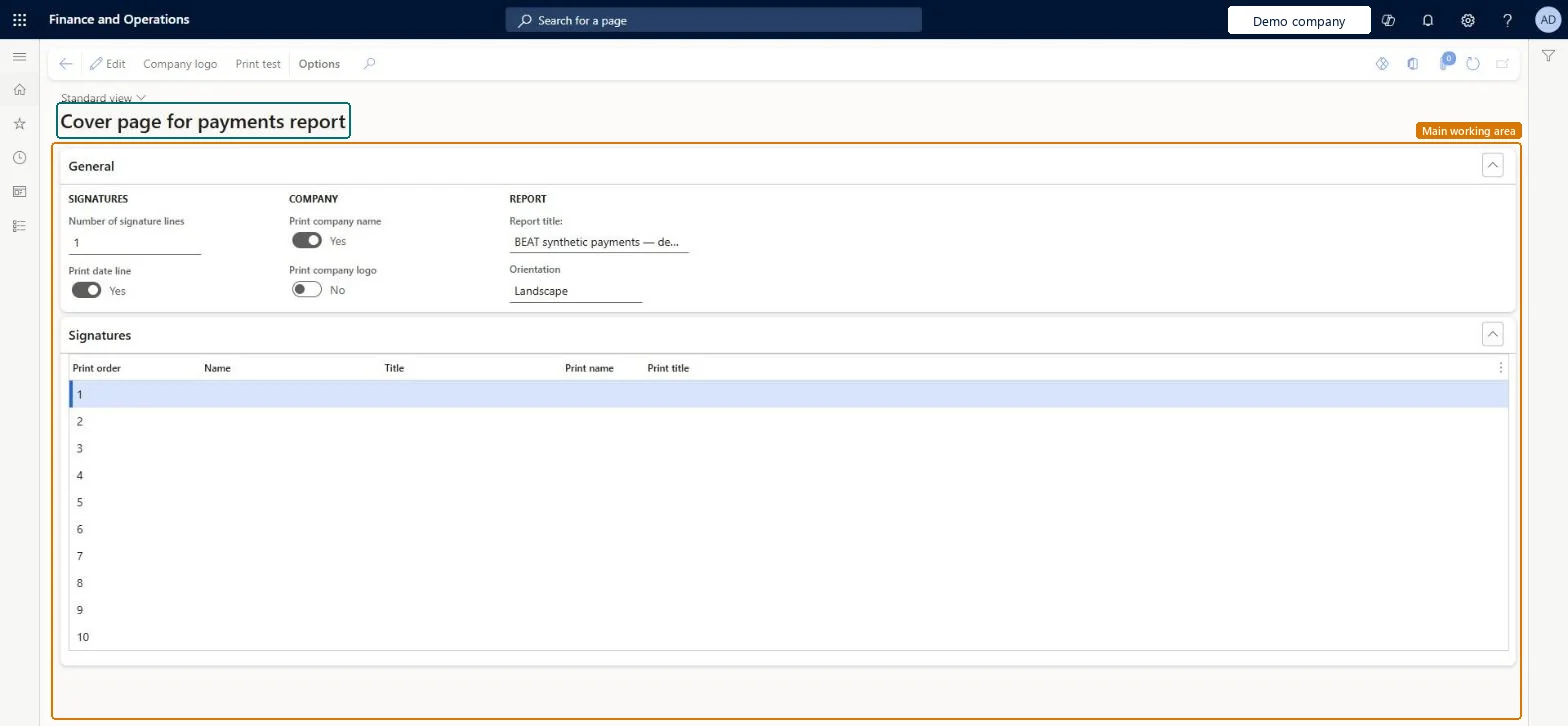
Cover page for payments report page in Dynamics 365
The page in Dynamics 365. page title tab to open what to set or check
Functional consultant · Solution architect

2Where it fits

Business processManage accounts payable › Issue and settle supplier payments
Menu pathAccounts payable › Payment setup › Cover page for payments report
End user · Functional consultant

3How to do it

About the examples: Examples and screenshots in this guide use BEAT, a demo company in a Dynamics 365 test environment. Use your own company's codes and values instead of copying them.

Step by step, with screenshots

Set up Cover page for payments report1 screen

Defines the number of signature lines and the names and titles printed on the cover and signature pages of a payments report.

  1. Screen 1

    Set up the payments report cover page

    Go to Accounts payable > Payment setup > Cover page for payments report, General section

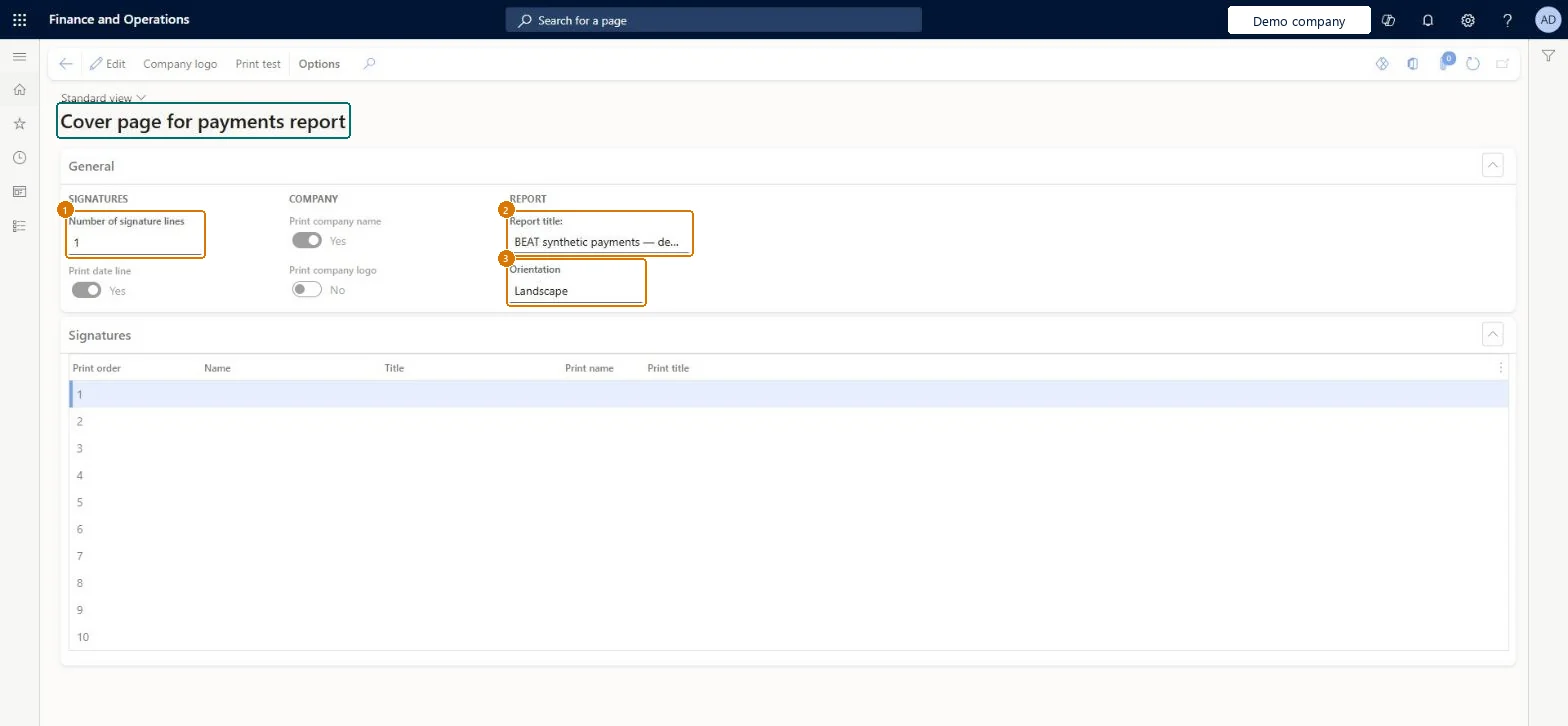
    1. Select Edit
    2. Enter Number of signature lines
    3. Enter Report title and set Orientation
    1Number of signature lines1
    2Report titleVendor payments
    3OrientationLandscape
    Print company nameYes
    Print company logoNo
    Set up the payments report cover page (zoomed on the outlined fields)
    Show the full screenSet up the payments report cover page
    page title tab to open what to set or check

Steps from Microsoft

  1. Go to Accounts payable > Payment setup > Cover page for payments report.
  2. Select Edit.
  3. In the Number of signature lines field, select an option.
  4. Enter the Name and Title of each person who signs.
  5. Optionally, select Print name and Print title to print them on the report.
  6. Add more names if needed, then save.

Source: Microsoft Learn

Fields on the page

FieldWhat it meansExampleTable column
Number of signature linesHow many signature lines appear on the report.Microsoft Learn 1NumberofSignatures
Print namePrints the signatory's name on the report.Microsoft Learn PrintSignatureName
Print titlePrints the signatory's title on the report.Microsoft Learn PrintSignatureTitle
Report titleVendor paymentsReportTitle
OrientationLandscapeCoverPageOrientation
Print company nameYesPrintCompanyName
Print company logoNoPrintCompanyLogo

Test checklist

  1. Select the Number of signature lines and add a name and title for each signatory.
  2. Select Print name and Print title.
  3. Print the payments report and check the cover and signature pages show the names and titles.

Source: Microsoft Learn

Solution architect

4Design impact

Shared or per companyPer company: each legal entity has its own records. Microsoft data model
Can it be undoneReversible: The page only controls what prints on the cover and signature pages of the payments report; it can be edited at any time. Microsoft Learn
Technical architect

5Technical

Menu itemVendCoverPageSetup Checked in Dynamics 365
FormVendCoverPageLayout Checked in Dynamics 365
TableVendCoverPageLayoutShown as “Cover Page Layout Table” in Record infoKey field: RecIdChecked in Dynamics 365
Who can open itPrivilegesMaintain the cover page for vendor payment reports VendCoverPageSetupMaintainDutiesEnable invoice and payment process VendInvoiceInvoicePaymentProcessEnable
2 security rolesAccounting supervisor LedgerAccountingSupervisorAccounts payable manager VendInvoiceAccountsPayableManager
Checked in Dynamics 365
Roles to set it up and use itTo set it up or change itAccounts payable manager VendInvoiceAccountsPayableManagerAccounting supervisor LedgerAccountingSupervisorGive people one of these roles. On this system, 2 roles can open this page.Checked in Dynamics 365
Actions on the pageOptions: Personalize, Page options, ShareChecked in Dynamics 365
Developer

6Developer

Open it by URLhttps://<your-environment>/?mi=VendCoverPageSetup
Table definitionVendCoverPageLayout columns and relations Microsoft data model
Everyone

7Sources